


An efficient eCommerce store involves having a system that shows available stock and excludes out-of-stock products from the search results.
Doofinder has an automated tool that excludes the 'out of stock' products efficiently. Before activating it, ensure that there's a field for "availability" in your product feed, with the value "out of stock".
Once that’s done, you can proceed to exclude the out of stock results using the following steps:
-
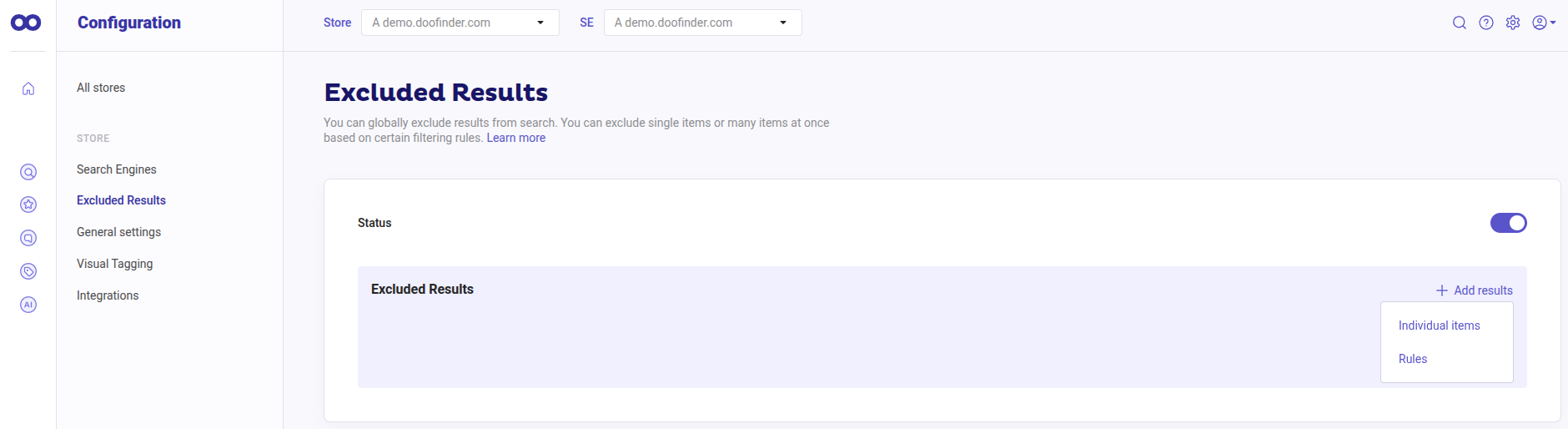
In your Admin Panel, go to Configuration > Excluded Results.
-
Add results > Rules > availability > out of stock.
- Click on "Add rule" and then “Save”.
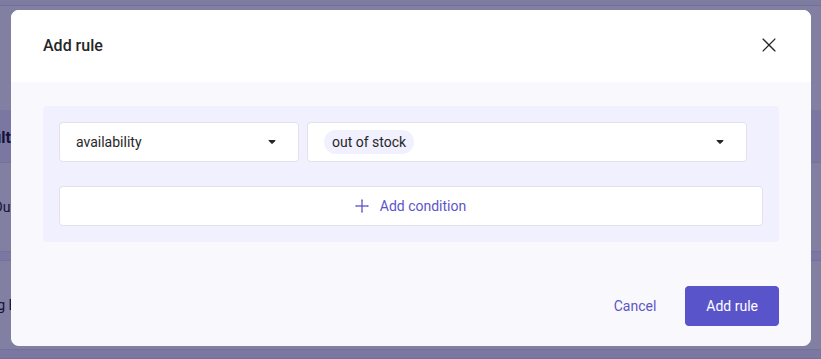
Whenever your products go out of stock, Doofinder will automatically exclude those items from search results. Once the stock is re-established, and the status is changed to availability: in stock, the products will once again appear in the search results. Reindexing the feed is necessary, see how to do it manually clicking here!
Excluding the products will affect all services like Search, the Initial Results of your Layer, Recommendations, Quiz, etc.
Exclude Out of Stock Products Only from Initial Results
Currently, it is not possible to exclude out of stock products only from the Initial Results of your Layer. Doofinder offers two options to exclude out of stock products, and neither of them applies only to Initial Results:
| Option | Where to find it | What it affects |
|---|---|---|
| Excluded Results rule | Configuration > Excluded Results | All services: Search results, the Initial Results of your Layer, Recommendations, Quiz, etc. |
| Exclude out of stock products from carousel | Recommendations > your carousel > What do you want to show? > Advanced settings | Only the Recommendations carousel. It does not affect the Layer or its Initial Results. |
Workaround: Use a Custom Result in Initial Results
To hide out of stock products only from the Initial Results, apply a Custom Result to the Query for recommended products:
- Go to Search > Promotional Tools > Custom Results and create a Custom Result with a search term, for example "recommended".
- In Included Items, add the products you want to show in the Initial Results.
- In Excluded Items, click on "+Add results" > "Rules", select availability > out of stock, click on "Add rule" and then "Save".
- Go to Search > Layer Settings, open the Layer's configuration, and type the same search term in the "Query for recommended products" field of the Search Sequence. Then, click on "Save".
Learn more on how to apply a Custom Result in the Query for recommended products.
With this workaround, the Initial Results show the products of the Custom Result instead of the most popular products.