


Search Fields decide which fields of your data feed the Search Engine looks at when a customer searches, and how important each one is with respect to the rest. The higher the weight of a field, the more a match inside it pushes the product up in the results.
The amount of content in a field matters too. The larger the content of a field, the more irrelevant the terms inside it become. The term Apple in a description field counts for much less than the same term in the brand or title field.
The default configuration includes df_all, a field that covers the content of all the indexed fields of your feed. A term that sits in a field with no weight of its own is still searchable through df_all, so your searches work without a specific field for every attribute. What a dedicated field adds is precision and weight, so that a match there counts for more than a match anywhere else in the feed.
Doofinder manages Search Fields to keep your search results relevant. Your configuration stays visible in the panel, and we take care of any change you need.
How to index additional fields
By default, Doofinder doesn't index every field detected in your feed. Instead, it automatically indexes a set of essential fields needed for the connection to work, covering things like: identifiers, product info, pricing, images, stock/availability, and a few internal Doofinder attributes. See more here.
If you need other feed fields indexed beyond these defaults, you can add them yourself. It is done from your data source, by choosing the attributes detected in your feed in the Select the fields to be indexed dropdown and reindexing afterwards, so the new fields are picked up. How To Index Your Feed has the steps and the screenshot.
Choosing which fields are indexed is available for plugin and feed integrations. It is not available for data indexed through Doofinder's own API.
Indexing a field makes it available to the Search Engine. Giving it weight in Search Fields is a separate step, and that one is done by Doofinder.
Where to See Your Search Fields
- Go to your Admin Panel > Search > Advanced Preferences > Search fields.
- In the top bar, select the Store and the Search Engine whose configuration you want to see.
The list shows each field currently in use and its weight, where 10 is the highest value and 1 the lowest.
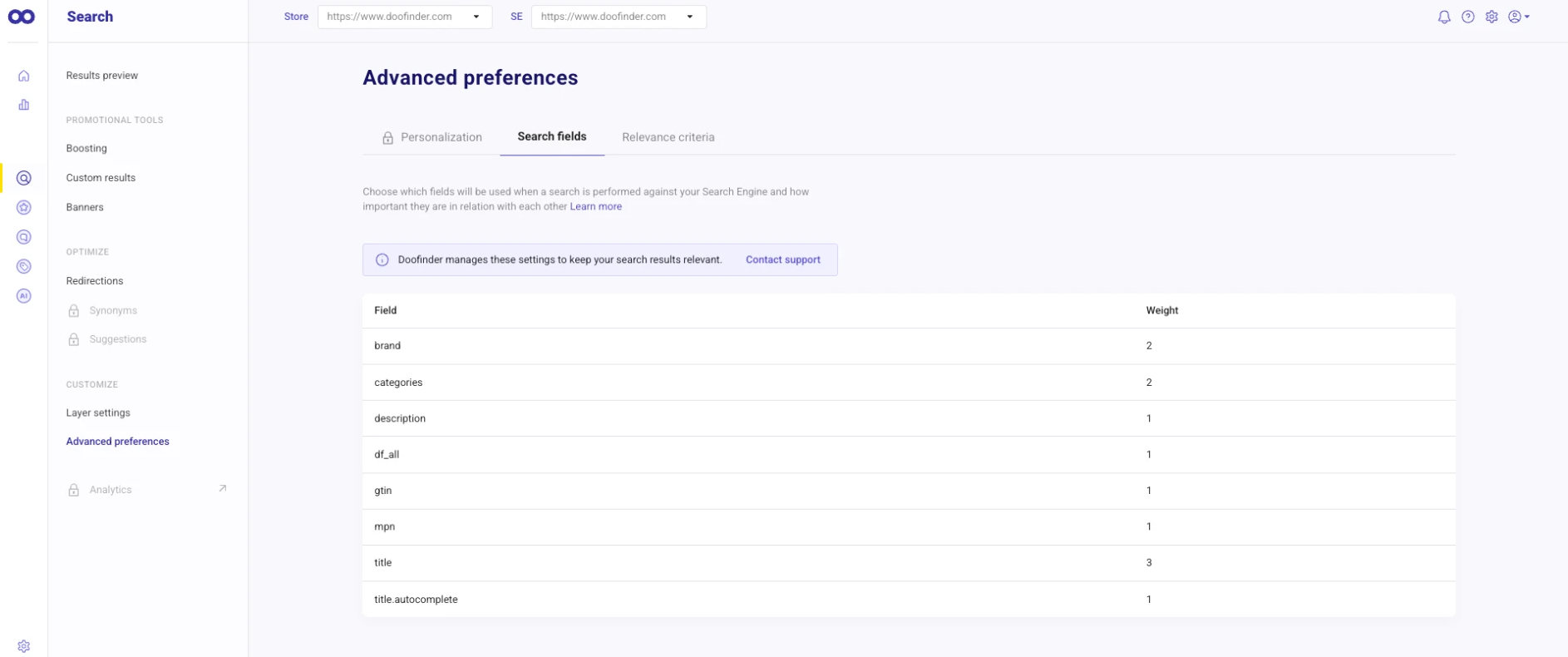
To check how the configuration behaves with real searches, use Results Preview.
Other Search Field Types
In addition to the most frequent fields (brand, color or categories) there are other fields such as:
-
brand.autocomplete: as its name suggests, this field is specially designed to search based on parts of the brand.
-
id.light.explode: this field improves the relevance for searches with the ID attribute.
-
df_all: this field includes in the search the content of all the indexed fields of the data feed, enabling searches also in the rest of the fields not expressly selected. It is not optimized in any special way, so the search in this field may be less precise and is therefore assigned a low weight. It is also responsible for allowing a perfect match on searches whose terms are in different fields.
-
gtin.light.explode and mpn.light.explode: these fields allow the search engine to use parts of the reference number of a product to perform searches.
-
title.autocomplete: as its name suggests, this field is specially designed to search based on parts of the title.
-
title.autocomplete_start: this field improves the relevance for searches of a single term. It does so by assigning more weight to results where the title starts with the same word as the term searched.
The number of fields available may vary between sites, platforms, etc. Any field indexed from the data in your feed, if you use one of our plugins, may be present because it was added as custom attribute or because it was selected by the plugin developers as interesting for search.
If you have any doubt about your Search Fields, if you need a specific configuration or a change in them, or if you want the same configuration in another Search Engine, contact our Support Team and we will take care of it.