


Start by Updating the Module
Make sure you are running the latest version of the module before going through the checks below. Settings have moved out of the module and into the Doofinder Admin Panel, so an outdated module does not behave as this article describes.
See the How Do I Update The Module? section of Installation Steps - JTL.
Step 1: Unable To Download Plugin
If you download the Plugin and instead of appearing in your active plugins and go to the configuration directly, it shows as "failed" (in German "Fehlerhaft").
You have the option to download the plugin by clicking clicking here and upload it manually.
To do so, select the "Upload tab and choose the corresponding file.
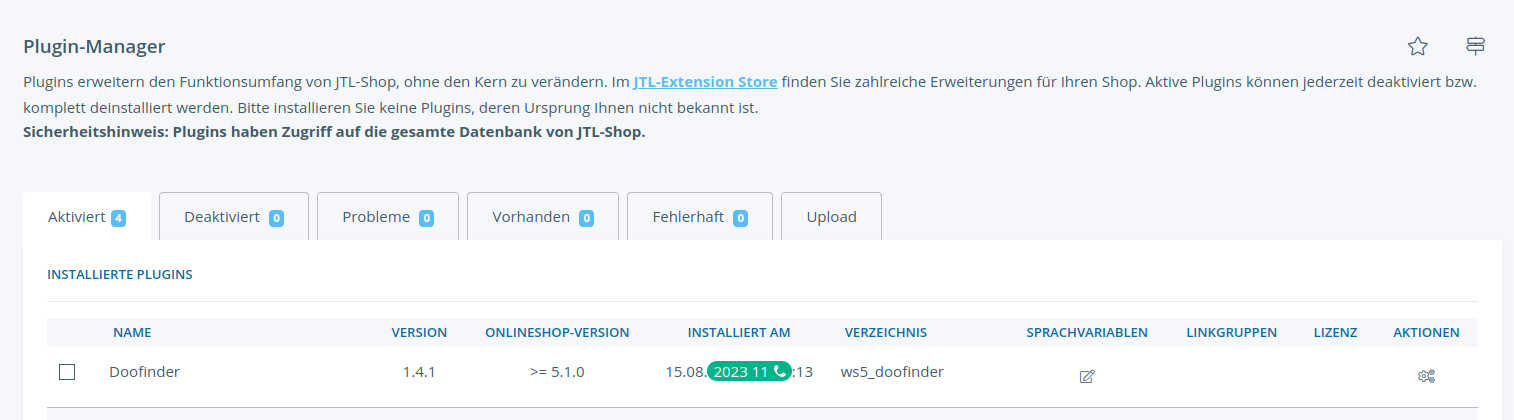
Then, you install it and the plugin will appear in the 'Active' tab.
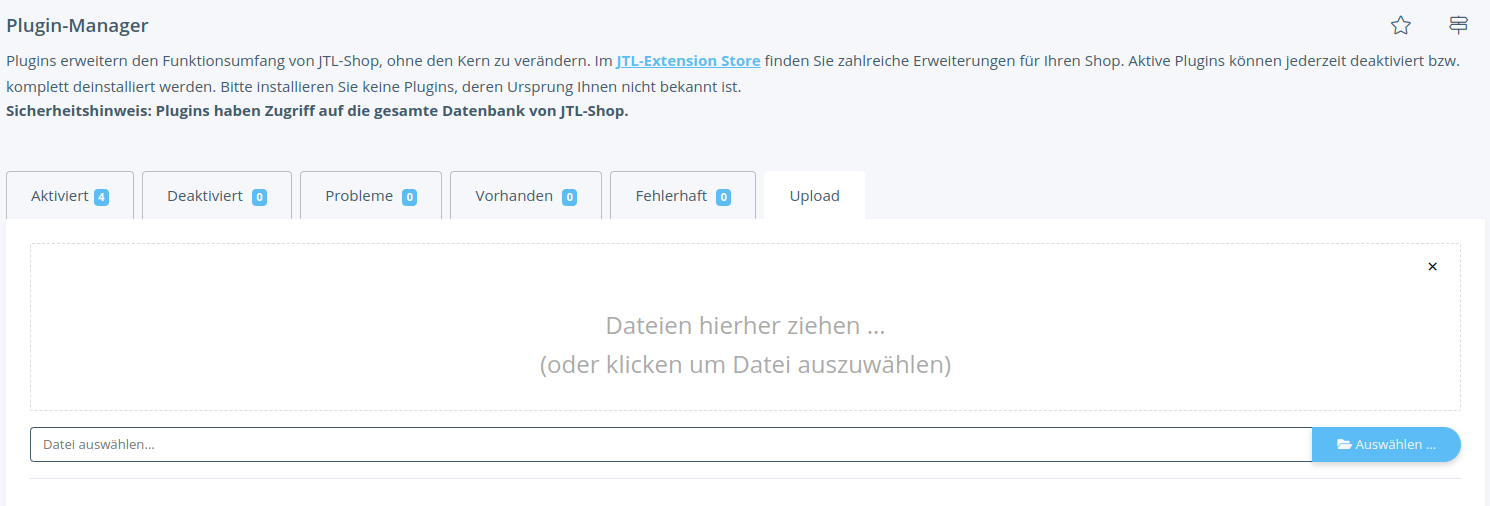
Step 2: Unable To Manually Upload The Plugin
If the previous step didn't work, and even after manually uploading it, the plugin still shows as "Fehlerhaft," it means the plugin license has expired. Therefore, you need to reconnect it.
To do this, go to "Meine Käufe," where you will find all the plugins and their licenses listed.
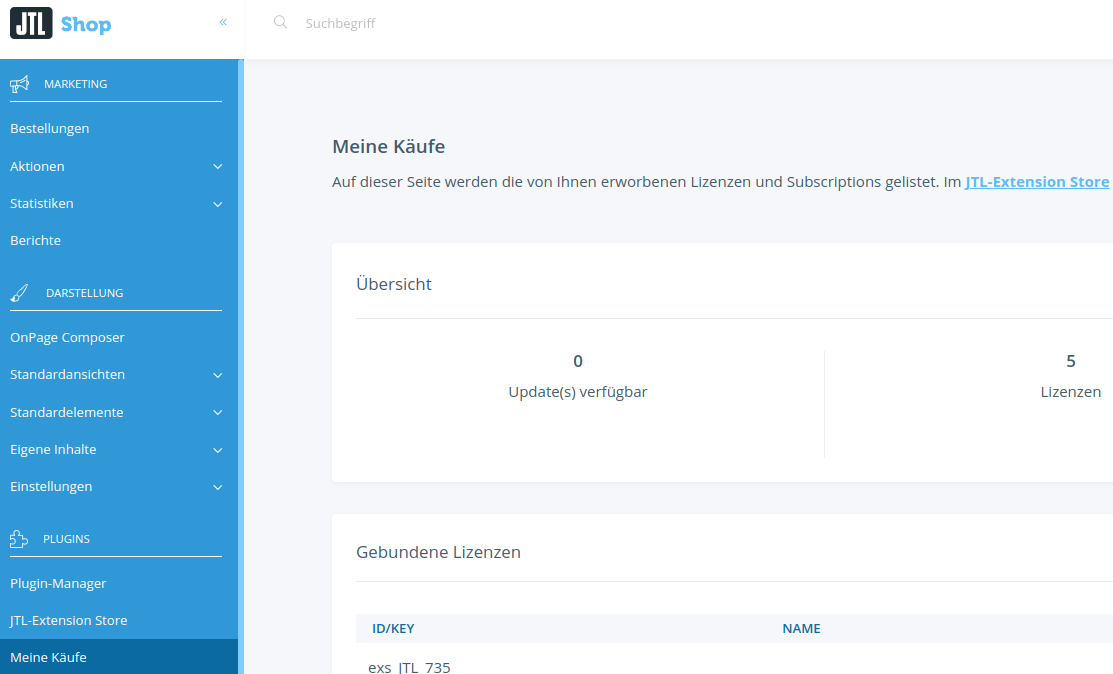
Search for Doofinder and click on the button "An diesen Onlineshop binden".
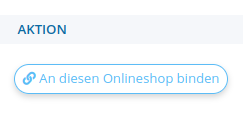
This way you connect the license, reload the page and go back to Plugin Manager to install and activate it. That is, it should no longer appear in "Fehlerhaft".
Still Not Working?
Neither step 1 nor 2 worked, and the plugin still appears in "Fehlerhaft".
This can happen when going to "Meine Käufe" (step 2) and not finding Doofinder.
The solution to this is to connect the Doofinder license from a secondary backend that JTL users have, it is called "Kundencenter". To connect the Doofinder license from the "Kundencenter" click on this JTL link.
After completing these steps, return to the JTL Admin and refresh the page. You should now see Doofinder listed in the Plugin Manager under either "Aktiviert" (Activated) or at least "Installiert" (Installed).
Please keep in mind throughout the installation process that if you click on a setting, and it appears that nothing is happening, you need to refresh the page. This is a common occurrence in JTL and is often overlooked by users who register online.