


By following these steps you will learn how to create a Recommendations Carousel from scratch.
Previous Requirements
- Single Script Installed or Updated
- Started Trial, or a Doofinder Plan that fits your criteria.
How to Quick Configure Your Recommendations - Ready-made Setup
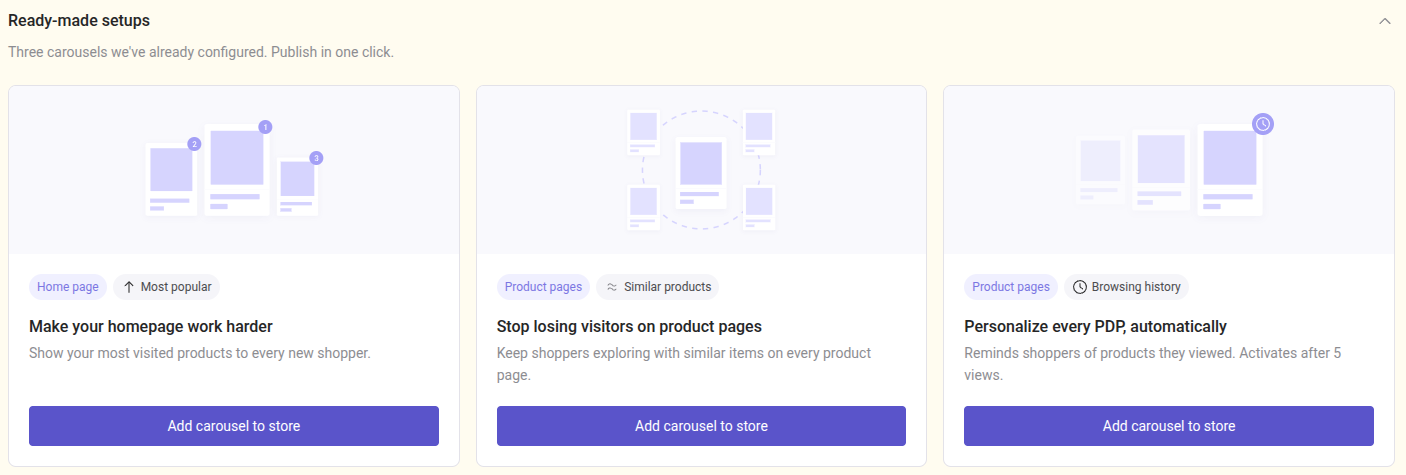
Ready-Made Setups are pre-configured product recommendation carousels that you can publish on your website without any previous knowledge. Each of the available setups combine a page type, a recommendation logic, and a business-friendly title to provide you with an easy choice.
By following these simple steps you will be able to create a Recommendations Carousel in just a few clicks.
How to Configure Ready-made Recommendations
Once you access the Admin, go to Recommendations > Configuration and you will see the Ready-made setups block at the top of the page.
Three ready-made carousels are on display, where you can visualize:
- The page type is where it will appear (e.g., Home page or Product pages).
- The recommendation logic it uses (e.g., Most popular, Similar products).
- The Title & Description.
- The button to add it to your store.
How to Add a Carousel to Your Store
As each Ready-Made Setup includes a button to add the carousel:
- Click on on + New carousel to store.
- Select the Carousel placement.
- Check the Content preview.
- If all correct, hit Save .
- Finally, carousels can be duplicated from Your carousels list > 3 dots > Duplicate. The limit of carousels is 15.
Although the Ready-made setup is there for quicker and practical use of the tool, you can always edit the carousel manually later.
You’re all set!
How to Manually Configure Your Recommendations: Create your Carousel with Detailed Steps
These are the simplified steps for configuring a Carousel. Dive into the article to find out more about them:
- To create a new carousel, click on + New carousel at the top-right side of the panel. From here, you have the power to add, delete, and save the changes to your new recommendation carousel.
- Click on the "Open visual selector” to see a preview of your website, and use the "Selector” to place the carousel on your web.
- Select the Logic for your Carousel.
- Add Search Engines.
- Create Filters: filter the recommended products displayed (optional).
- Enable or Disable Fallback (optional).

Once the panel is open:
- Name the Carousel with your preferred internal name.
- Select the Status: either enable or disable the carousel.
- Specify the Carousel Placement using the CSS Selector and define the relative position of the carousel. If you need help finding the CSS selector to position the carousel, read CSS Selector for Recommendations Carousels.
- Select a Logic for your carousel. Review each Logic here to find the perfect fit.
- Logics for all Pages: Most Popular, Best Sellers, Browsing History, and Custom Picks.
- Logics for Pages that show one single product: Similar Products, Visually Similar, Frequently Bought Together, and People Also Viewed (this last one needs training).
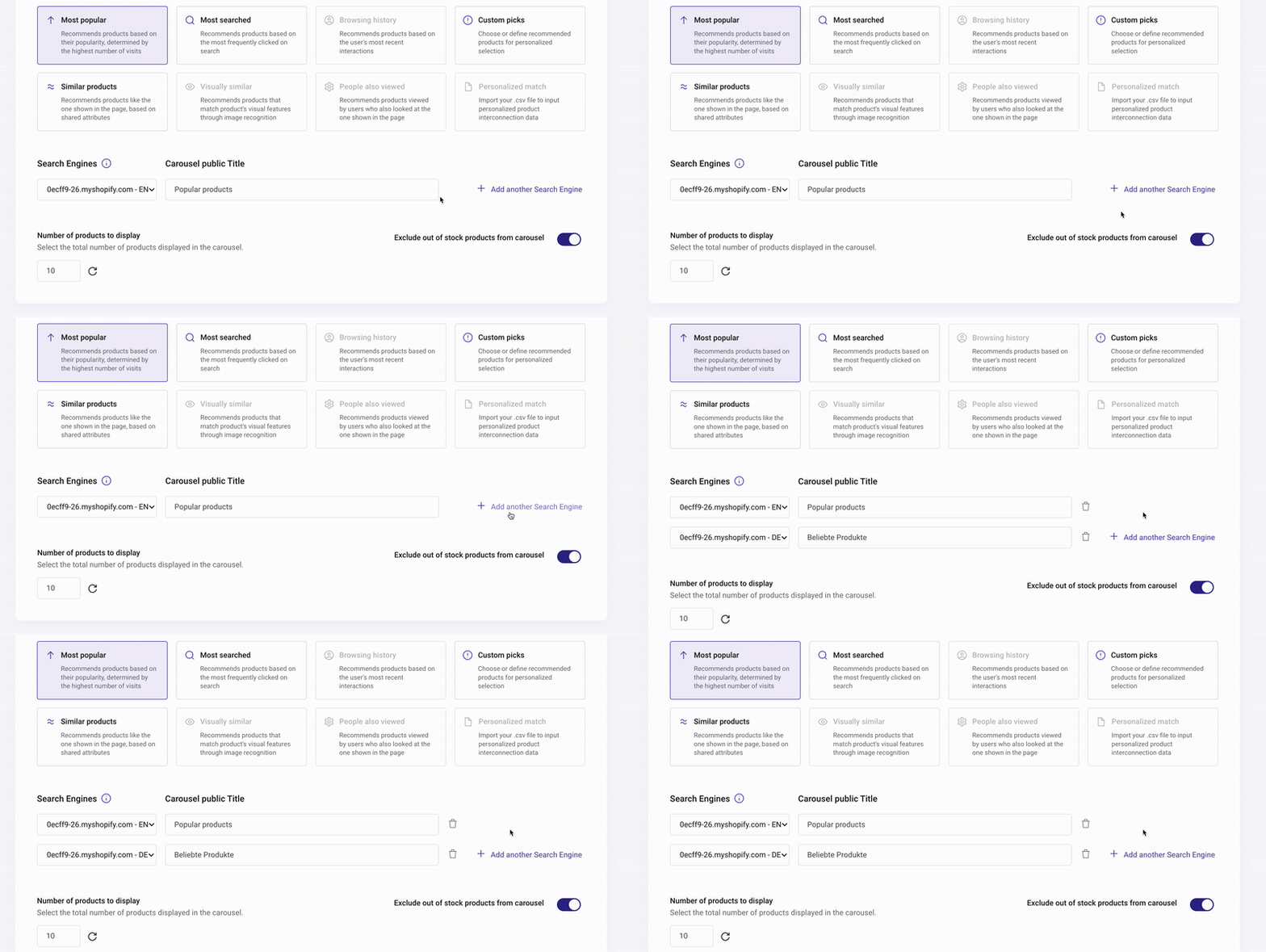
- Add Search Engines to your Carousel. Choose a public title for each Search Engine and add as many as you would like to show the carousel.
- Indicate the number of products you want to show in the carousel. By default, 10 products are displayed. You can increase up to 25, or decrease this number down to 5 to suit your needs.
- To include or exclude out-of-stock products on the carousel, enable or disable Exclude out of stock products from carousel button on the right side of the section. This option only affects the Recommendations carousel. It does not affect the Layer or its Initial Results. To exclude out of stock products from all services, use Excluded Results.
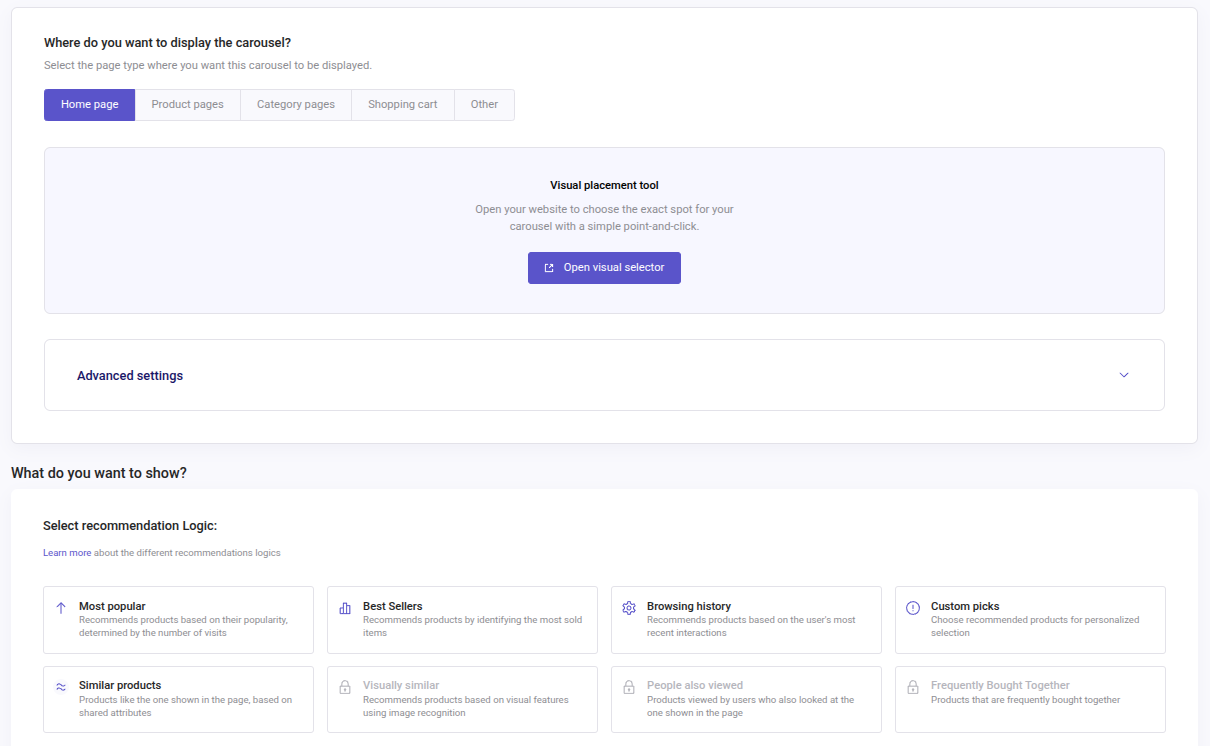
There is no need to create a new carousel in order to use a different Logic, change it directly under the desired carousel.
Note that some logics require training or previous requirements to show the desired results. Additionally, some logics work across all Pages, while others are designed for single Product Pages and Customized Pages.
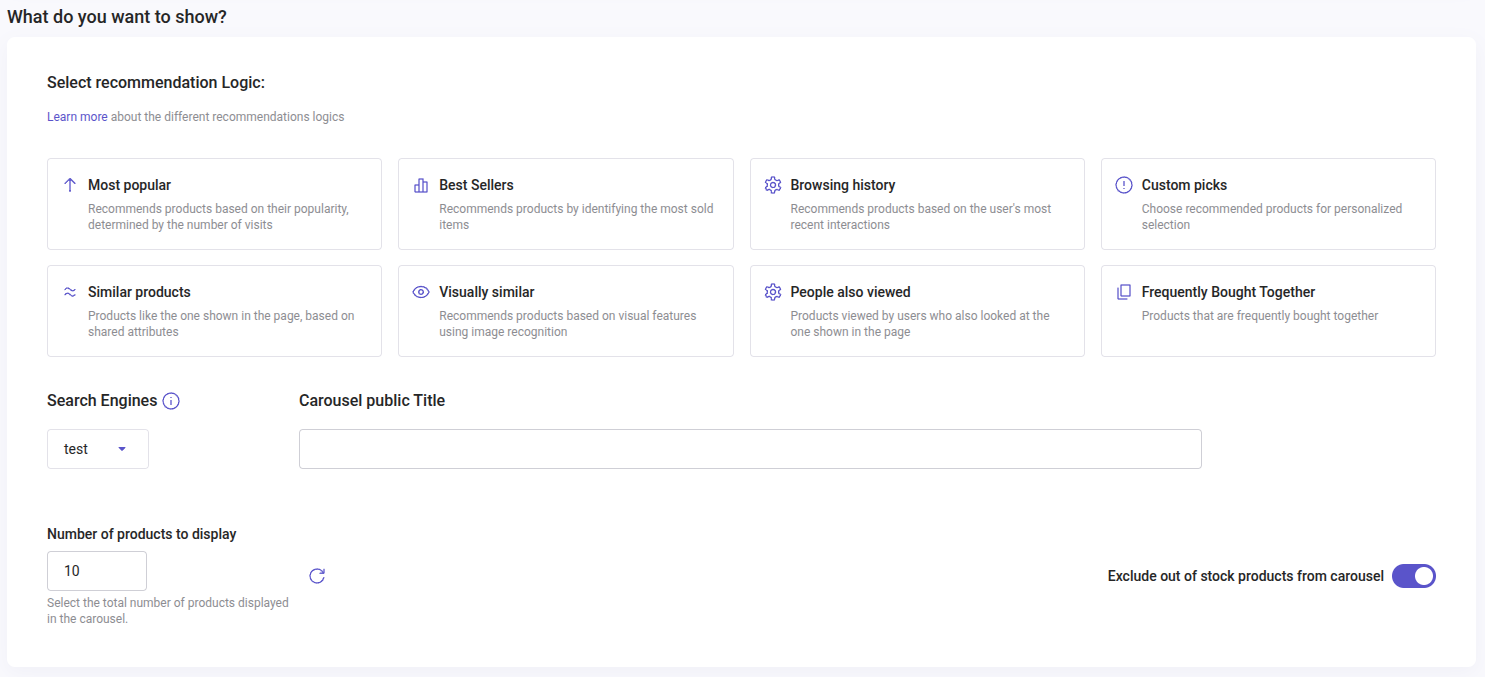
By adding all desired Search Engines in this step, you can streamline the setup process and ensure everything is configured in one go.
By following these steps you will have created your Recommendations Carousel. To add an advanced touch to your carousel and leverage your recommendations, configure Filters and select Fallback if appropriate. Learn more on the Advanced Options section.
Learn by Example - Creating a Carousel
If you have followed the previous steps, this is how creating a carousel will look like:
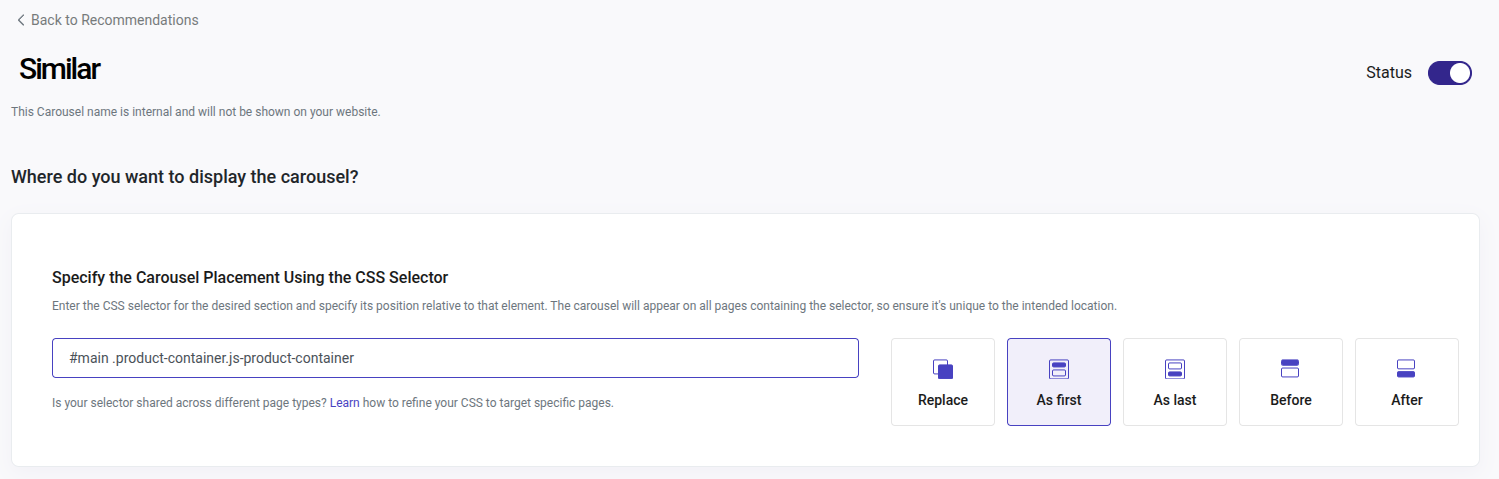
Click on “+ New carousel” to create one, fill all the fields, and select where to display it.
We add the “Similar” title, and leave the Status enabled, as we want to show our carousel from the moment we save it.
We paste the following CSS selector where we want our carousel to display after inspecting the page, in this case it is a carousel for a product page: #main .product-container.js-product-container.
And we choose for the widget to display by placing "As first" from the content on "#main .product-container.js-product-container".
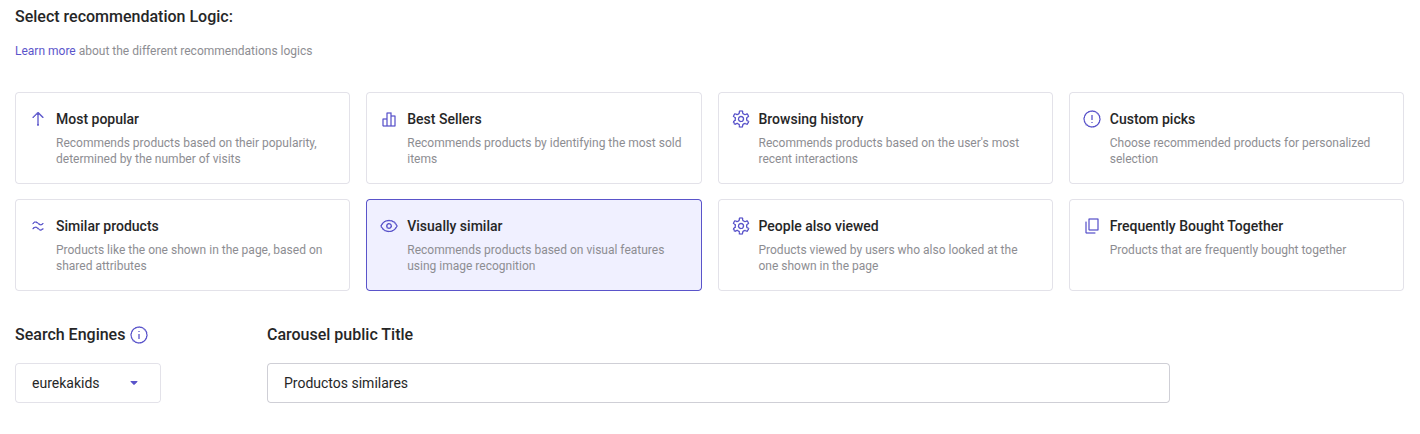
Afterwards, we select our desired logic, which in this case is Visually Similar, and display it in one of our Search Engines: doofinder_product, with a maximum number of products to display of 10; without out-of-stock products.
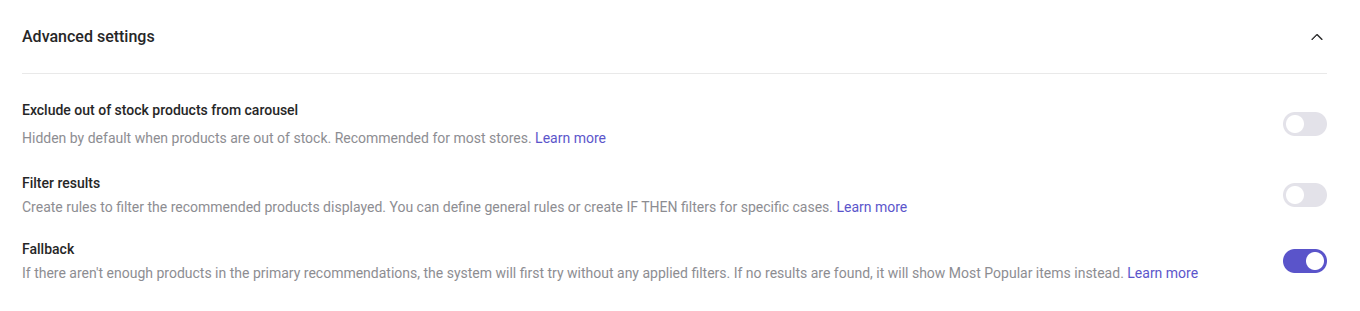
We disable Filters and Enable Fallback, then click "Save":
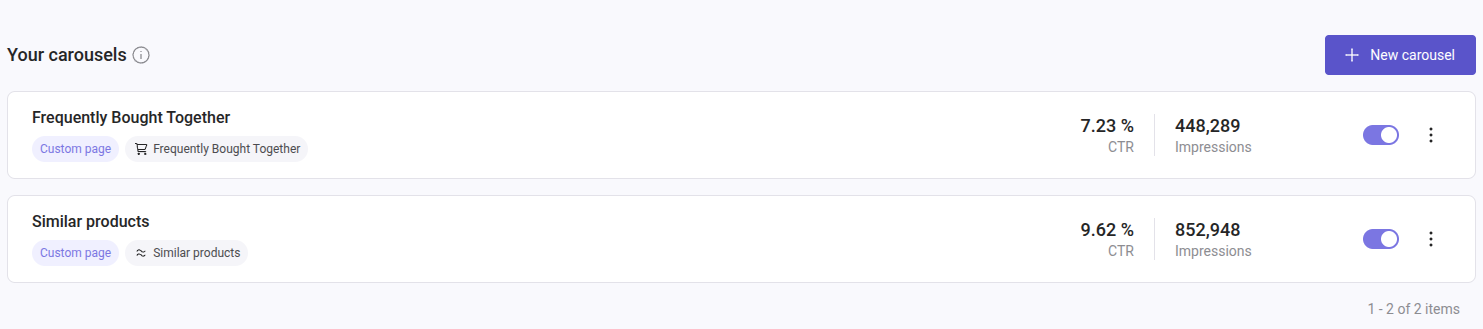
This is how it looks like in the Admin Panel after its creation:
This is how it looks on our product page and with our configuration:
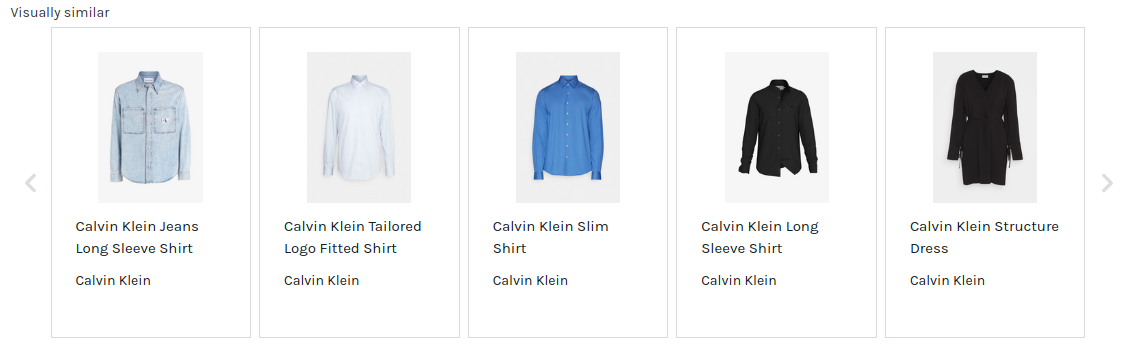
Now, the carousel shows 10 visually similar products to the one shown on the product page respecting our desired placement.
Content Preview - Recommendations
The Recommendations Content Preview allows you to pre-visualize the carousel results directly in the configuration panel before publishing it. In your Recommendations carousel configuration, you can find this section at the bottom of the page. See example below:
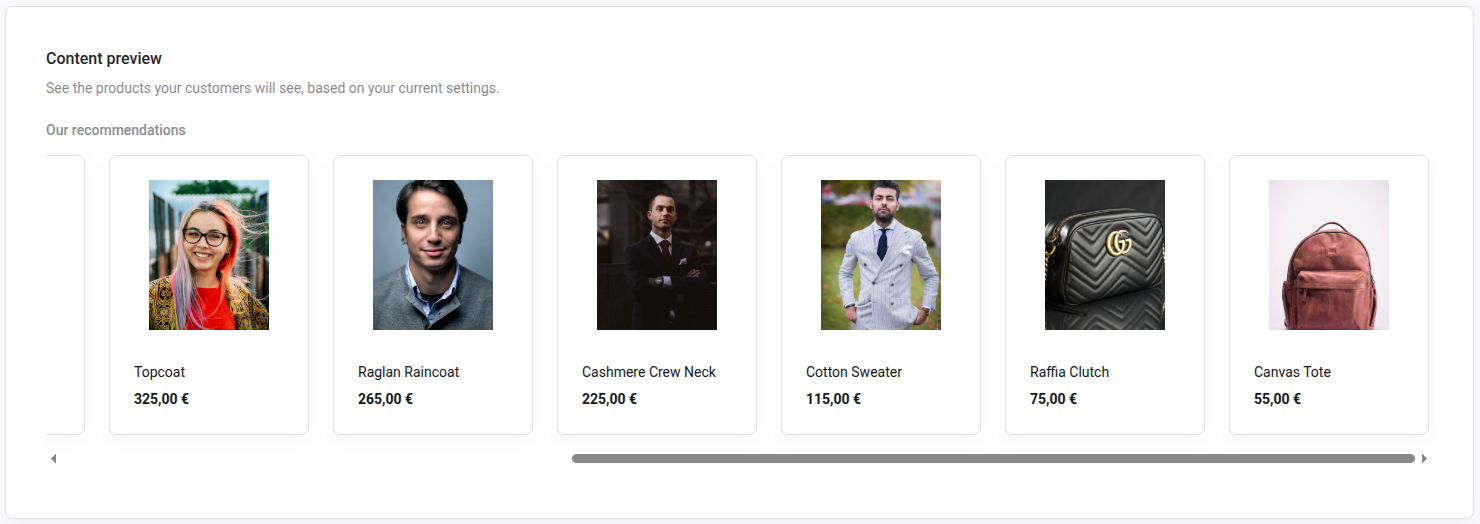
How does it work?
- The Content preview will show real product samples based on the current logic and filters configured in your carousel.
- It will also warn about filters that would leave the carousel empty or with too few products.
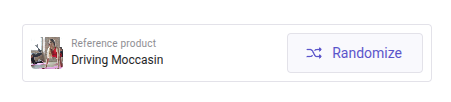
- For logics that require a reference product (like Similar Products or Frequently Bought Together) it uses a random catalog product, with a “Randomize” button to test different examples.
- Will help you validate configurations before going live, reducing confusion.