


Custom Fields in Prestashop are called "Features". In order to configure the Custom Fields, you have to create a Feature with its corresponding values and then associate it to a specific product. Then, you'll be able to manage it on the Doofinder Plugin and index it so it can be visible on your Layer.
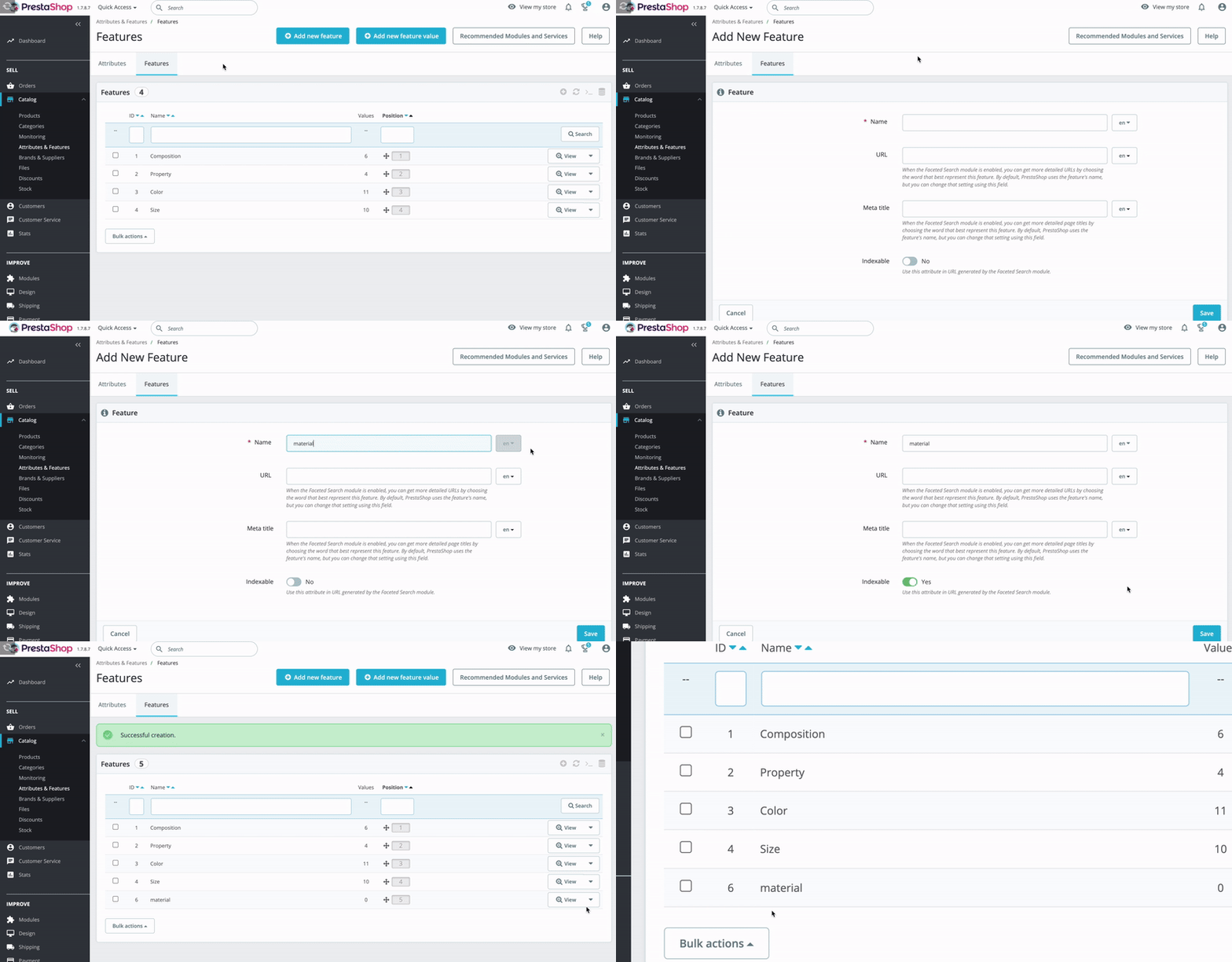
Step 1: Creating a Feature
To create a Feature, go to "Catalog" > "Attributes & Features", click on "Features" and create a new one by clicking on 'Add new feature'.
Enter the name of the feature and Save.
Step 2: Creating a New Feature Value
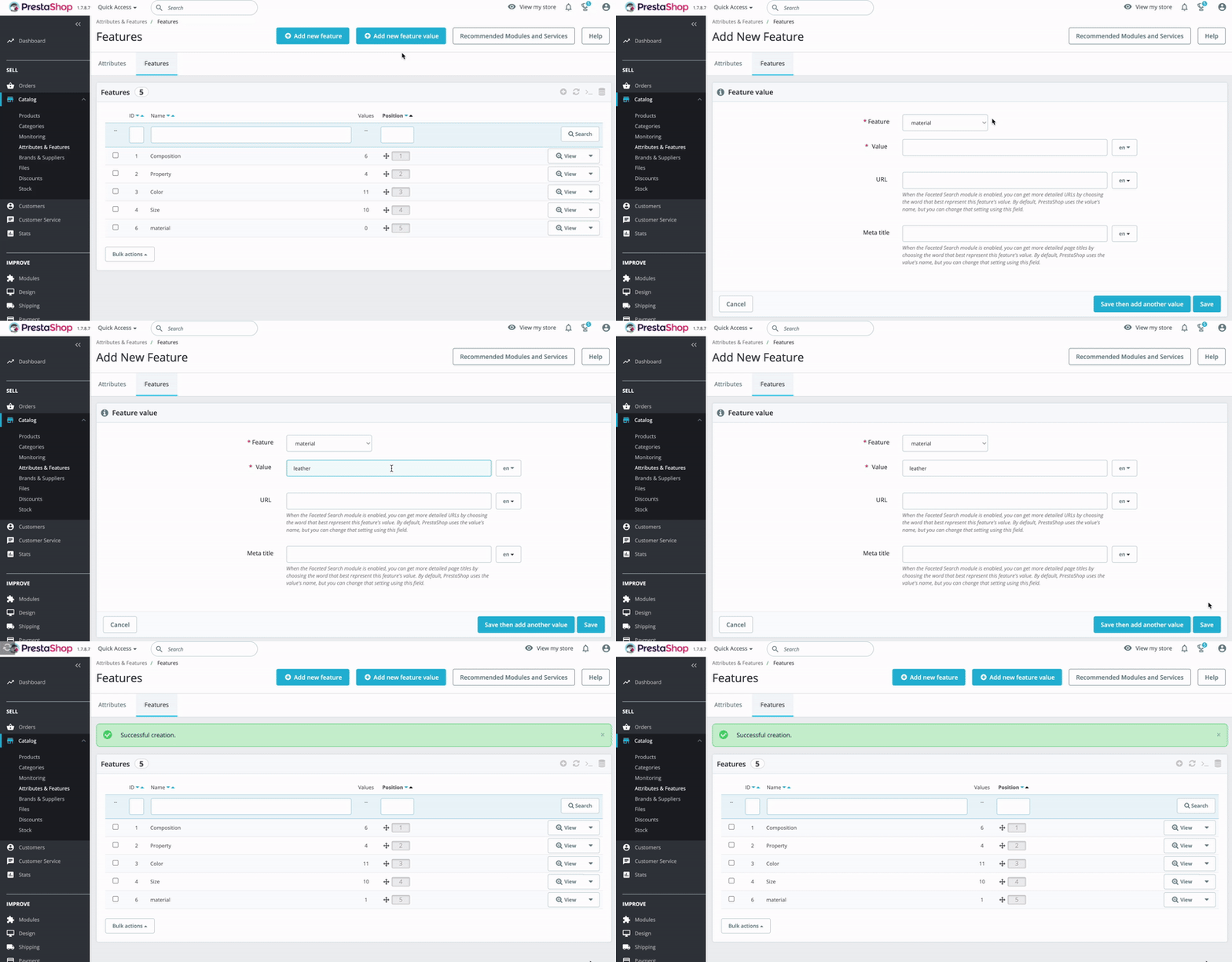
Once the feature is created, click on "Add New Feature Value", select a feature from the drop-down menu and enter the corresponding value. Always remember to Save.
Step 3: Add the New Feature and the New Value to a Product
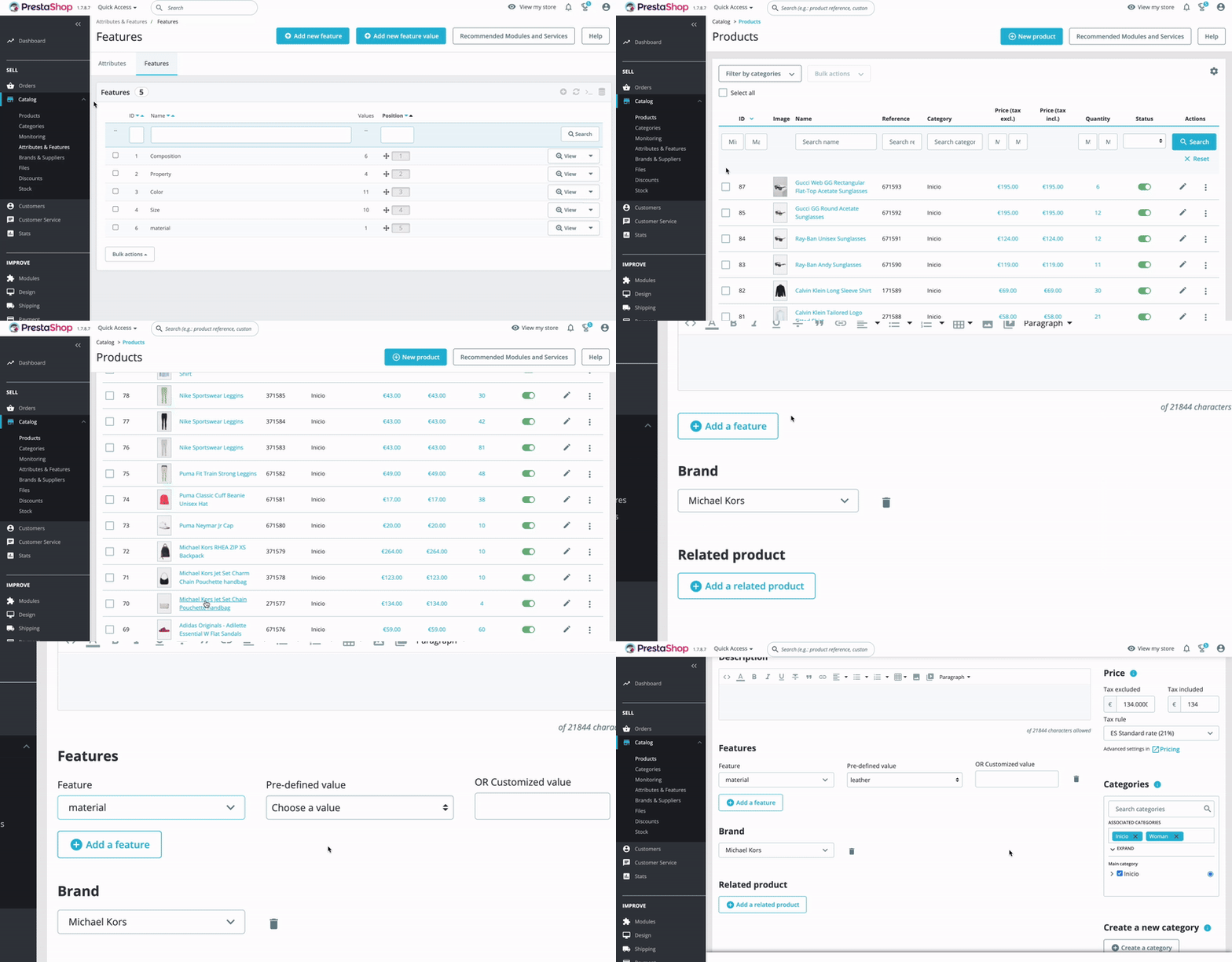
To add a feature and its value to a product, we have to go to "Products" and select the one we want to edit by clicking on it. Click on 'Add a feature', select the feature and the pre-defined value from the drop-down menu. Then Save.
There is nothing to enable in the module for this. Once a feature has a value and is assigned to a product, it travels in the feed on its own, inside the attributes field, as a name=value pair:
composition=Cotton/property=Short sleeves
Travelling in the feed is not enough to use it, though. The attributes field is not indexed by default, so you have to add it yourself:
- In the Doofinder Admin Panel, go to Configuration > Search Engines > click on "See indices" > Indices.
- Scroll down to Additional indexed fields and open the Select the fields to be indexed dropdown, then choose
attributes. - Press Save and reindex your feed, so the field is picked up.
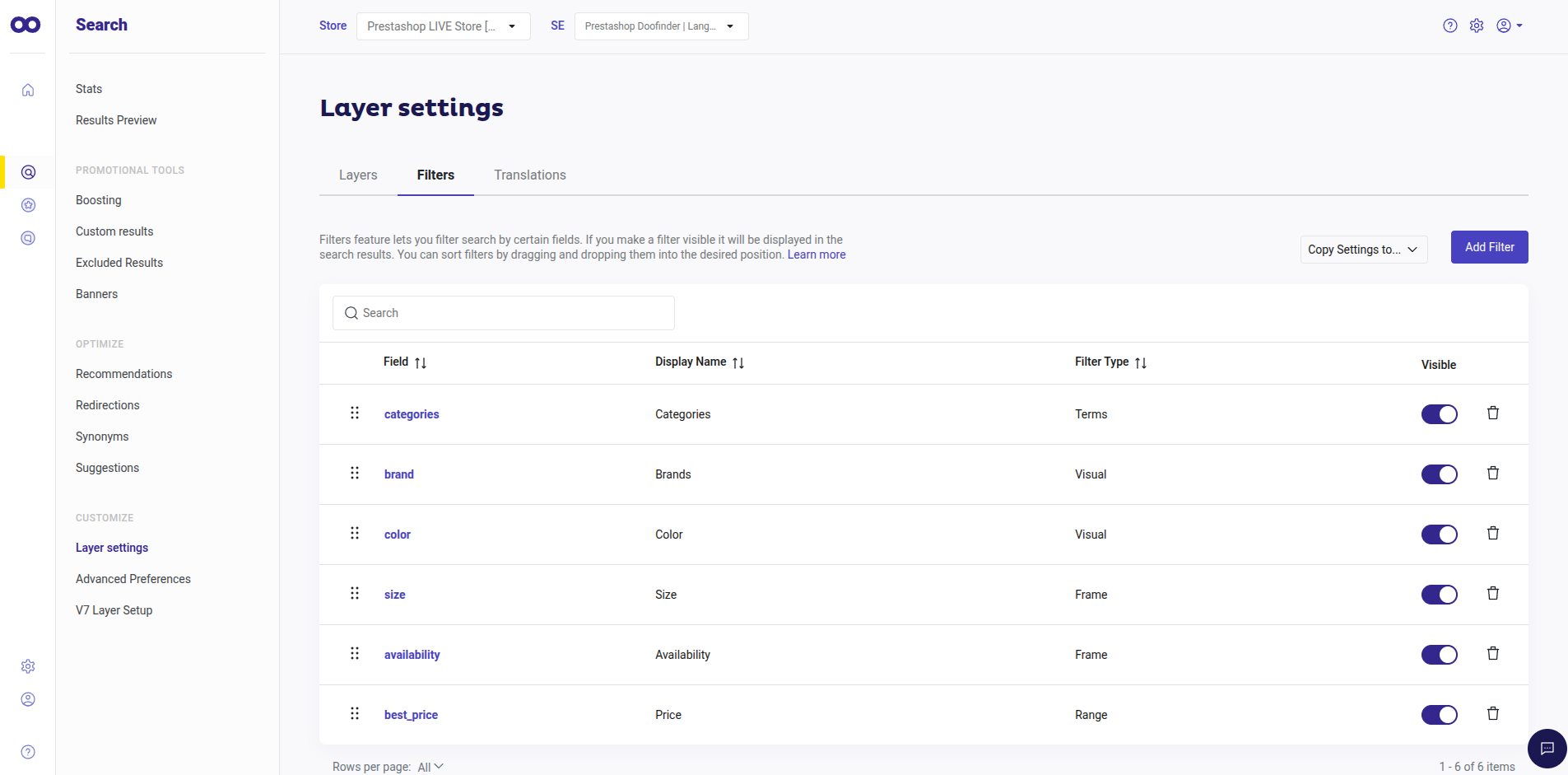
See How To Index Your Feed for the detail. Once indexed, you can set it up as a filter under Search > Layer Settings > Filters.
Attributes Included in The Feed
Product Profit Margin
Doofinder indexes the Product Profit Margin, the attribute responsible for showing product profitability. This mimics the process of physical retail stores allowing you to manage profit margins at the product or brand level when deciding how and which products to promote or offer.
How is it done? We calculate both percentage margin (df_calculated_margin_percentage) and absolute profit per unit (df_calculated_profit_per_unit).
How can you use it? Configure boosting rules to prioritize higher-margin products in the search results.
Stock Quantity
Doofinder indexes the product stock quantity apart from the availability information. This means that we’re indexing the numerical value of the available stock of your products, at both variant and parent product levels, allowing you to use this information on the store.
How to use it? The stock quantity can be used in the boosting rules, relevance criteria or any other merchandising configuration.
Update on save: when stock changes and the platform uses update on save, only the affected products are indexed. This avoids a full reindex, reduces system load, and makes the new stock levels visible almost instantly.