


A product data feed is a structured file that contains information about products and their attributes. Doofinder needs to be 'fed' with this information in order to display results when a customer performs a search. Understanding how the data feed works is very important to integrate Doofinder smoothly and make the most of it.
If you use Shopify, WooCommerce, BigCommerce, Prestashop, Magento 2, Shopware or any of the other eCommerce platforms that integrate with doofinder, your products will automatically be added to Doofinder once you link an eCommerce store to your doofinder account.
If you are not using any of the supported platforms, a Product Data Feed can be used to upload your product catalog to Doofinder. The most common way is by using a file in .txt, .xml or CSV format.
If you prefer, you can use the Google Shopping data feed to supply product information to Doofinder, if so, please follow their specifications . The Google Shopping Feed can be found in your Google Merchant Center account > Settings > Data Sources > Click on the name of the Data Source > Data Source Set Up > File URL. Explore the Google Merchant Center Help to troubleshoot related issues.
As we mentioned at the beginning of our doc, a feed is a file that contains a list of products you want to display. Doofinder needs to be 'fed' with information on the products in order to show them when a customer performs a search.
Note that each product’s information must exist in the same feed and you cannot add information from the same product on different feeds. If you need to provide additional details (such as tags, descriptions, or other attributes) for a product, this information must be included within the same feed.
There are several ways to feed Doofinder with the products' information. The most common are using a file or a URL. The file can be in .txt, .xml or CSV format. You can compress such a feed file in .zip, .gz, or .bz2 formats.
The accepted formats are: .zip, .bz2, .txt, .csv, .xml, .jsonl, .gz or .tgz. Max File Size: 625MB.
The Data Feed Information Fields
The specific fields in a product data feed can vary depending on the platform. In the case of Doofinder, these are some of the information fields that the feed must contain:
| Name | Content | Example | Status |
|---|---|---|---|
| id | Unique identifier: a number, a string, or an alphanumeric string. It must be unique for every product. | 3253 | Mandatory |
| title | The name or title of the product. | V-Neck T-Shirt | Mandatory |
| link | Your product's landing page | https://woocommerce.doofinder.com/product/adidas-originals-short-sleeve-t-shirt/ | Optional |
| image_link | URL link to the main image of your product. (preferably in .jpeg format) | https://woocommerce.doofinder.com/product/adidas-originals-short-sleeve-t-shirt/ | Recommended |
| price | Selling price of the product. | 15.0 | Recommended |
| sale_price | The discounted price if the product is on sale. If there is no discount, this field has to be empty. | 13.0 | Recommended |
| Multiprice | The different prices for each market configured on a store | EUR_price=24.00277/EUR_sale_price=19.202216 GBP_price=19.9222991/GBP_sale_price=15.93783928 |
Optional |
| category | The category or type of the product (e.g., electronics, clothing, home & garden) | Clothing > Tshirts | Recommended |
| group_id | Items with the same group_id attribute are considered variants of the same item. | DFF-0283A | Recommended |
| group_leader | The item set to true will be chosen as the group representative in search result. The rest of the items in the group must be set to false. | true | Recommended |
| df_variants_information | Set in the group leader. Lists the attributes that differentiate the variants of a group, separated by %%. Used by the variant selector of the Add to Cart button and by the variant options and swatches of the Fashion theme. See Adding Variant Information to the Data Feed. |
color%%size | Optional |
| description | A brief description of the product. | V-shape collar and short sleeve, cotton t-shirt. | Optional |
| availability | Indicates if the product is in stock or out of stock. |
in stock | Optional |
| Condition | The condition of the product (new, used, refurbished). | New | Optional |
| gtin | Global Trade Item Number. | 1232513152432 | Optional |
| Additional Attributes | Depending on the platform, there may be additional fields specific to the product type, such as color, size, weight, material, etc. | S/M/L/XL | Optional |
A plain text file is the easiest to use, where each line represents a product. The first line must specify the field's name, and each field must be separated by:
- tab
- | (pipe)
- ; (semicolon)
- , (comma)
For example:
title | link | description | id | price | sale_price | image link | category | availability
Rich Organic Tea | https://woocommerce.doofinder.com/index.php/product/rich-organic-tea/ | Organic Teas use no chemicals like pesticides, herbicides, fungicides, or chemical fertilizers, to grow or process the tea after it is harvested. | 12342 | 7.0 | 5.0 | https://woocommerce.doofinder.com/wp-content/uploads/2018/06/pumpkin-pulp-tin.jpg | Groceries | in stock
Natural Extracted Olive Oil | https://woocommerce.doofinder.com/index.php/product/natural-extracted-olive-oil/ | oil extracted from the fleshy part of the ripened fruit of the olive tree, Olea europaea | 12257 | 14.5 | 12.95 | https://woocommerce.doofinder.com/wp-content/uploads/2018/06/product23-free-img.jpg | Groceries | in stock
Download Feed Examples
You can add as many attributes as needed for the search (color, size, weight, brand…). If the product has many field names to specify, it is better to use the Special Attributes function.
3KB Attribute Limit Requirement
In Doofinder we have a requirement to the feed performance, by limiting 3KB per attribute (3,000 characters approximately) to ensure consistent and efficient indexing.
The reason for this requirement is because an above 3KB attribute represents a very substantial amount of text. When doing this setup, we can maintain optimal system performance while still supporting rich and descriptive data. If an attribute exceeds this size, it will still be indexed. However, it will be truncated (cropped). The overall feed will continue processing without interruption.
Will this affect my store?
For the vast majority of stores, this change has no impact. Standard product attributes such as titles, descriptions, and technical specifications are well within the 3KB threshold.
To put it in perspective: 3,000 characters is roughly equivalent to 500 words of text. A typical product description in e-commerce rarely exceeds 200 words.
How will this affect my store If an attribute exceeds the 3KB limit?
-
That specific attribute is indexed, but info will be truncated from the index.
-
The product itself is still indexed with all its other attributes.
-
Search results for that product remain functional, but the excluded attribute will not be used for search matching or filtering.
See example of truncated attribute:
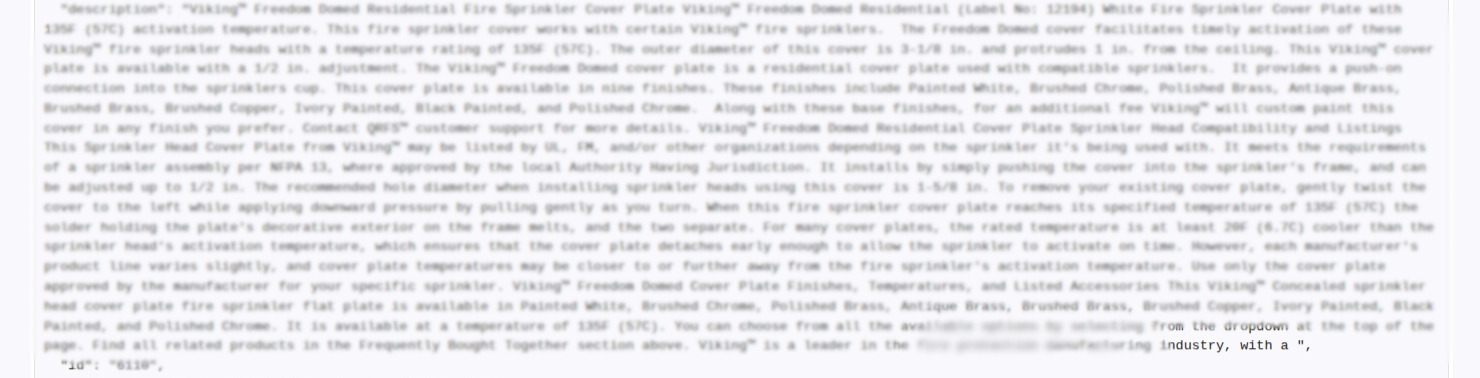
If you notice in the image above the description was cropped at “...industry, with a”, meaning the limit has been reached.
Special Attributes Feature
If the type of feed you provide to Doofinder is in CSV format and has a large number of attributes for different products, you would need a very long header to specify all the attribute fields.
Example:
title | link | description | ID |price | image link | brand | category| size | color | style | fabric | screen size | hdd size | hdd type | video manufacturer
The names of these fields can be numerous depending on your product and can lead to a long and confusing list. So, to avoid this, we use the "special attributes" function.
Let's say your eCommerce shop sells T-shirts and you would like to categorize T-shirts by size, color, style and fabric, among other things. In addition, price, brand, category, etc. should be included in the field headers.
Such a field name header would look like this, with all possible field names included:
title | link | description | ID | price | image link | brand | category | availability | size | color | style | fabric | neck shape | sleeve | season
Using Doofinder's special attributes function, the above field name header would be displayed as:
title | link | description | id | price | image link | brand | category | attributes
This is done by adding dynamic attributes to your products, as indicated in this example:
title | link | description | id | price | image link | brand | category | attributes
Long Sleeve Tee |https://woocommerce.doofinder.com/index.php/product/long-sleeve-tee/ | Cotton t-shirt. | 4562 | 17.0 | http://woocommerce.doofinder.com/wp-content/uploads/2020/06/long-sleeve-tee-2-300x300.jpg | nike | clothing | size=M/color=green/style=sport/fabric=cotton/neck shape=round/sleeve=long/season=winter
For this purpose, the special field name attributes is used, and only the relevant attributes are added to each product in this way:
| attribute-name=value / other-attribute=value2 / third-attribute=value3 |
| size=M/color=green/style=sport/fabric=cotton |
Doofinder will smartly separate them into different fields as needed.
Another example of a laptop categorisation before using the special attributes feature would be:
title | link | description | id | price | image link | brand | category | screen size | hdd size | hdd type | video card
Toshiba Satellite L755|www.mygreatshop.com/laptop/toshibaL755|A powerful laptop with the best price you could find out there|1425|300.00|www.mygreatshop.com/img/toshibaL755|Toshiba|Laptops|17"|500Gb|Magnetic|NVidia
By using the special attributes function, it would then be:
title | link | description | id | price | image link | brand | category | attributes
Toshiba Satellite L755|www.mygreatshop.com/laptop/toshibaL755|A powerful laptop with the best price you could find out there | 1425 | 300.00 | www.mygreatshop.com/img/toshibaL755|Toshiba|Laptops|screen size=17/hdd size=500Gb/hdd type=Magnetic/video card=NVidia
We use the forward-slash symbol ( / ) to separate different attributes of the same item. However, there may be cases where it is necessary to use ( / ) as part of the value of an attribute, such as 1/4 oz and 1/2 oz, etc. In such a case, we include the backslash (\ ) before the ( / ) as follows 1\ /2 oz, 1\ /4 oz.
Filters Search
Another data feed feature that will make using the Doofinder Search Engine even better is the Filters. The Filters feature allows you to filter the search by certain fields.
To access this section go to your Admin Panel > Search > Layer Settings > click on Filters at the top menu > select on the SE drop-down menu the Search Engine you would like to work on.
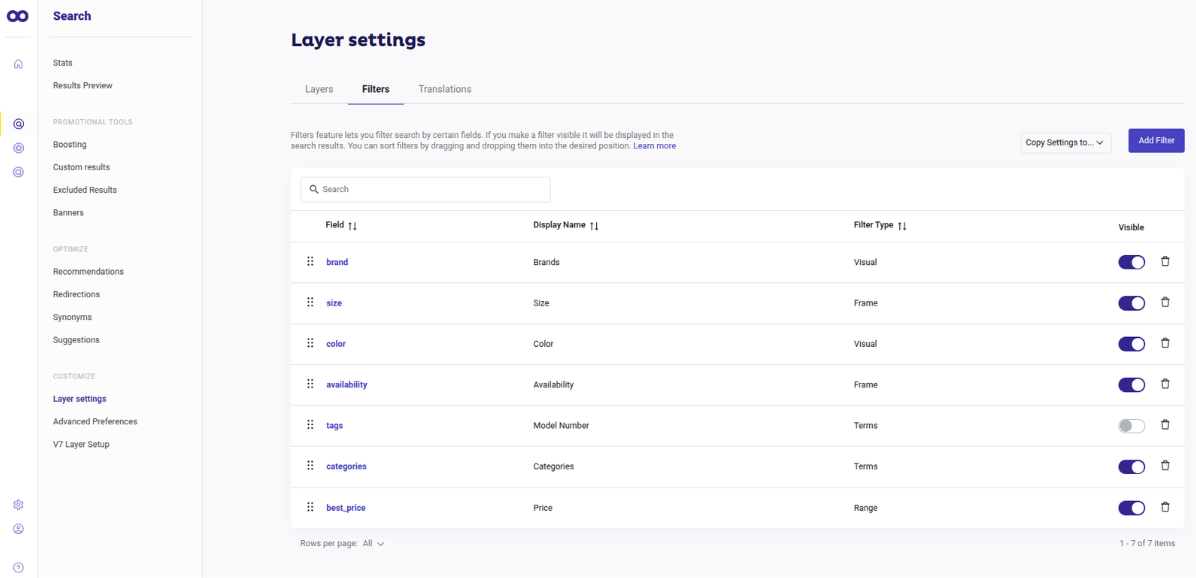
This feature allows your website visitors to refine their product searches with filters such as brand, price, color, material, etc.
In order to use the filter function in your data feed, the following must be taken into account:
-
If the value of the field to be used for the filter is unique for each product, you do not have to do anything else. For example, the brand field.
-
If a product can have several values of a filter (e.g. color, size, etc.) the values must be separated by the / character, thus: blue/red/green.
However, if you want to include / as part of the value (say you want to use 1/4oz and 1/2oz as part of your possible values for a filter), use another / before; so 1oz / 1//2oz / 1//4oz.
This is different from how we include "/" in special attributes.
If your feed has products grouped by categories and subcategories, and you want to filter them, make sure that the categories are separated by ">" having the most general category as the first one. Therefore, the category tree would look like this:
Hardware > Hard Drives > SSD
In this case, SSD is a subcategory within hard disks, which are also a subcategory of hardware.
You can also have several category trees for one product. Just separate them with %%. An example of a category field would be:
Hardware > Hard Drives > SSD %% Desktops > Peripherals > HDD
This is an example of an article with appropriate values for the filters:
id | title | price | brand | product_type | link | image_link | color | description
23| New hard drive | 23.43 | Acme | Hardware > Hard Drives > SSD|http://www.acme.com/23|http://www.acme.com/23.jpg | blue/red/green | It stores a lot of stuff
Category Attribute
Best practice is to start with the most general category in the field names, and break them down to the finest specification.
See this example:
title | id | link | description | mpn | price | image link | category
LG Flatron M2262D 22" Full HD LCD | 2435 | http://www.example.com/electronics/tv/LGM2262D | Attractively styled and boasting stunning picture quality | TV_123456 | 159 USD|http://images.example.com/TV_123456.png | Consumer Electronics > TVs > Flat Panel TVs
Multicategory Attribute
You can configure various category trees. For instance, a sports shoe could belong to two categories like this:
Sports > Clothes > Shoes
or
sneakers > Jogging
An example of this would be:
(..) | category | (...)
Sports > Clothes > Shoes %% Sneakers > Jogging
Attributes You Can Include in Your Data Feed
Product Profit Margin
Doofinder indexes the Product Profit Margin, the attribute responsible for showing product profitability. This mimics the process of physical retail stores allowing you to manage profit margins at the product or brand level when deciding how and which products to promote or offer.
How is it done? We calculate both percentage margin (df_calculated_margin_percentage) and absolute profit per unit (df_calculated_profit_per_unit).
How can you use it? Configure boosting rules to prioritize higher-margin products in the search results.
In order to use the profit margin information, add it manually to your data feed:
best_price> Selling price (excluding taxes).purchase_price> Purchase price.
Stock Quantity
Doofinder indexes the product stock quantity apart from the availability information. This means that we’re indexing the numerical value of the available stock of your products, at both variant and parent product levels, allowing you to use this information on the store.
How to use it? The stock quantity can be used in the boosting rules, relevance criteria or any other merchandising configuration.
The attribute stock_quantity must be indexed manually in your data feed.
Content Feed For Blogs
If you'd like to display categories and content in search results, it is necessary to index a content feed. This feed, should be a .txt, .csv or .xml file, including at least the following fields:
id|title|link|image_link|description
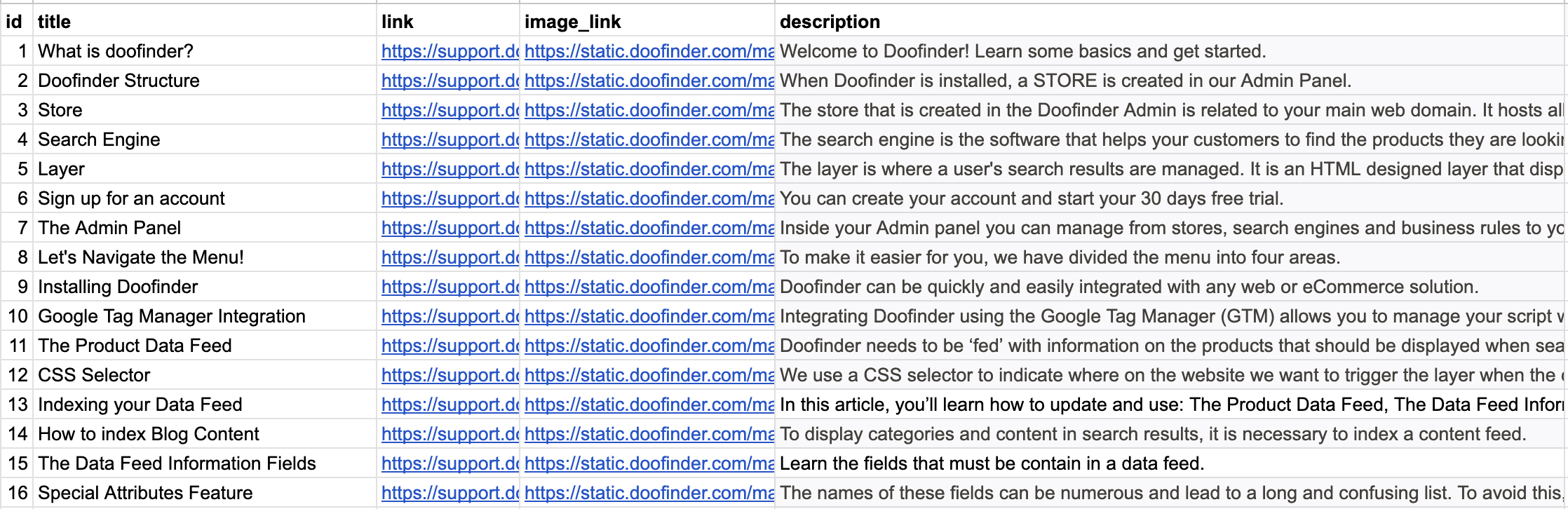
We also recommend you to include a specific attribute to this feed, such as: isContent: 1
In this way, you can use this field to perform a default sorting of the results and, for example, make the categories always appear in the first position when a customer performs a related search.
Once you have prepared your data feed with all the relevant product details, you need to upload yours to the Doofinder Admin Panel for indexing. Find the how-to guide here: How to index my feed.
Troubleshooting your Feed
1. Feed Accessibility Requirements:
Many errors are related to Doofinder's indexing system by simply not being able to reach the feed.
The feed URL must respond within a defined timeout window. Index your feed during less busy hours, see here how to configure schedules, this avoids:
- Expected HTTP status codes 500/502/503, which should be resolved as it follows:
- Check that your feed is always accessible. If Doofinder can’t access your feed, regardless of being protected by user/password or HTAccess on your web, it won’t be indexed. That the feed URL is fetched by Doofinder's servers, not the browser so client-side auth, geo-blocking, or bot protection can silently break indexing.
- Our IPs should always be allowlisted on your server, see here.
- What errors do you see on your server logs? It’s usually a good starting point to find the cause of error failures.
2. Allowlisting Doofinder in Firewalls/WAF/CDN
These service providers can block Doofinder’s servers, such as ModSecurity, LiteSpeed, Cloudflare, etc. Please make sure to:
- Add Doofinder's IP ranges/user-agent string to the server, allowlisting our IPs to access your feed. See here.
- Also applies for maintenance mode: maintenance mode on the storefront blocking the feed URL will prevent Doofinder from indexing the feed. HTAccess must be lifted up before indexing, then you can be put back again. See here how to implement credentials on your feed!
3. Feed format
How to structure your data feed, common mistakes that break indexing, and how to fix parsing errors. Applies to XML, CSV, and NDJSON feeds:
3.1 How to format the feed
The feed must be well-formed for its format (XML, CSV, or NDJSON), one broken character can invalidate the entire file.
XML
- Escape reserved characters (&, <, >, ", ') or wrap them in
CDATA, especially in<description>or free-text fields. - Use one root element, with all tags properly closed.
CSV
- Use one delimiter (comma, semicolon, or pipe) throughout, don't mix.
- Wrap any field containing the delimiter, a line break, or a quote in quotes, and escape internal quotes.
Use a CSV validator to spot errors.
NDJSON (.jsonl)
Only NDJSON (JSON Lines) is accepted for .jsonl uploads: one complete, self-contained JSON object per line, newline-separated. A single JSON array spanning the whole file is not supported and will fail. Bare .json (one JSON document, not line-delimited) is not an accepted upload format either — only .jsonl.
Valid (NDJSON — one object per line):
{"id": "1001", "title": "Steel pipe 18\" diameter", "price": 23.43, "color": ["red", "blue"]}
{"id": "1002", "title": "Wood pipe", "price": 12.0, "color": ["green"]}
Invalid (a JSON array spanning the file — will fail):
[
  {"id": "1001", "title": "Steel pipe 18\" diameter", "price": 23.43},
  {"id": "1002", "title": "Wood pipe", "price": 12.0}
]
Doofinder does not reshape or normalize an NDJSON feed's fields the way it does for CSV (no attribute expansion, no multi-price expansion). The feed must already be in the shape the platform expects:
- A field that should be multi-valued (e.g.
color) must arrive as a real JSON array, not a delimited string. - A field Doofinder expects as a nested object (e.g. multi-currency pricing) must already be a nested object, not a string encoding one.
- Keep data types consistent per field across all products (e.g.
idorpricemust not be a number in one item and a string in another). - If merging multiple feeds, validate each one separately first.
We recommend to: run large feeds through a validator before submitting, it catches most errors before they reach the indexer.
3.2 What breaks the feed
Unescaped special characters: An unescaped & in the file invalidates the whole XML feed. Unescaped quotes (e.g. 18") break parsing the same way if the field isn't properly quoted.
<!-- Breaks parsing -->
sku,title
1001,Steel pipe 18" diameter
You can fix it by escaping one quotation mark (“) with another:
<!-- Fixed -->
sku,title
1001,"Steel pipe 18"" diameter"
4. How to verify your feed is reachable quick checklist
In order to index your feed, Doofinder must be able to reach it, please see the steps you can take below to resolve the situation:
-
Test the URL like Doofinder does, not like a browser does: Your browser may load the feed successfully because it's using cached credentials, a logged-in session, or your own IP. Open the feed URL in an incognito/private window with no saved logins to rule out client-side auth quietly gating the response.
-
Check the response status and content-type: Confirm the feed URL returns a
200 OKand the expected content-type (XML, CSV, etc.), not an HTML error page, login redirect, or maintenance-mode splash page disguised as a 200. -
Confirm the file format and size are within limits: Accepted formats are
.zip, .bz2, .txt, .csv, .xml, .jsonl, .gz, .tgz, with a max file size of 625MB, make sure to be under these requirements. -
If the feed requires authentication, use embedded credentials: You can include credentials directly in the feed URL (http://usr:psw@server/feed), or allowlist Doofinder's IPs so credentials aren't required at all.
-
Rule out maintenance mode: If your store has a maintenance/staging mode active, confirm it isn't blocking the feed URL.
-
Check for timeouts on dynamically generated feeds: If your feed is generated on-the-fly rather than served as a static file, make sure your server's execution time settings allow it to fully generate and return before timing out, especially for large catalogs. Prioritise indexing your feed during low traffic load of your server.
-
Check the Indexing Status message in the Admin Panel: After processing, go to Admin Panel > Configuration > Search Engines > See Indices and check the status message. A "[download][product] Something went wrong with feed download…" message confirms the problem is connectivity/delivery, not feed content, pointing you back to steps 1–7 rather than the Indexing Error Messages troubleshooting guide, which covers data-format errors instead.
-
Allowlist Doofinder's IPs and user-agent:
Server-to-server requests can be silently blocked by firewalls, WAFs, or CDNs, even when the URL works correctly in a browser. Add the following to your allowlist:
- User-agent:
Doofinder/4.0 (+http://www.doofinder.com) - Asia IP:
18.143.220.25 - Europe IP:
54.171.4.216 - USA IP:
52.2.218.41
This applies to Cloudflare, ModSecurity, LiteSpeed, and any other security layer sitting in front of your server.
Check for more info on How To Index Your Feed.