


You can create different layers and select the behavior that best suits your store during the creation process. Read more about how to create a layer.
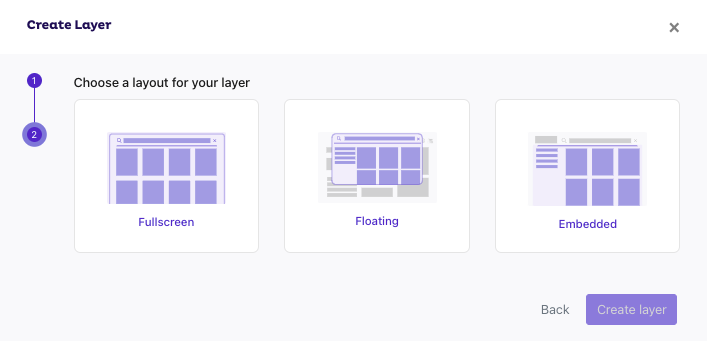
The Live Layer can be differentiated between these options during step 2 of the creation process:
- Fullscreen Layer: will occupy the entire browser's viewport.
- Floating Layer: will be positioned relative to your site's search box. You can optionally enable embedded results when the user presses the key enter.
- Embedded Layer: will be integrated into your site design.
You can create multiple layers but only one can be the active search layer of the Store. To use a different layer type on your site, create a layer of that type if you do not have one yet. Then, in the Layer Settings panel, inside the Search feature section, click on "Set as active layer" on that layer and click on "Continue" in the pop-up.
The layer can’t be activated/deactivated while the first indexing is in progress or has failed. After indexing has been finalized, you can keep the layer deactivated by clicking on the button “Deactivate layer”. More info here.
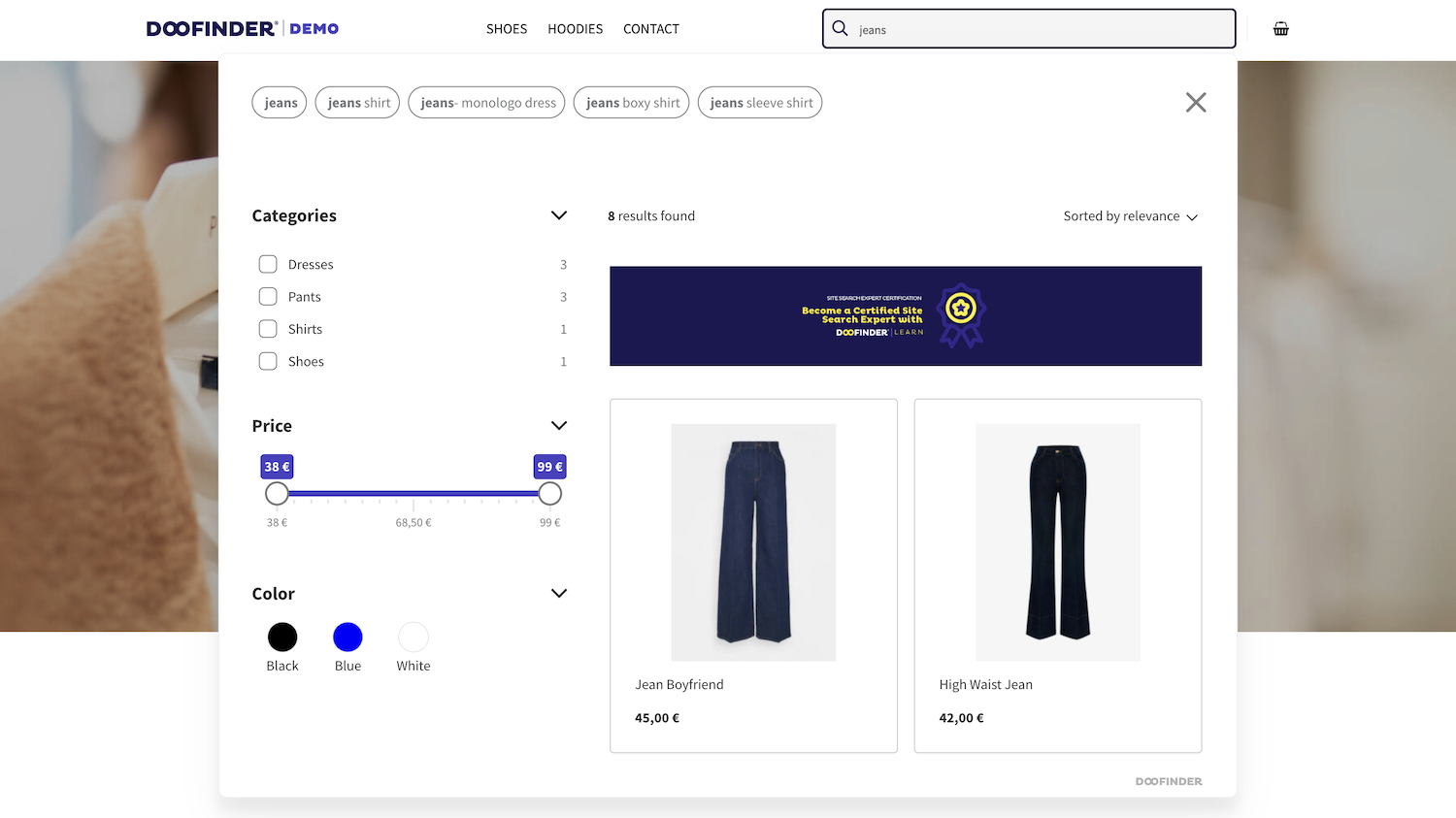
Floating Layer
The Floating Layer will be positioned relative to your site's search box and only shows a results screen.
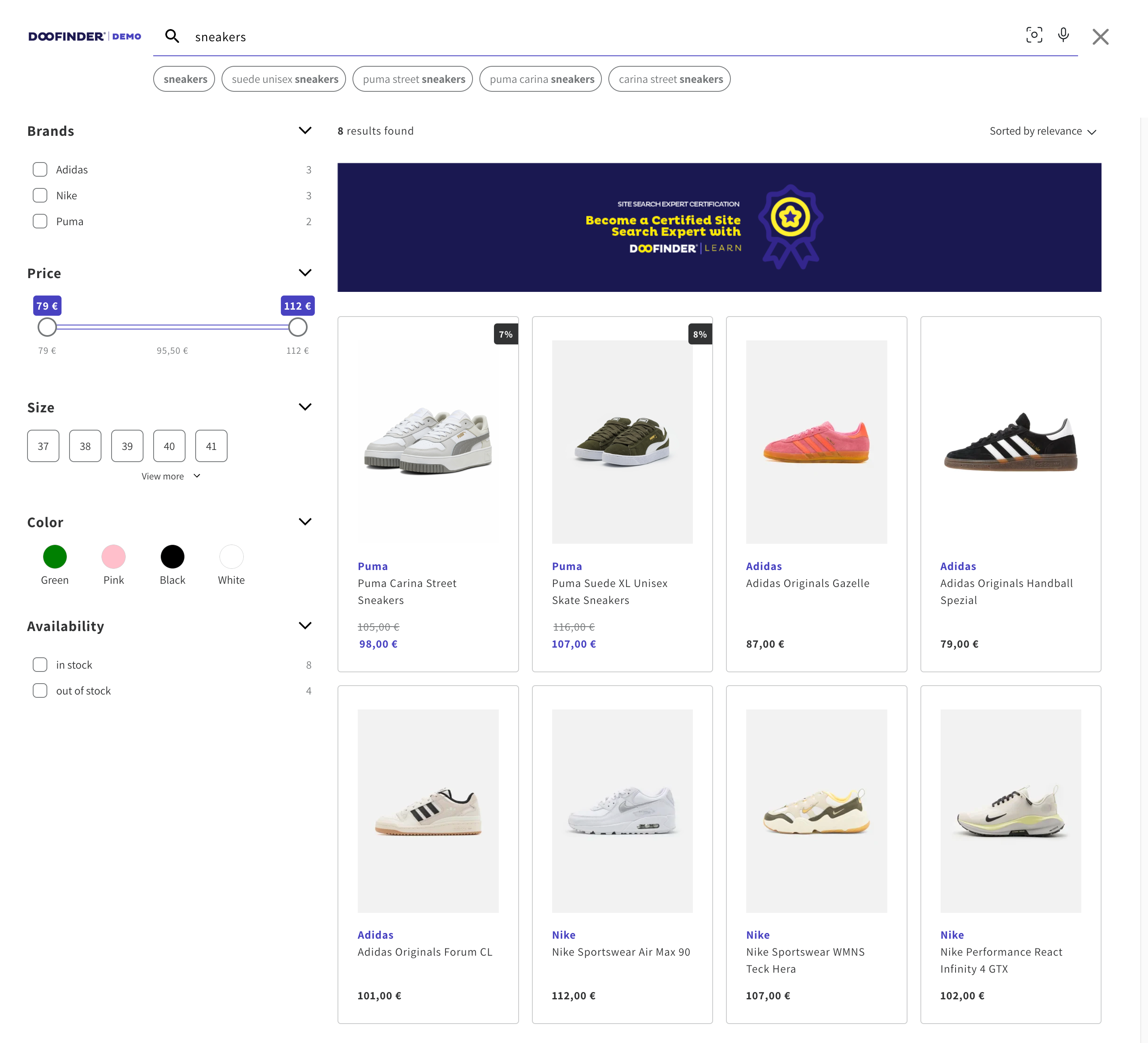
Fullscreen Layer
The Fullscreen Layer will occupy the entire browser's viewport.
AI Fullscreen Layer
The AI Fullscreen Layer occupies the entire browser's viewport, like the Fullscreen Layer, and includes the AI Assistant chat inside the search layer. The chat opens in a tab next to the filters, with the search results still visible beside it.
To create it, go to the Layer Settings panel, inside the Search feature section. If the store has no AI Fullscreen Layer yet, the panel shows this message:

Click on "Create" in the message. The layer is created straight away, with the name new_ai_layer and the tag AIFullscreen. It is not active yet, so the panel shows this message:
- The AI Fullscreen Layer isn't active yet. Activate it to use AI Assistant.
Click on "Set as active layer" on the AI Fullscreen Layer and click on "Continue" in the pop-up. It becomes the only active layer of the store, and your previous active layer is deactivated.
Both messages refer to the chat inside the search layer. The chat bubble and the AI Assistant on a product page work with any active layer, without the AI Fullscreen Layer.
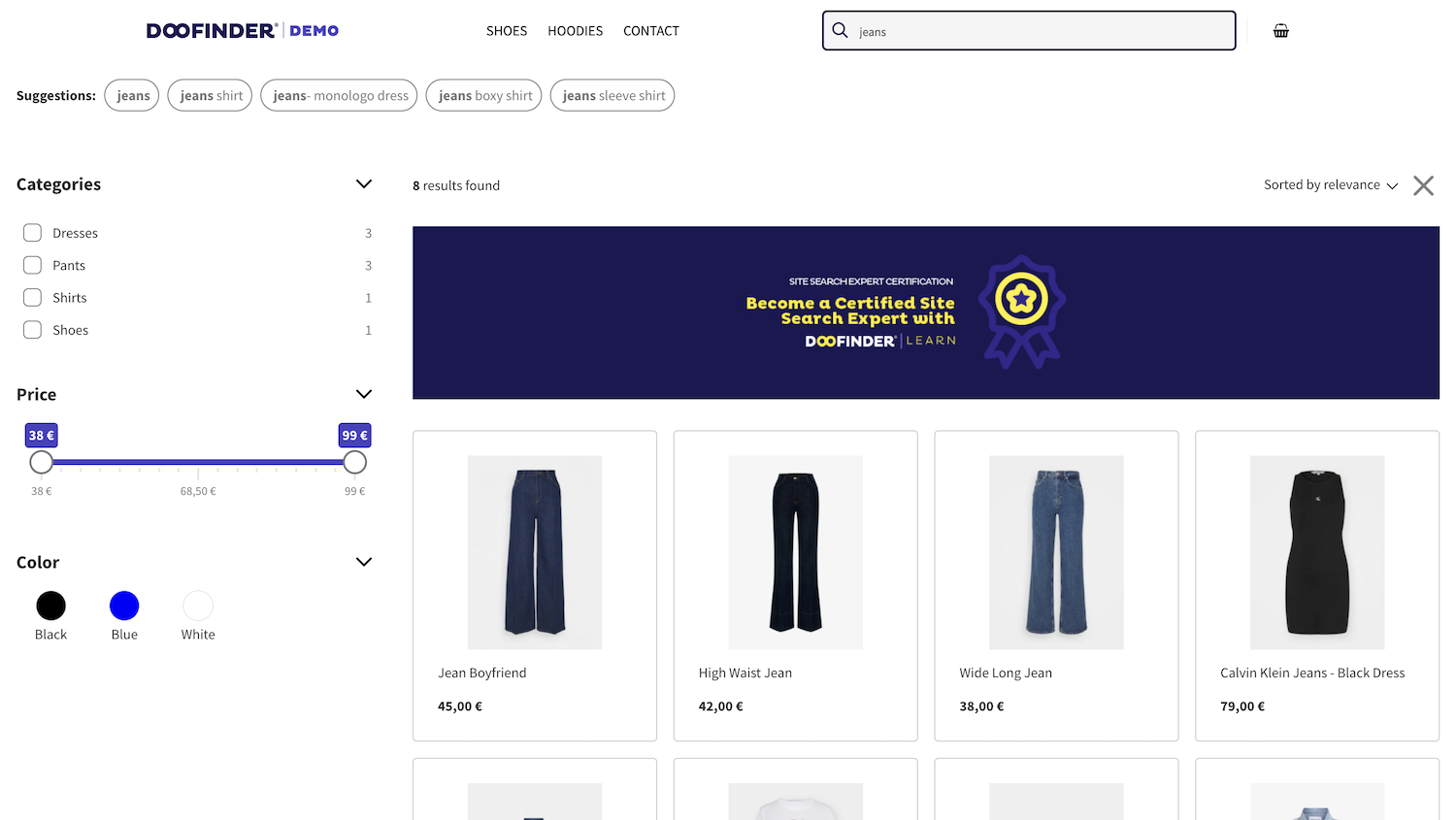
Embedded Layer
The Embedded Layer can be integrated directly into your site design to display search results.
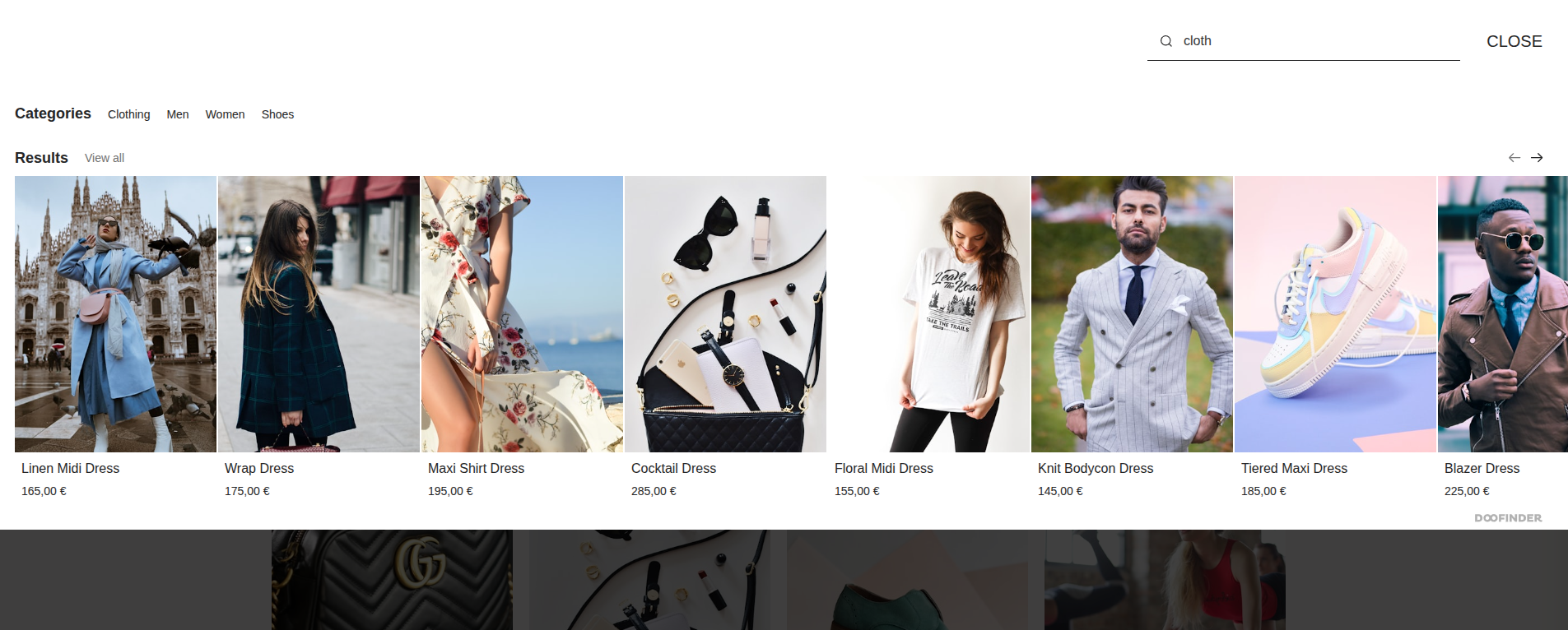
Fashion Theme Layer
An image-first search layer experience built for fashion and apparel stores. This layer theme aligns the search experience with how fashion customers actually shop: by color, size, and visual feel.
See here for more info on How to create a layer and how to Configure your Layer.