


Start by Updating the Module
Make sure you are running the latest version of the module before going through the checks below. Settings have moved out of the module and into the Doofinder Admin Panel, so an outdated module does not behave as this article describes.
See the How Do I Update The Module? section of Installation Steps - PrestaShop.
The hooks are responsible for publishing the content on the Prestashop website, but are also used for the catalogue updates through API. The plugin is usually hooked by default, but sometimes it is necessary to do it manually. There are different types of hooks, depending on their use:
- displayHeader: publishing the layer script.
- actionFrontControllerSetMedia: loading the module assets in the storefront.
- actionObjectCategoryAddAfter: indexing via API.
- actionObjectCategoryDeleteAfter: indexing via API.
- actionObjectCategoryUpdateAfter: indexing via API.
- actionObjectCmsAddAfter: indexing via API.
- actionObjectCmsDeleteAfter: indexing via API.
- actionObjectCmsUpdateAfter: indexing via API.
- actionProductDelete: indexing via API.
- actionProductSave: indexing via API.
- moduleRoutes
To view the layer correctly, your module must be hooked to displayHeader in your Prestashop theme. That is the hook that publishes the layer script.
Hooking the module to displayFooter has no effect. The module does not implement that hook, so transplanting it there will not publish the script and will not fix a missing layer. Use displayHeader.
How To Hook The Plugin
To check your current hooks, open the Doofinder module configuration and click Manage hooks, at the top right. That takes you to the positions screen already filtered by the module.
You can also get there from Design > Positions in your PrestaShop admin, and look for Doofinder in the list.
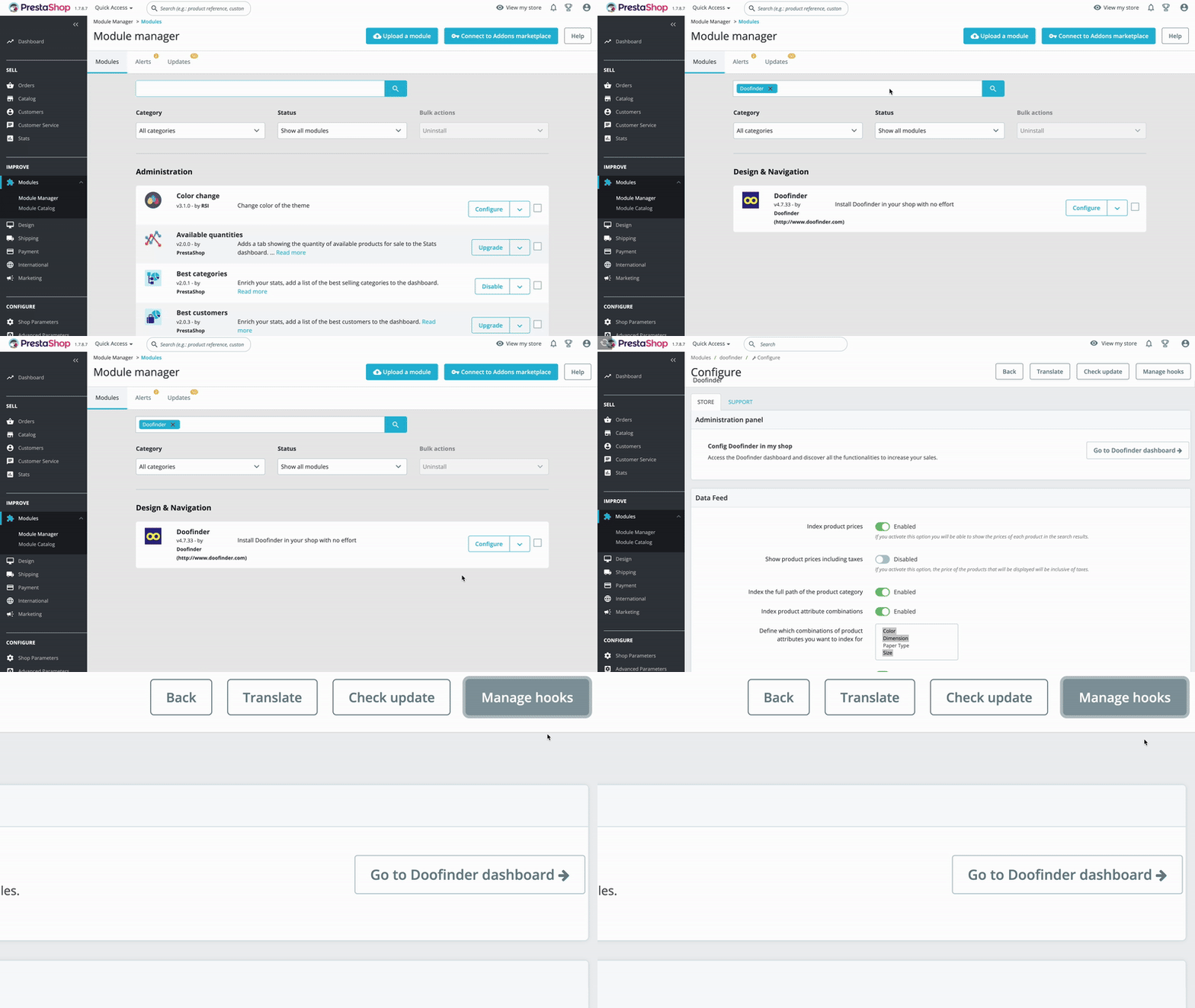
If you can't see the hook you are looking for, tick the 'Show non-positionable hooks' checkbox. Then click the 'Transplant a module' button.
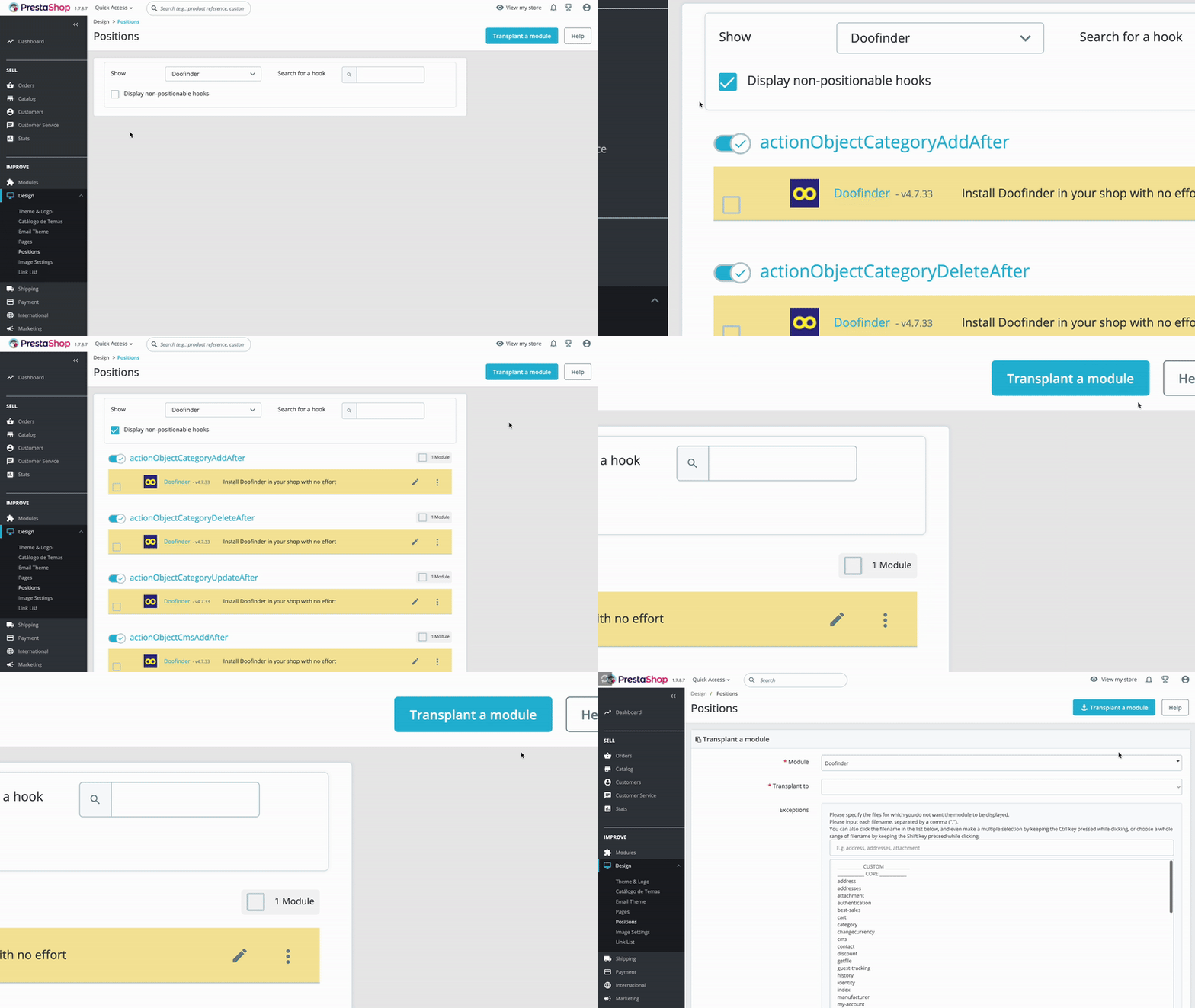
Select 'displayHeader' and then save.
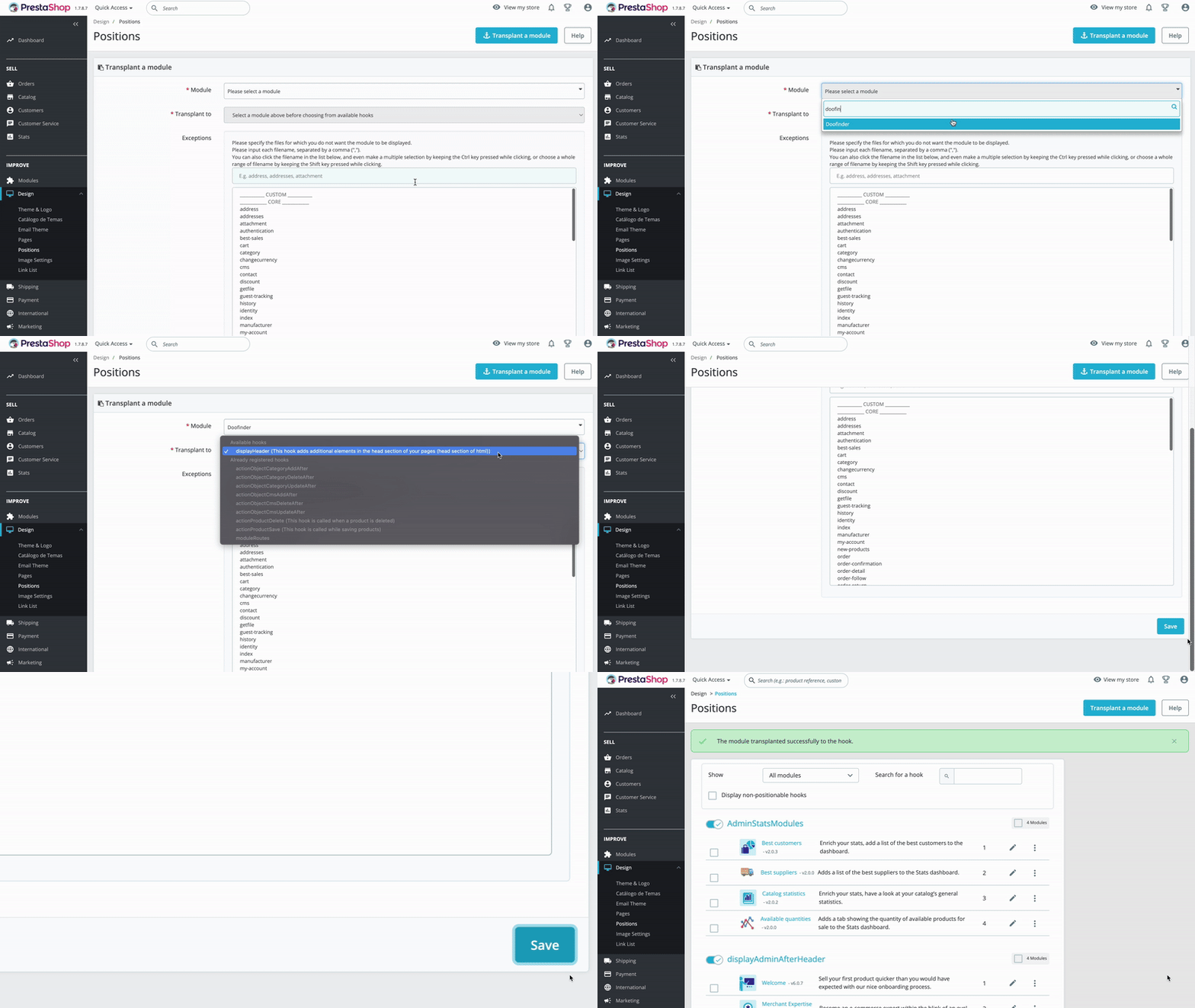
If you have performed these steps and still do not see the layer in your store, please clear the Prestashop cache.
The Layer Shows on Desktop but Not on Mobile
If the layer appears on a computer but not on a phone or tablet, there are two things to check.
Whether the module is enabled for mobile. PrestaShop can disable a module on mobile devices only, leaving it working on desktop. Go to Modules > Module Manager, find Doofinder, and open the dropdown next to the Configure button. If the menu offers Enable Mobile, the module is currently off for mobile and the layer will not load there. Select it to turn it back on. If the menu offers Disable Mobile instead, the module is already enabled and this is not your problem.

The CSS selector. The selector configured for your layer has to match the search input your theme uses on mobile, and themes often use a different element there than on desktop. See CSS Selector to check which one you have set.