You can change how the Quiz Maker looks at two levels:
- The template decides what information the product card shows. To add data the card does not show yet, the data has to be indexed in your feed, and then the template has to be modified. For how templates work, see Product Card Template.
- The CSS decides how the quiz and its product cards look: colors, sizes, borders and effects. This article covers the CSS.
To customize the CSS, you need CSS knowledge.
Find the Classes to Style
Open the page where your quiz appears and use your browser's element inspector to go through the quiz structure. It shows the classes each element uses, for example:
.dfd-quiz-modal.dfd-card.dfd-cart-add-button
The classes of the quiz start with dfd-.
The element inspector also lets you try CSS changes on the page before you save them in Doofinder. These changes are only visible to you and disappear when you reload the page.
Add Your CSS to the Quiz
- In your Admin Panel, select the Store and go to Quiz Maker.
- Select the Search Engine in the Search Engine drop-down menu and open the quiz you want to customize.
- Go to Advanced Configuration > CSS and click on "Customize".
- Paste your CSS code in the field and save your changes.
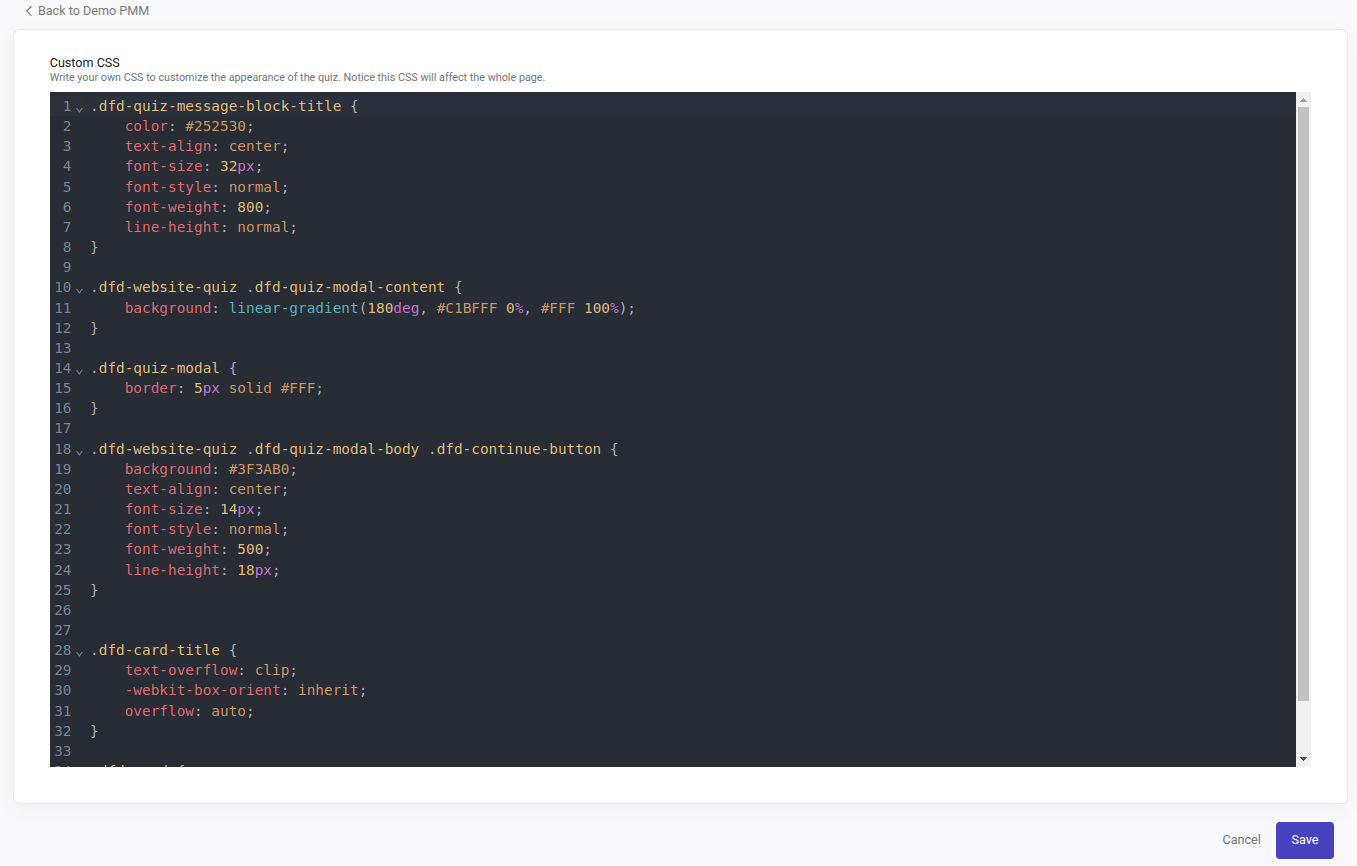
To undo your changes, click on "Restore default".
Style Desktop and Mobile Separately
The quiz has a single CSS field, and the CSS you add there applies to both desktop and mobile. To style one device differently from the other, wrap the rules in a media query:
/* Desktop */
@media only screen and (min-width: 768px) {
    .dfd-website-quiz .dfd-quiz-modal-content {
        background: #F0F0F0;
    }
}

/* Mobile */
@media only screen and (max-width: 767px) {
    .dfd-website-quiz .dfd-quiz-modal-content {
        background: #FFFFFF;
    }
}
Rules outside a media query apply to both devices. Adjust the widths to the breakpoints your store uses.
Check your changes on both desktop and mobile, and in more than one browser.
Customize the Quiz
Change the colors and sizes in the following examples to match your store.
Change the Background Color
.dfd-website-quiz .dfd-quiz-modal-content {
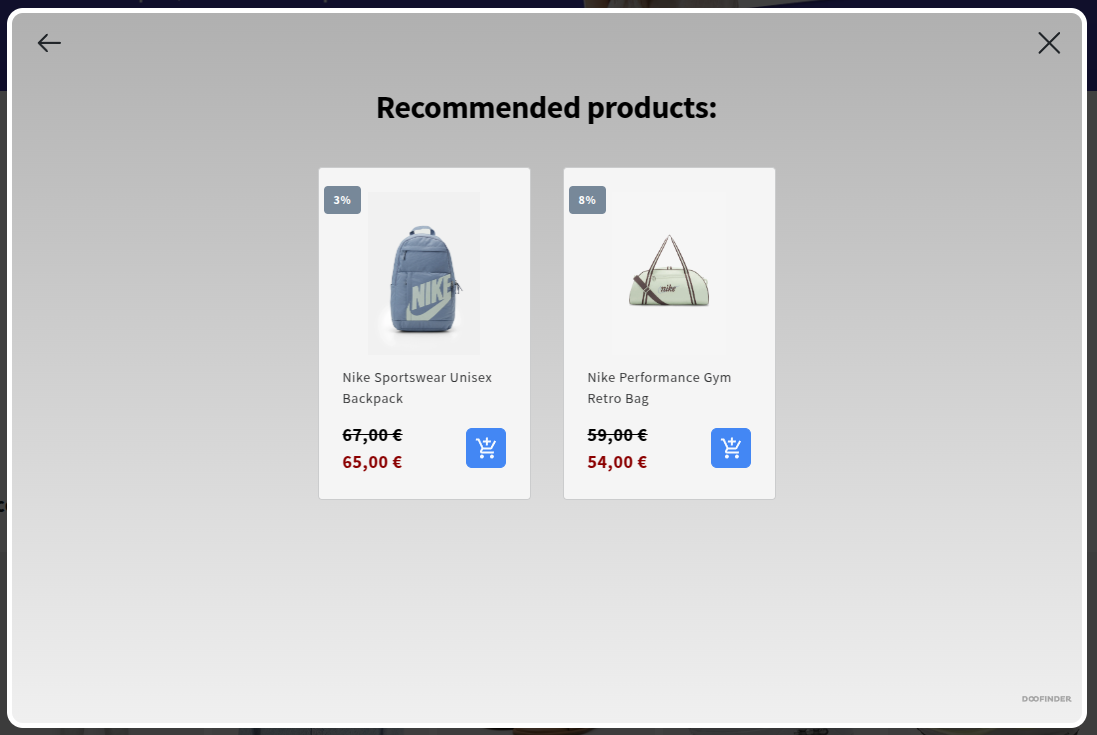
    background: linear-gradient(180deg, #B0B0B0 0%, #F0F0F0 100%);
}
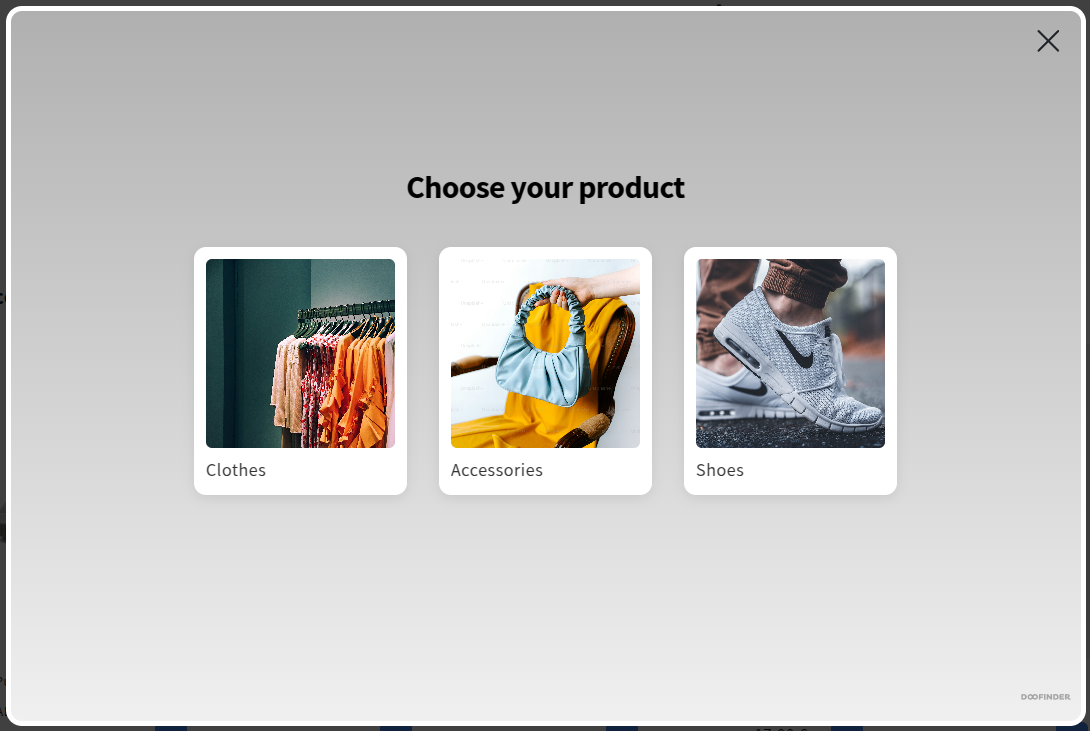
This CSS fills the quiz background with a gradient from one gray to another. Replace the two hex colors with your own, or use a single color instead of the gradient.
Add a Background Image
.dfd-website-quiz .dfd-quiz-modal-content {
    background-image: url("https://www.your-store.com/images/quiz-background.jpg");
    background-repeat: no-repeat;
    background-size: cover;
}

.dfd-website-quiz .dfd-quiz-modal-body .dfd-quiz-form-slide-consent {
    color: #FFFFFF;
}
The first rule sets an image as the background of the whole quiz. Replace the URL with the address of your own image.
The second rule turns the consent text of the form white so it stays readable on a dark image. Change the color to one that reads well on your image.

Change the Continue Button
If your quiz starts with a message, this CSS changes its "Continue" button.
.dfd-website-quiz .dfd-quiz-modal-body .dfd-continue-button {
    background: gray;
    color: white;
    border-color: white;
    border-style: solid;
    text-align: center;
    font-size: 14px;
    font-style: normal;
    font-weight: 500;
    line-height: 18px;
    gap: 4px;
    cursor: pointer;
    user-select: none;
}

.dfd-website-quiz .dfd-quiz-modal-body .dfd-continue-button:hover {
    background: lightgray;
    color: black;
}
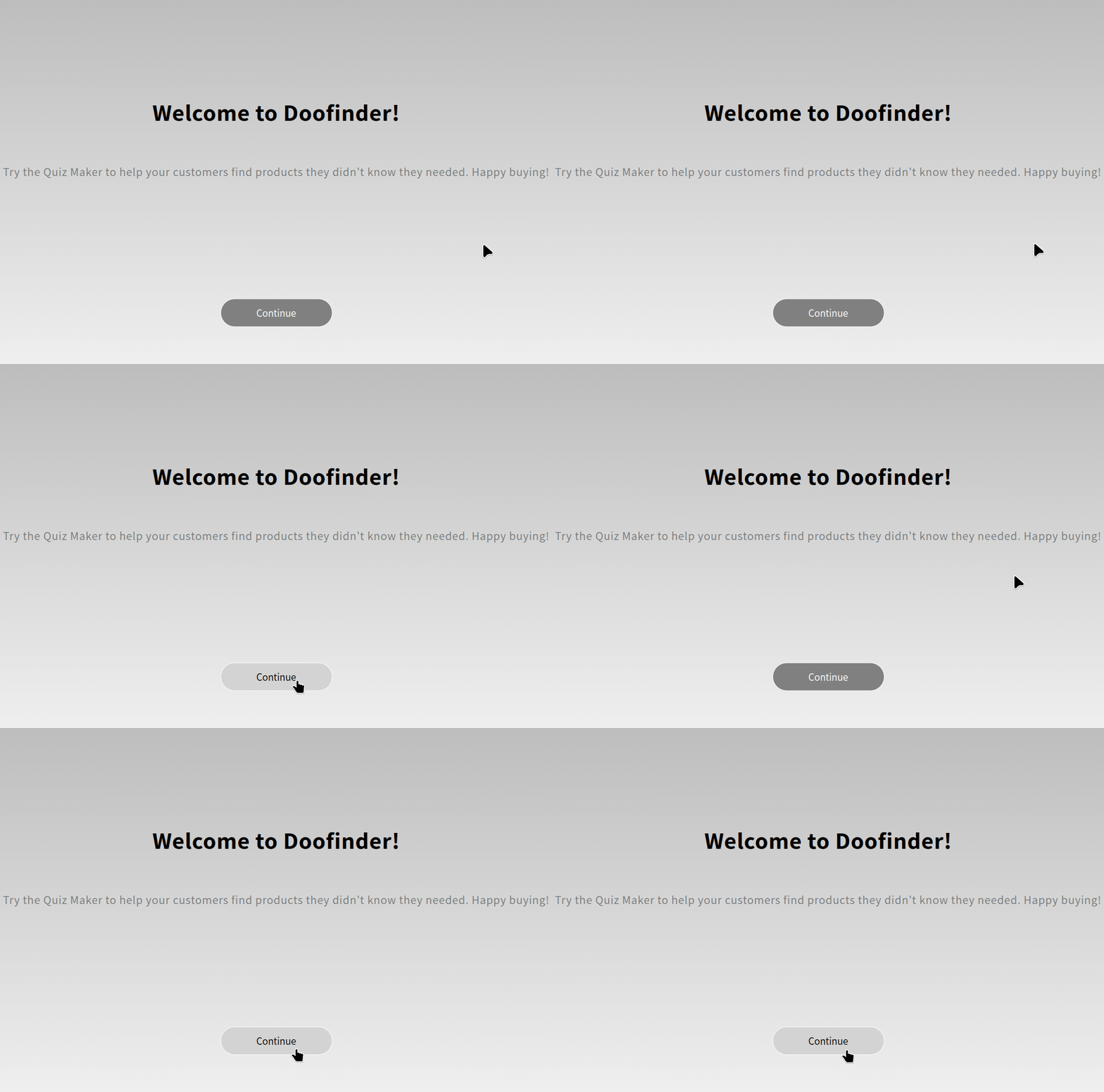
The first rule gives the button a gray background, white text and a solid white border.
The second rule applies when the shopper hovers over the button: the background turns light gray and the text turns black. To change the border on hover too, add border-color and border-style to this rule.
Change the Titles
.dfd-website-quiz b, .dfd-website-quiz strong {
    color: black;
    text-align: center;
    font-size: 32px;
    font-style: normal;
    font-weight: 800;
    line-height: normal;
}
This CSS changes the color, size and weight of the titles of your questions, messages and forms. It targets the bold text of the quiz, so any other bold text in the quiz changes too.

Customize the Product Card
Change the Background Color
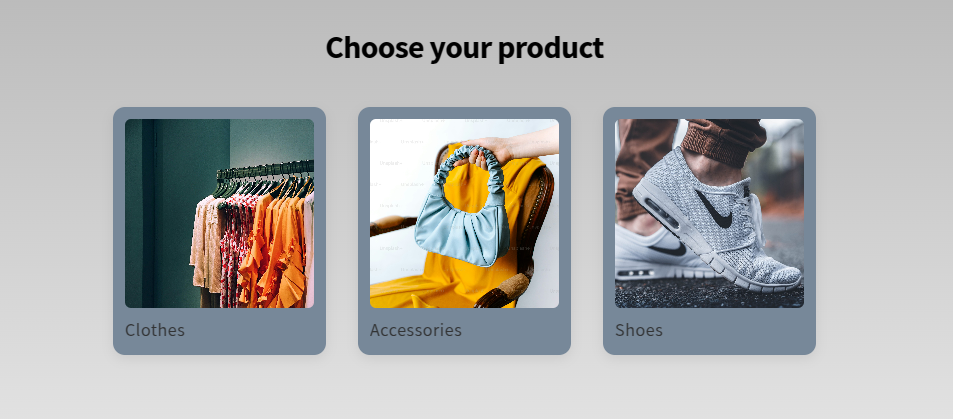
.dfd-quiz-modal .dfd-card {
    background-color: lightslategray;
}
This CSS changes the background of the product card. The example uses a dark gray:
Change the Border
.dfd-quiz-modal .dfd-card {
    background-color: whitesmoke;
    border: medium solid darkred;
    transition: transform 0.3s ease, box-shadow 0.3s ease;
}

.dfd-quiz-modal .dfd-card:hover {
    transform: translateY(-5px);
    box-shadow: 0px 4px 8px rgba(0, 0, 0, 0.2);
    border-color: black;
}
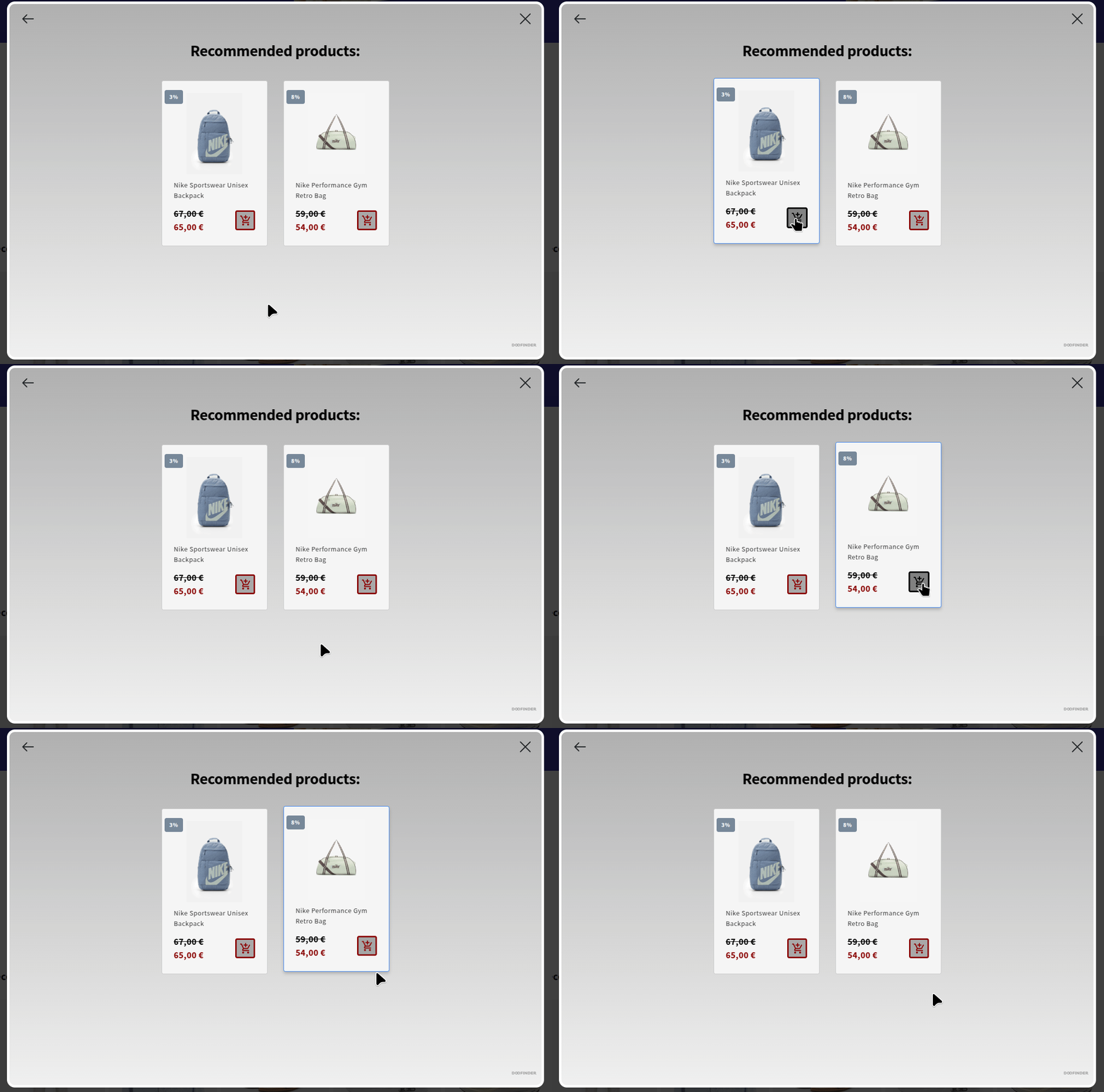
This CSS gives the product results cards a dark red border. When the shopper hovers over a card, the border turns black and the card lifts slightly.
To give the answer cards of your questions the same look, add this CSS as well:
.dfd-website-quiz .dfd-quiz-modal-body .dfd-quiz-modal-choices label .dfd-card {
    background-color: whitesmoke;
    border: medium solid darkred;
    transition: transform 0.3s ease, box-shadow 0.3s ease;
}

.dfd-website-quiz .dfd-quiz-modal-body .dfd-quiz-modal-choices label .dfd-card:hover {
    transform: translateY(-5px);
    box-shadow: 0px 4px 8px rgba(0, 0, 0, 0.2);
    border-color: black;
}
With both, answer cards and product cards look the same:

Lift the Card on Hover
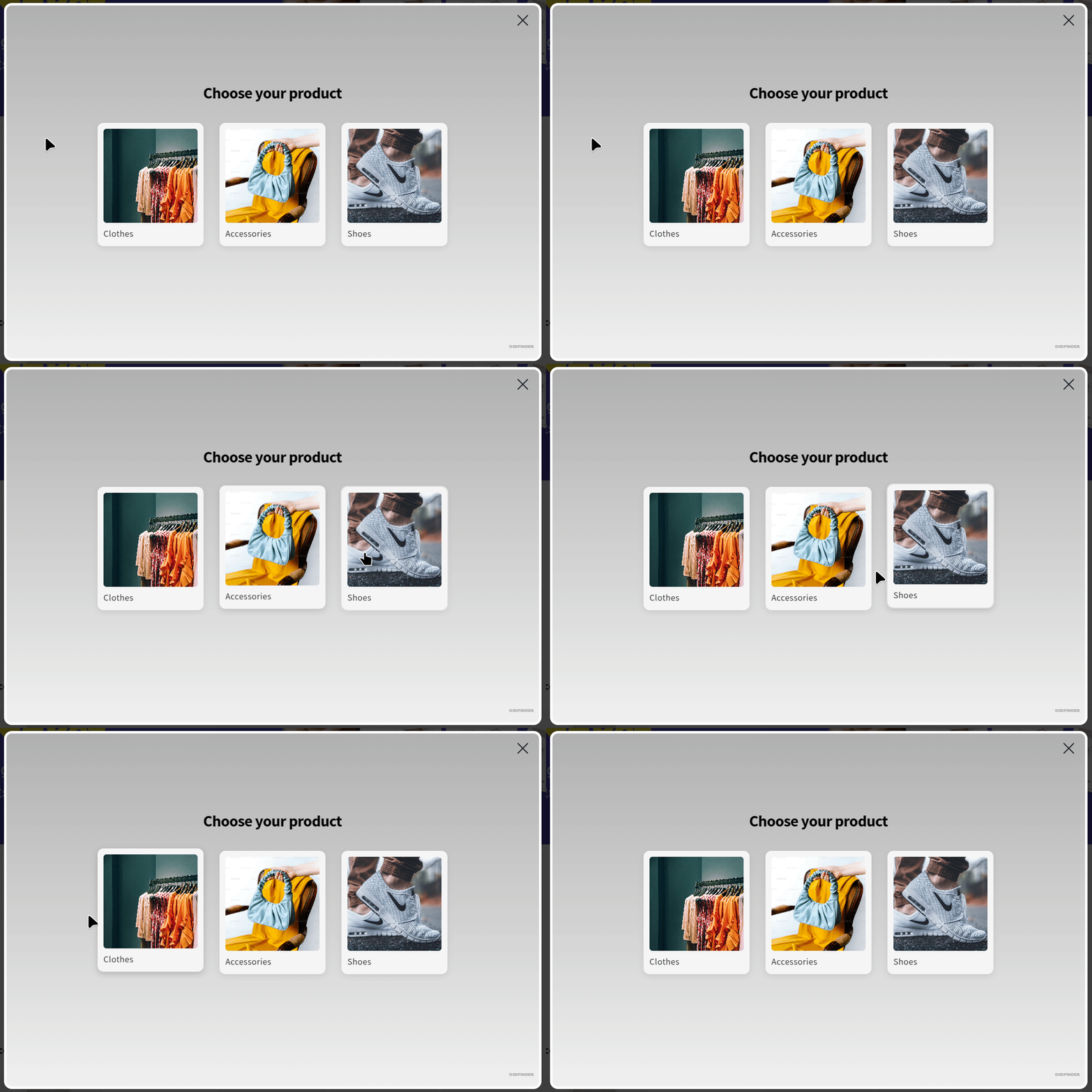
.dfd-quiz-modal .dfd-card {
    transition: transform 0.3s ease, box-shadow 0.3s ease;
}

.dfd-quiz-modal .dfd-card:hover {
    transform: translateY(-5px);
    box-shadow: 0px 4px 8px rgba(0, 0, 0, 0.2);
}
This CSS lifts the product card slightly and adds a soft shadow under it when the shopper hovers over it, without changing its border.
Change the Price
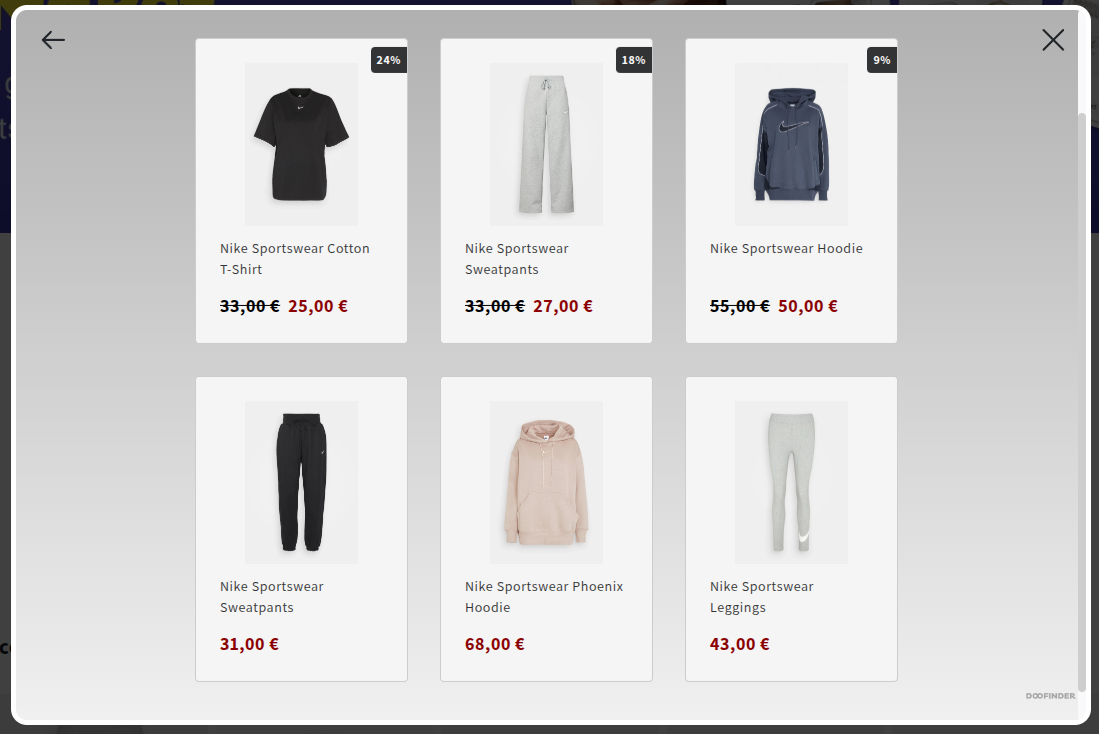
The product card can show up to two prices: the sale price and the original price, which appears crossed out when there is a sale price.
.dfd-quiz-modal .dfd-card-price {
    color: darkred;
    font-weight: bold;
    font-size: 18px;
}
This CSS changes the color, weight and size of the price. It applies to the sale price, and to the original price of products that have no sale price.
.dfd-quiz-modal .dfd-card-price--sale ~ .dfd-card-price {
    color: black;
    font-weight: bold;
    font-size: 18px;
}
This CSS changes the crossed-out original price of products that have a sale price. Without it, that price keeps its default style.
Change the Flags
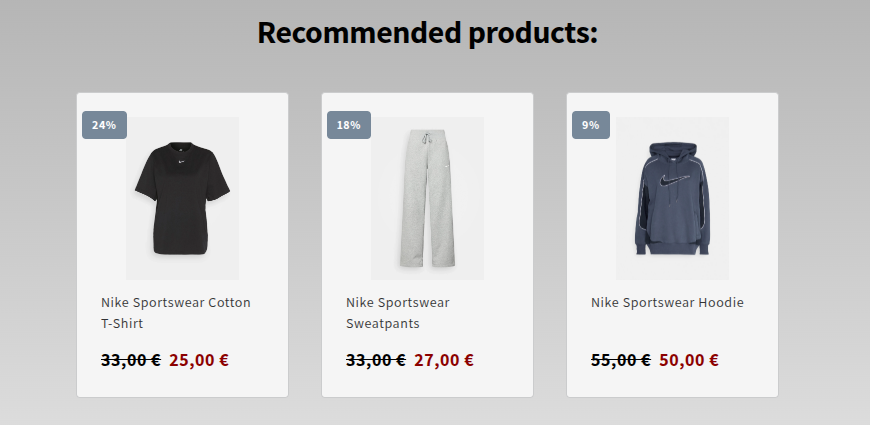
.dfd-card-flags .dfd-card-flag {
    position: absolute;
    top: 10px;
    left: 5px;
    background: gray;
    color: white;
    padding: 5px 10px;
    font-size: 12px;
    font-weight: bold;
    border-radius: 4px;
}
This CSS moves the flags of the product card to its top left corner, rounds their corners and gives them a gray background with white text. Change top and left to move them, and the colors to match your store.
Change the Add to Cart Button
.dfd-cart-add-button {
    --dfd-btn-color: darkred;
    --dfd-btn-hover-color: black;
}

.dfd-card .dfd-cart-add-button {
    background-color: darkgray;
    color: var(--dfd-btn-color, darkred);
    border: solid var(--dfd-btn-color, darkred);
    padding: 2px 3px;
    font-size: 14px;
    font-weight: bold;
    border-radius: 4px;
    cursor: pointer;
    transition: background-color 0.3s ease, transform 0.2s ease;
}

.dfd-card .dfd-cart-add-button:hover {
    background-color: gray;
    border-color: var(--dfd-btn-hover-color, black);
    color: var(--dfd-btn-hover-color, black);
    transform: scale(1.05);
}
This CSS gives the button a dark gray background with dark red text and border. When the shopper hovers over it, the background turns gray, the text and border turn black, and the button grows slightly.
The first rule sets the two colors the other rules use: --dfd-btn-color for the text and border, and --dfd-btn-hover-color for the text and border on hover. Change them there to recolor the button.
Default button:
With the CSS: