


Start by Updating the App
The Doofinder app updates from the BigCommerce side, in BigCommerce Panel > Apps > Doofinder. When Doofinder adds new permissions, BigCommerce asks you to approve the new scopes, and until you accept them the integration stays on the old version.
Re-enable the Doofinder Script
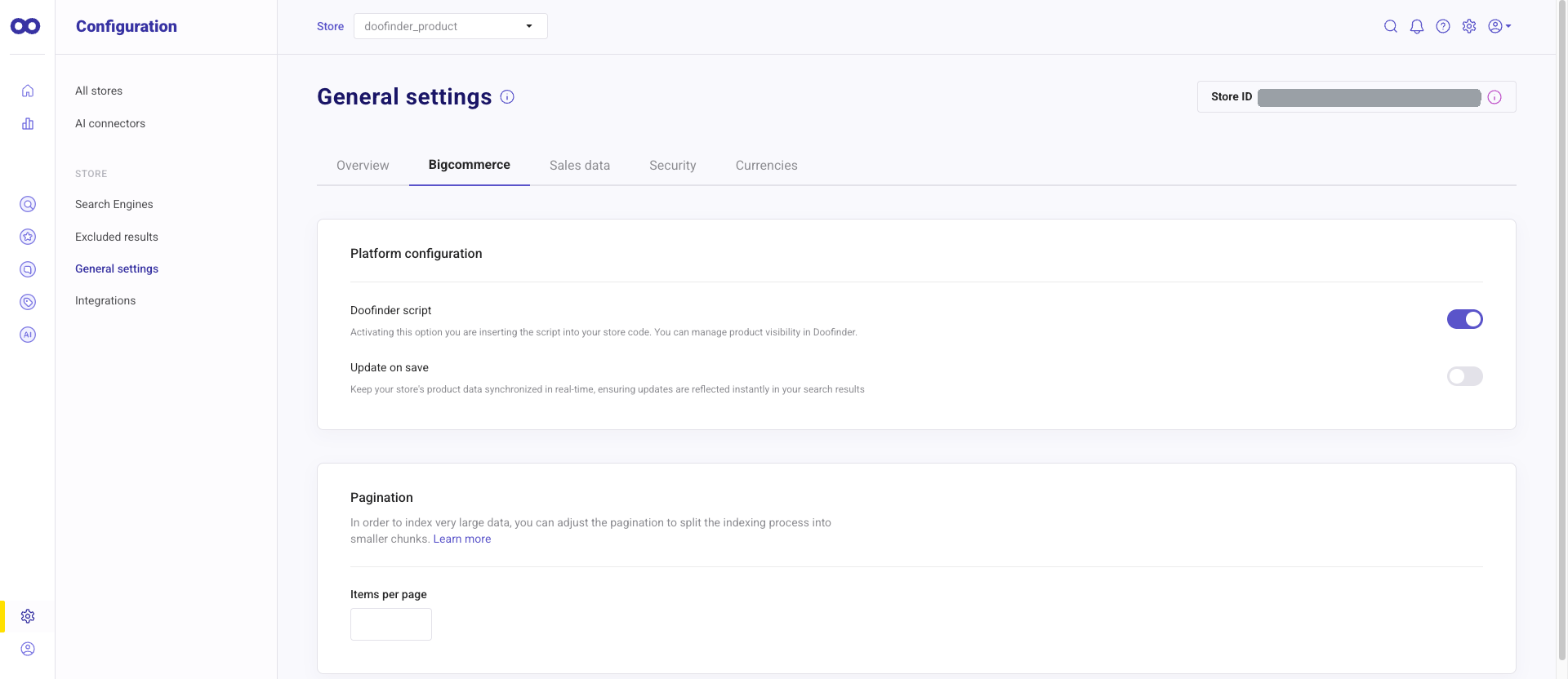
If you still cannot see the layer, disable and re-enable the Doofinder script. In the Doofinder Admin Panel, go to Configuration > General settings > Bigcommerce > Platform configuration, switch the Doofinder script toggle off, and switch it back on.
If the layer still does not appear after that, it has to be looked at on our side. We will ask for your store URL and the storefront involved.