


What is Boosting?
Boosting is a set of features that have the power to change the relevance of products when returning your search results, based on the Search Engine configuration or user behavior. This set of features can be found in your Admin Panel > Search > Promotional Tools > Boosting.
How is it done?
Doofinder uses a scoring system for delivering search results. Each time a search is performed, results are returned with a score attribute for each result. The score is a numerical value that Doofinder assigns to each search result based on how "close" that result is to the search performed. The results are sorted by that score, with the highest results displayed first. This scoring system can be altered using the Boosting factor.
Video last updated before 12-31-2024
The Boosting factor
Every once in a while, you may want to promote several products over others for various reasons. It could be to clear stock, to promote a brand or to introduce a new product.
Doofinder's Boosting feature is a great way to do this. It does so by providing a way to give more importance to certain product search results over others.
There are four ways to boost the preferred search results for your eCommerce site. These are categorized as follows:
- Boosting Rules
- Manual Boosting
- Automatic Boosting
- Boosting through the data feed
To access these features, go to your Admin Panel > Search > Promotional Tools > Boosting > select on the top menu the Search Engine you would like to work on.
1. Boosting Rules
Personalize search relevance to create sophisticated preferences over multiple criteria. Under the Boosting Rules section, products are boosted at an attribute level, meaning you can boost results based on certain filter values. For instance, promoting one brand or category over another or others.
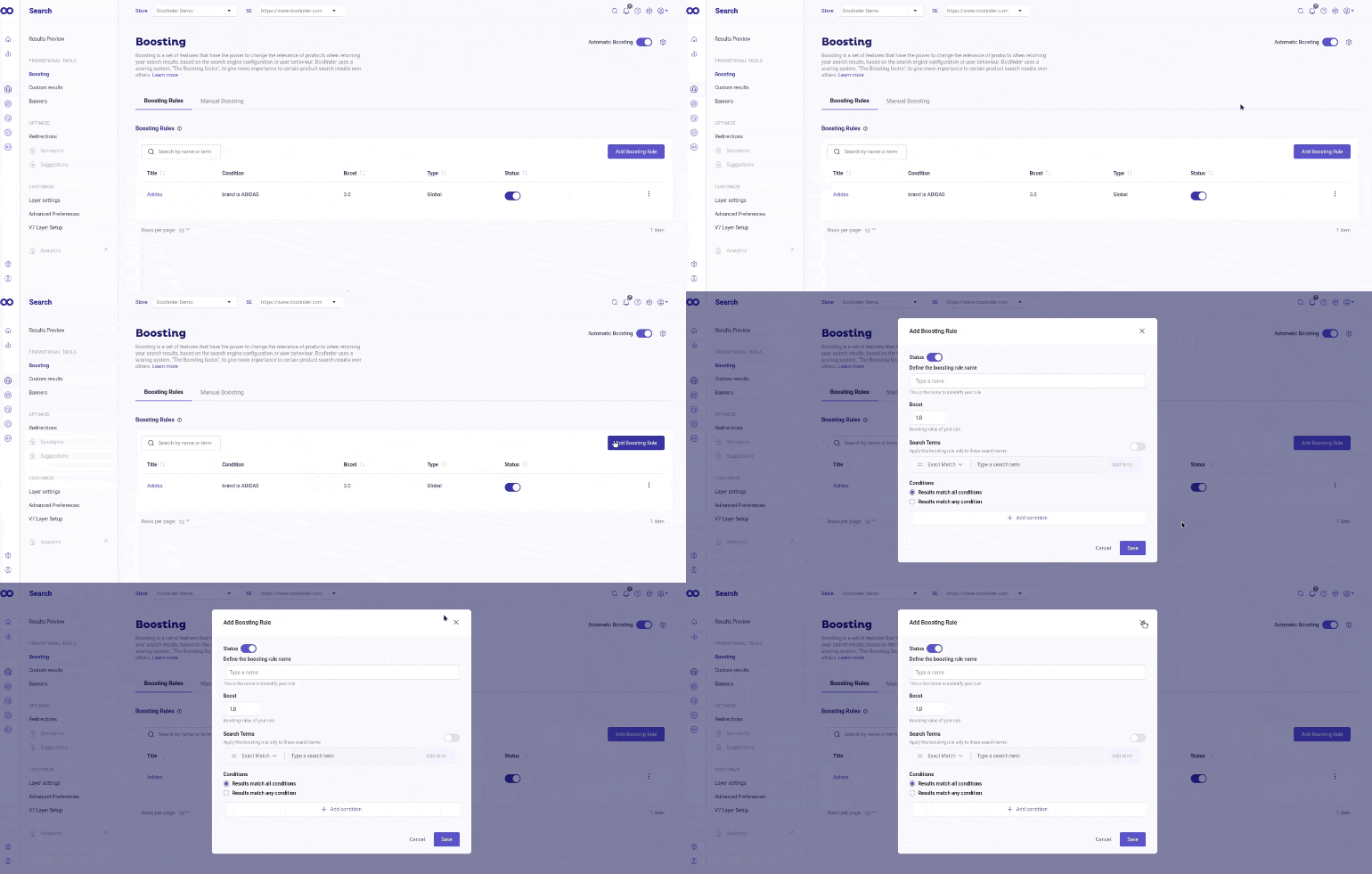
To begin the rule configuration, click on Add Boosting Rule. For example, you can create a Boosting Rule by adding a name (Adidas), a Boost score (3,0) and the conditions to show products brand Adidas, categories shoes.
You can also boost a specific search term within the rule by activating the Search Terms option.
When the Search Term option is disabled:
- The boost is applied generally to the elements contained within the rule.
When the Search Term option is enabled:
- The boost is applied only when searching for the specified term within the elements contained within the rule.
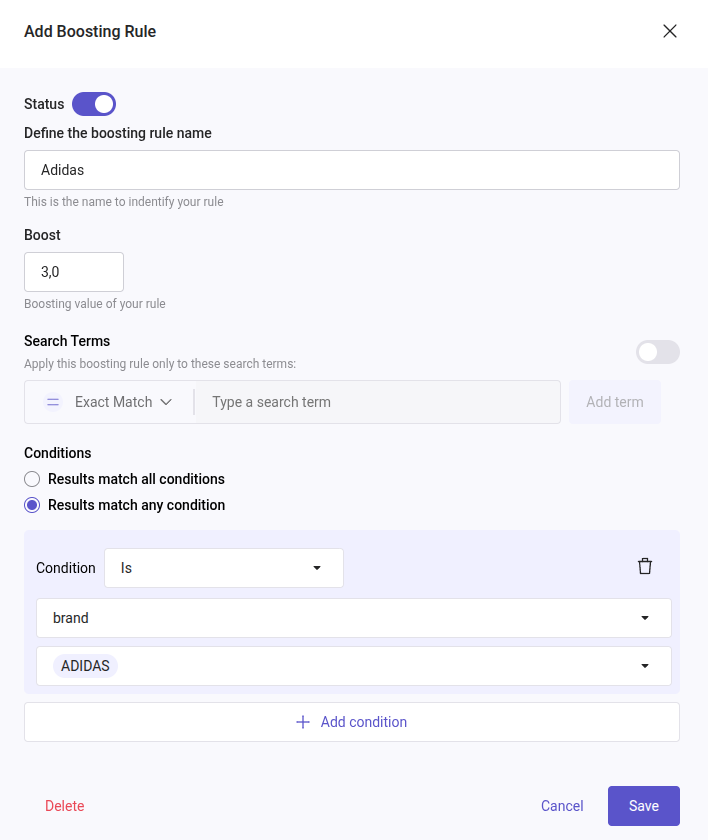
Here's how to configure it:
- Define the Boosting Rule name: While it is compulsory to include it, the name you choose is at your discretion. In our example, we'll name it "Adidas".
- Boost: Input the multiply by which you want to boost the product. The number has to be a floating number and cannot be less than or equal to zero.
-
Search Terms: If enabled, Boosting Rules are applied to the specified search terms.
- Exact Match: the rule will be applied only if the user types the EXACT search term or terms chain.
- Broad Match: the rule will be applied if the text typed by the user CONTAINS the set search term.
-
Conditions: You can match results under Any or All circumstances conditionally, e.g.: "Any" = "or" and "All" = "and".
Now, click on + Add condition to configure the rule (e.g.: show products brand Adidas, categories shoes, etc.).
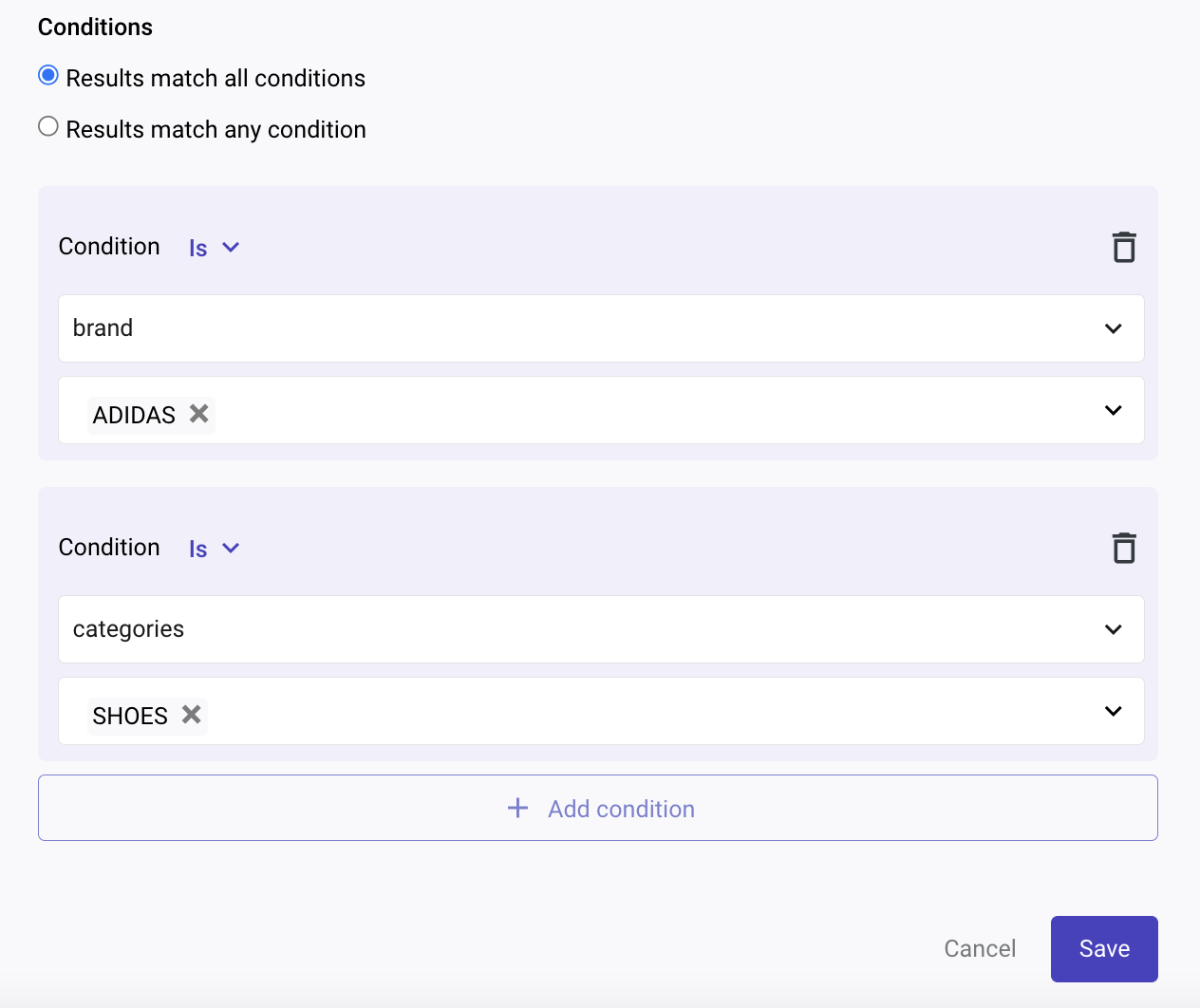
List of conditions
The list of available conditions will depend on your feed fields. If it is a term, the condition will be determined by IS / IS NOT and if it is a number, such as a price, it will be IN RANGE / NOT IN RANGE / LOWER THAN / GREATER THAN. For example:
- Availability => Is / Is not - Values => In Stock / Out of Stock
- Best Price => In range / Not in range / Lower than / Greater than - Values => From / To
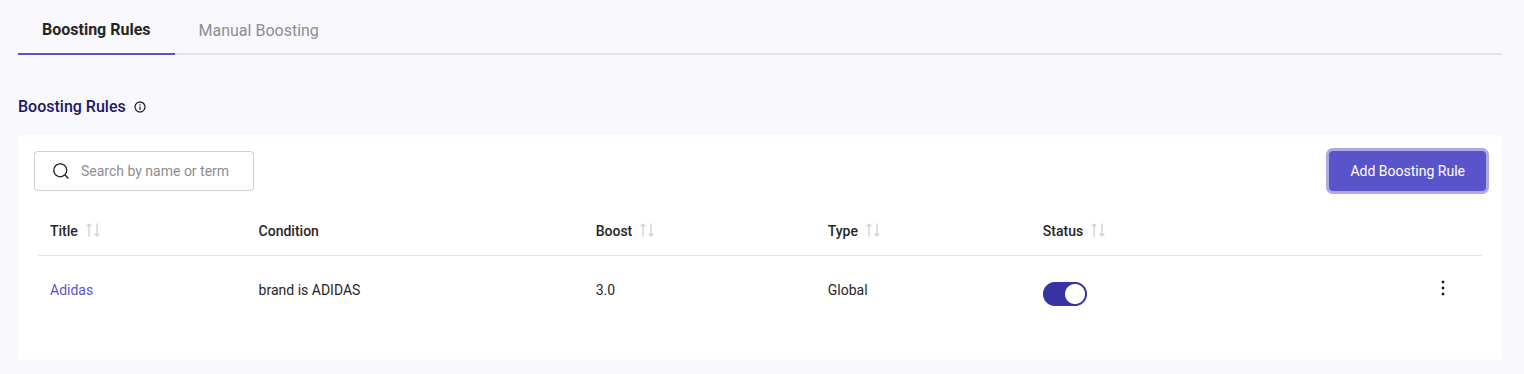
Once saved, your boosting rule will look like this. To edit the rule or delete it, simply click on the three dots. You can also activate or deactivate the boosting rule whenever necessary by enabling/disabling the button.
2. Manual Boosting
You can manually boost your products by setting the boost factor for every product in your data feed directly through the multiplying factor. The input field is for modifying the boost factor of the item (it defaults to 1.0). You can specify a greater or lower boost factor for the item there. If you specify a value greater than 1, the item will perform better when searching. If you specify a value lower than 1, but higher than 0, it will perform poorer.
Boost factor must always be higher than 0 and lower than 20. Otherwise, the feed will deliver an error.
Search for the product you want to change the boost factor and change the value. Then, click on the "Apply" button that will appear next to the number.
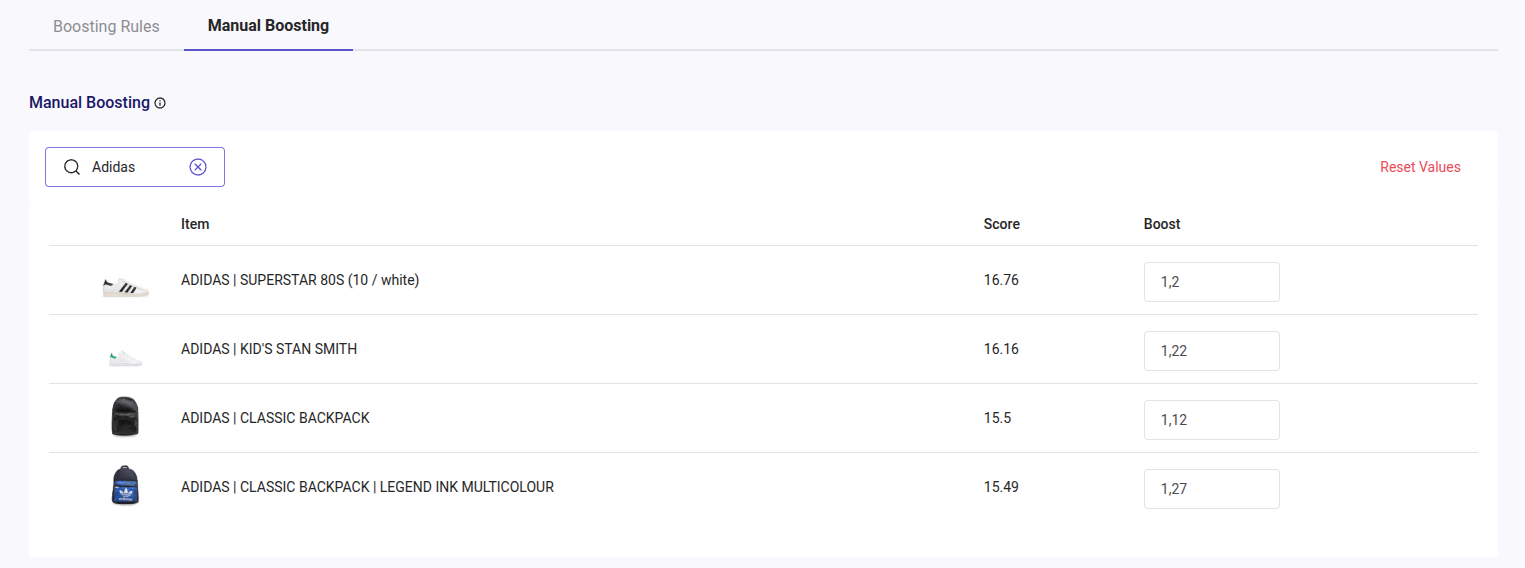
As you can see, the order of the products is now altered according to the values provided.
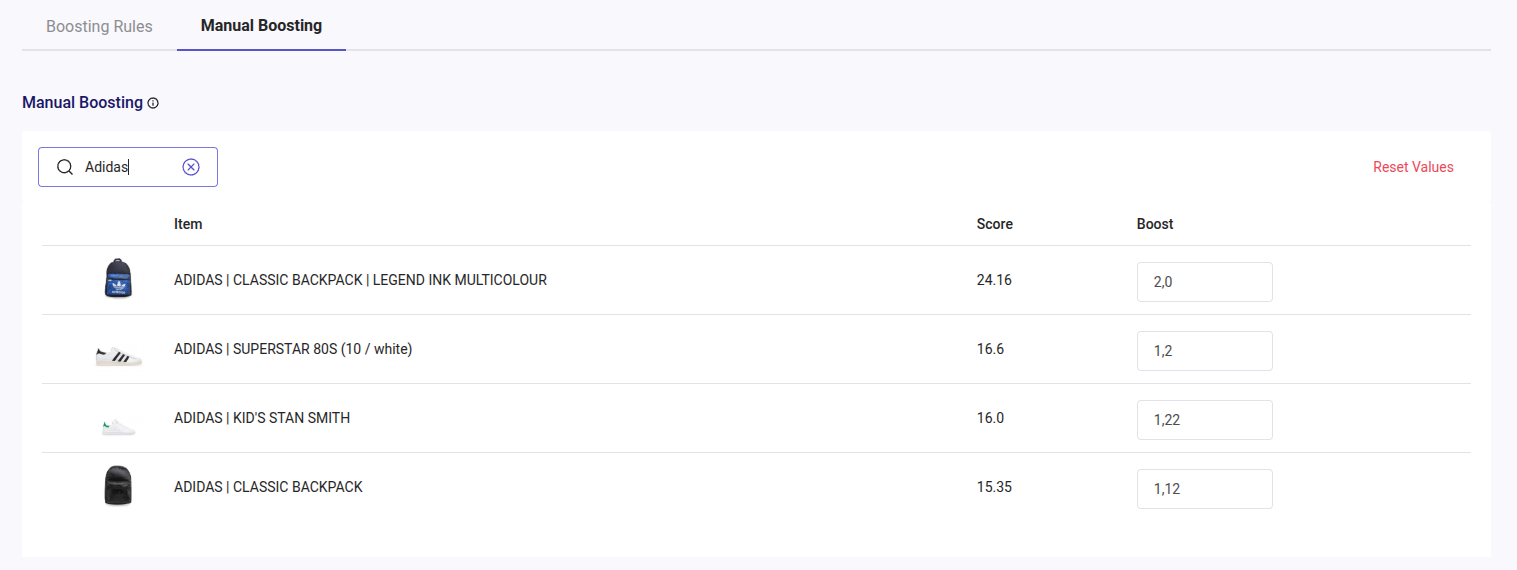
To reset the manual boosting values to their default settings, simply click on the "Reset Values" button.
3. Automatic Boosting
Automatic Boosting is a mechanism that automatically rewards products that have been performing well recently, helping them gain visibility in search results.
The final product ranking is calculated as:
Search Position = Relevance × Autoboost
- Relevance: How well the product matches what the user has typed.
- Autoboost: How well the product is performing in terms of recent user interaction.
How is product performance measured?
For each product, a recent performance score is calculated (last 15 days):
The score efficiently balances out visits and clicks.
The automatic boost then:
- Applies only to products with a score above the average.
- Increases as the product’s performance increases.
- Reduces differences between extremely high-performing products.
4. Boosting through the Data Feed
How df_manual_boost works
If you manually modify the boost factor in the Admin Panel, it will be overwritten by the values you set in the data feed, so you have to decide between setting them manually or setting them through the data feed.
Boosting through the data feed varies on the file format used.
To boost in this format, you will need to add a new attribute field named df_manual_boost, adding the values for each row in the file. The values for the df_manual_boost field must be a number between 0.1 and 20. For numbers with decimals, use '.' as a separator (e.g.: 2.23).
The boosting factor must always be greater than 0 and less than 20. Otherwise, the feed will deliver an error.
Doofinder orders search results by a relevance score. The df_manual_boost attribute is a multiplier applied to that score, it scales how relevant the product is considered to be, so a product still needs to match the query to appear.
- Default value is 1.0 (neutral, no change).
- A value above 1.0 makes the product rank higher.
- A value below 1.0 but above 0 makes the product rank lower.
Valid values
- The value must be greater than 0 and lower than 20. The practical range is 0.1 to 19.99.
- Use a dot as the decimal separator, for example “2.23".
- A value of 0, a negative value, or a value of 20 or higher causes an indexing error.
How to set it on your feed
df_manual_boost is just one more field on the product. There are two ways to set it, depending on how you index.
Option A - As a field in the data feed
Add an attribute named df_manual_boost to your feed and set a value on each row you want to boost.
If you set a manual boost in the Doofinder Admin Panel and you also set `df_manual_boost` in the feed, the feed value overwrites the panel value. Choose one source and stick to it.
Option B - As a field in the item payload (indexing by API)
If you index by API, add df_manual_boost to the item body when you create or update the item. The example below updates a single item to a boost of 2.5.
curl --location --request PATCH 'https://eu1-api.doofinder.com/api/v2/search_engines/YOUR_HASHID/indices/INDEX_NAME/items/ITEM_ID' \

--header 'Authorization: Token YOUR_API_KEY' \

--header 'Content-Type: application/json' \

--data '{

  "df_manual_boost": 2.5

}'
You can also include it when you create the item, alongside the rest of its data:
{

  "id": "PRODUCT_ID",

  "title": "Product name",

  "link": "https://www.example.com/products/PRODUCT_ID",

  "df_manual_boost": 2.5

}
Replace `YOUR_API_KEY`, `YOUR_HASHID`, `INDEX_NAME` (usually `product`), and `ITEM_ID` with your real values. The zone in the URL (`eu1`) must match your search engine zone (`eu1`, `us1`, or `ap1`).
5. Calculating the boost value from your own signals
The idea is that you can create a coefficient that consolidates all your business signals (stock, sales, newness, margin, etc.) into one df_manual_boost value per product, in order to achieve automation and prevent sending two different values.
The benefit of this approach is that you never have to manually manage boost values product by product, and the values stay fresh as your inventory, sales, and catalog change over time.
A reliable way to turn many signals into one controlled number is three steps:
- Normalize each signal to a 0 to 1 scale, so they are comparable.
- Combine them with weights that sum to 1, which gives a single score between 0 and 1.
- Map that score to your chosen boost range and clamp it to a safe value.
Learn by example
Suppose you want to promote products that are well stocked, selling well, and recently added. You pick weights of 30 percent stock, 50 percent sales, and 20 percent newness, and you map the result to a range of 1.0 (neutral) to 3.0 (maximum promotion).
For a product with 120 units in stock, 18 units sold in the last 30 days, and added 15 days ago:
- Stock 120 against a target of 100 gives a stock score of 1.0 (capped at 1).
- 18 units sold against a target of 40 gives a sales score of 0.45.
- Added 15 days ago within a 90 day window gives a newness score of 0.83.
- Weighted combination = 0.30 x 1.0 + 0.50 x 0.45 + 0.20 x 0.83 = 0.69.
- Mapped to the 1.0 to 3.0 range = 1.0 + 0.69 x (3.0 - 1.0) = 2.38.
Send the result
Pass the single computed value to the item, exactly as in the examples above:
curl --location --request PATCH 'https://eu1-api.doofinder.com/api/v2/search_engines/YOUR_HASHID/indices/INDEX_NAME/items/ITEM_ID' \

--header 'Authorization: Token YOUR_API_KEY' \

--header 'Content-Type: application/json' \

--data '{

  "df_manual_boost": 2.38

}'
Keep the weights summing to 1 and the mapped range narrow, for example 1.0 to 3.0. A narrow range keeps relevance in control, since boosting multiplies the natural score rather than replacing it.
Stock, sales, and newness change over time, so recompute the value on a schedule (for example nightly) and re-index the affected products. For large catalogs, update items in bulk batches of up to 100.
Always clamp the final value to stay above 0 and below 20. A value of 0, a negative value, or 20 or higher causes an indexing error.
Best practices
- Start moderate. Values such as 1.1 to 3 cover most cases. Values close to 20 can make a product dominate searches where it is barely relevant.
- Keep one source of truth. Manage the boost either from the feed or from the API, not both, to avoid one overwriting the other.
- Validate before indexing. Reject any value that is 0, negative, or 20 or higher, so you do not trigger an indexing error.
- The
df_manual_boostis global, it affects the product in every search. If you only want to promote a product for a specific search term, use Boosting Rules in the Doofinder Admin Panel instead (Search > Promotional Tools > Boosting), which can target individual search terms.