


Paginating the data feed is an excellent way of making sure the server requests run smoothly and effectively. The server does not need to be tasked with an overload of requests to maintain your website's peak performance.
You can feed Doofinder data directly via API or allow Doofinder to read the data from a URL.
This way, URLs can point to already generated URLs (so they're basically downloads) or to server endpoints that dynamically return the most up-to-date data directly from the database. Such endpoints can be expensive in terms of resources. Therefore, Doofinder splits the download into multiple requests to maintain performance by enabling feed pagination.
Pagination, in this case, refers to the ordinal numbering of pages system.
Doofinder's Feed Pagination
Firstly, ensure that your server has the following two parameters to retrieve a paginated feed:
-
Limit: This is the maximum number of items returned in the response for each server call.
-
Offset: This is the position of the first element that must be returned in response to the current request. The first value for this parameter is 0. This value increments limit with each request.
Also, note that depending on how the pagination is implemented, the feed can actually return "Limit" items or less.
For instance, if you implement it to get the items with offset <= ID < (offset + limit), you can get less than "Limit" because some items with an ID that matches the condition may be out of stock or deleted.
If you instead implement it just to request your database with the very same values for "Offset" and "Limit", your database will always return "Limit" items, until there are no more results or the last set of results is smaller than "Limit" in length.
Doofinder will start gathering pieces of the feed using the limit and offset parameters until it gets an empty response.
Upon setting the limit, Doofinder will make requests starting from offset=0, offset=1000, then offset=2000 and so on until an empty response is received. Of course, along with the offset parameter goes the limit parameter which specifies the size of the page (1000 in this case).
Example:
Say we have a feed at http://server.com/doofinder.cfm, which has 6300 products in its data feed. We then set its pagination limit to 2000 items.
The first server request to our parser would then be:
http://server.com/doofinder.cfm?limit=2000&offset=0
This would fetch the first 2000 items under the following conditions:
When the feed is an XML, this would also fetch the declarations at the beginning of the XML file.
When the feed is TXT, this would also fetch the file's header.
Consequently, the next request would be:
http://server.com/doofinder.cfm?limit=2000&offset=2000
This would fetch the items between 2000 – 3999.
Special care should be taken when the feed is an XML or CSV feed such that the beginning of the XML is not resent with the data.
This would be under another request with offset 4000:
http://server.com/doofinder.cfm?limit=2000&offset=4000
A request with the offset set at 6000 would fetch the last 300 items. When the feed is in XML, this would also fetch the XML closing tags.
http://server.com/doofinder.cfm?limit=2000&offset=8000
The final request would then get an empty response, signaling Doofinder's downloader to end the download process.
Plugins Pagination
How plugin pagination works
When Doofinder indexes your store's data, it reads your product catalog through API in most cases. To avoid overloading your server and prevent timeouts, such as 500 errors, during indexing, Doofinder splits this process into smaller chunks, loading a set number of products per request instead of everything at once. This is called pagination.
Most plugins paginate automatically, each with their own default page size. You can adjust this value to better fit your server's capacity.
Consider also the times of your server when it’s most loaded. It’s good practice to avoid your server’s high traffic hours by also setting up the Indexing options.
When to adjust pagination
Consider changing your pagination settings if you experience:
- Timeout errors during indexing: reduce the page size so each request is lighter.
- 500 errors from your server: your server may be struggling with large responses; lower the page size to reduce load.
- Slow or incomplete indexing: a very low page size means more requests; increase it if your server can handle it.
See here for more info about the Doofinder logs errors!
How to configure pagination
Pagination settings are in the Doofinder Admin Panel, go to Configuration > General settings > (plugin’s name tab) or the Data Source settings depending on your platform (see topic “Real case examples” below).
Please notice that each platform works slightly differently:
- Page size: controls how many products are loaded per request. Most API-based plugins use this parameter. If left empty, the plugin uses the platform default. Setting it to
0disables pagination (not recommended for large catalogs). - Pagination toggle (Prestashop only): allows you to enable or disable pagination entirely for your data source.
Clearing a field restores the platform's default value.
Choosing a page size
The right page size depends on how your platform sends data to Doofinder. Lower the value when you see timeout or 500 errors; raise it (or clear the field to restore the default) when indexing is slow because there are too many small requests.
Check your integration type to choose the correct pagination setting:
| Integration type | Plugins | How pagination works | Recommended page size | If indexing times out |
|---|---|---|---|---|
| API-based plugins | Shopify, Magento, WooCommerce, Shopware, BigCommerce, Shoper and others | Doofinder reads your catalog through the platform API. | 100 products per request | Reduce the value to 50 or 25 to make each request lighter. |
| Feed-based plugins | PrestaShop | Doofinder reads the catalog from a feed URL, so requests handle larger amounts of data. | Recommended starting point: 1000 products per request | Lower the value gradually until indexing completes without errors. |
Don't apply the low values used for API-based plugins (25–50) to a PrestaShop feed. Because PrestaShop delivers the feed over a URL, a value that low would generate thousands of requests and slow indexing down instead of helping.
Real case examples
Shopware 6
Shopware 6 uses a numeric Items per page field under Shopware_app. You can set any value from 1 upward; the maximum supported by Shopware is 100.
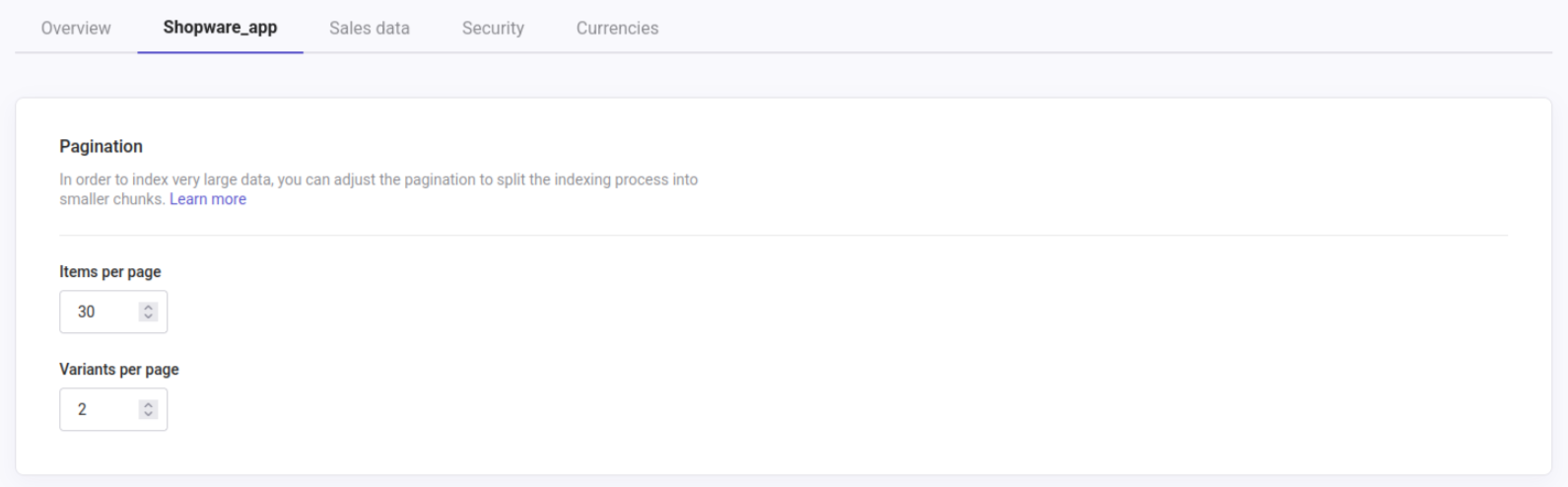
Shopware 6 also supports a separate Variants per page field, see picture above, which controls how many product variants are fetched per request. This field follows the same numeric rules. If set to 0, variants won’t be indexed at all.
Where to find it: go to Doofinder admin > Configuration > General settings > Shopware_app
Practical example: If your server returns timeout errors during indexing, try reducing the items per page from the default to a lower value (e.g., 25–50). This reduces the load per request and your server takes less time to respond to each request.
WooCommerce
WooCommerce uses a numeric Items per page field. Clearing the field restores the default.
Where to find it: go to Doofinder admin > Configuration > General settings > Wordpress
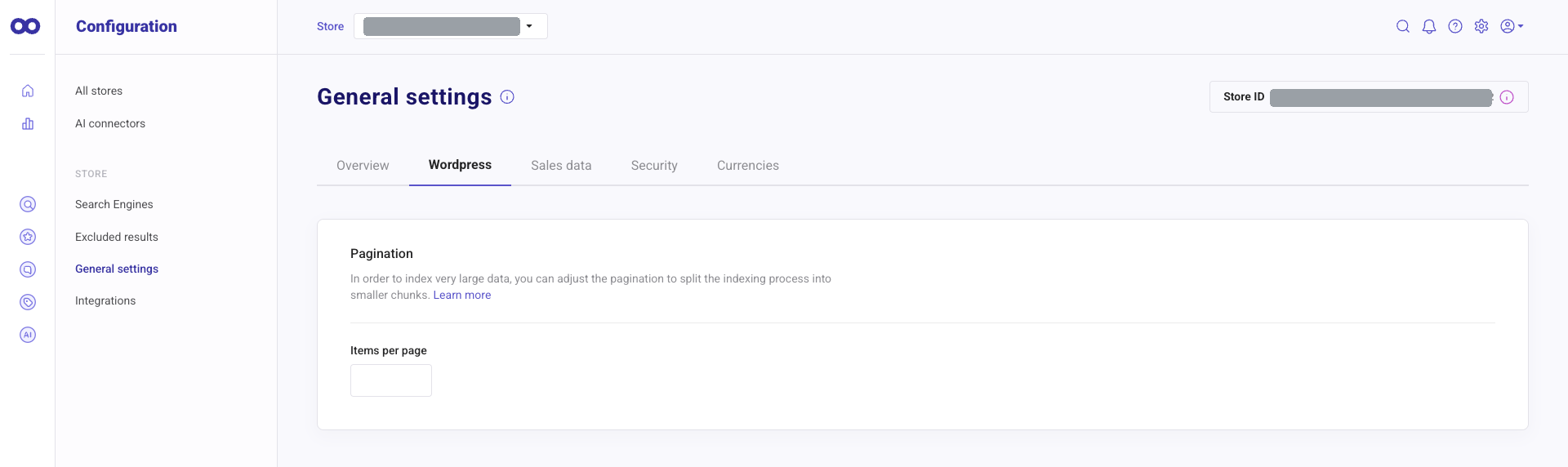
Practical example: if indexing stops with connection errors after several retries, lower the items per page to 50 or 25 so each request is lighter on your server.
Prestashop
Prestashop allows you to control pagination at two levels:
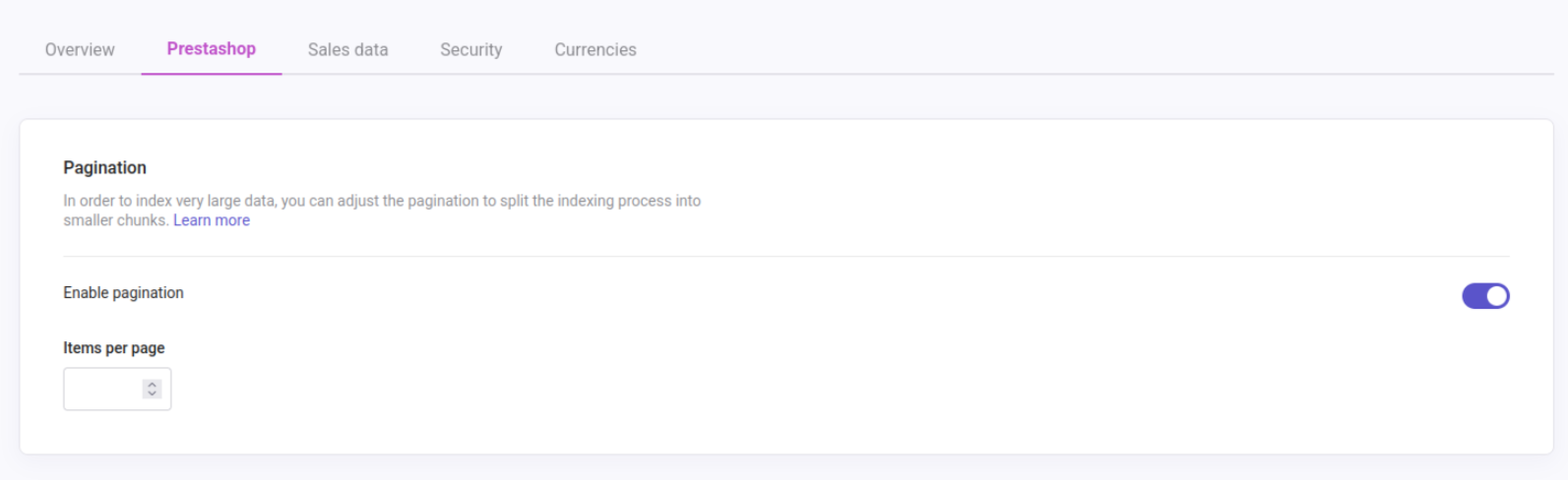
- General Settings, under Doofinder admin > Configuration > General settings > Prestashop: sets a default page size that applies to all data sources, meaning, all Search Engines and their respective indices under that Store will be affected. See:
- Data Source level, under Doofinder admin > Configuration > Search Engines > click on "See indices" > Indices: if pagination is set there, overrides the General Setting configuration. If you clear this value, the general setting is used again. See:
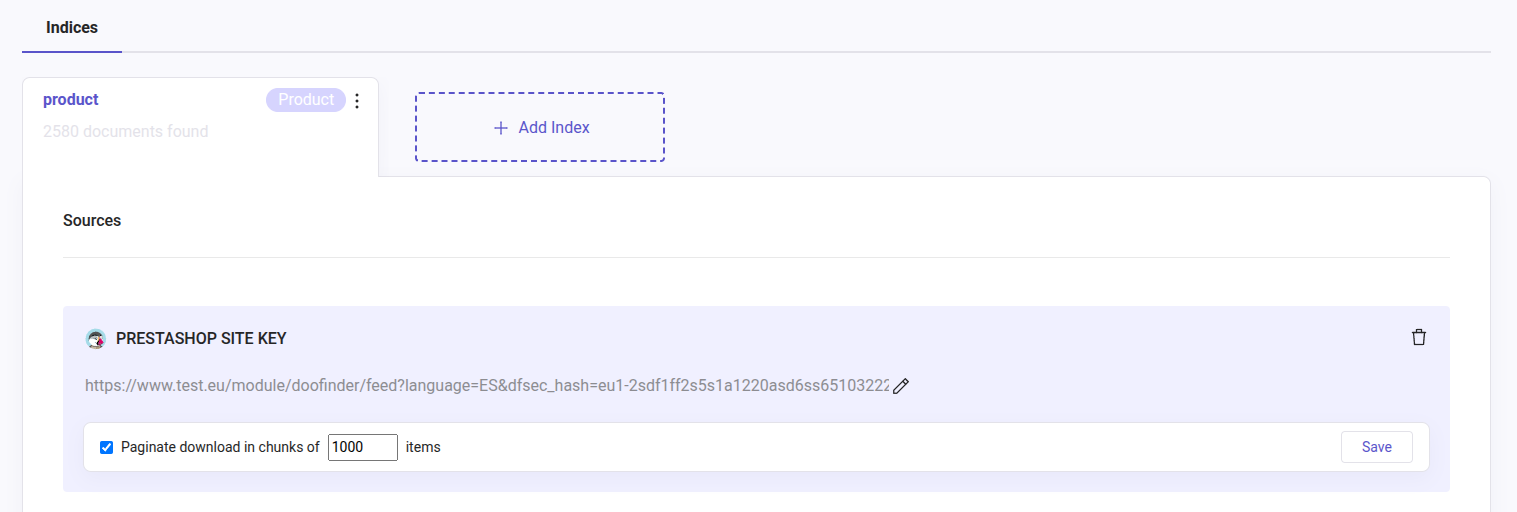
Practical example: Start with a page size of 1000. If the feed still times out, lower it gradually until indexing completes without errors. If you need a different value for a specific index, set it at the Data Source level in Configuration > See indices > Pagination to override the general setting.
You can also disable pagination entirely for a Prestashop, if you turn off the toggle “Enable pagination”. That is only if your server handles large responses without issues and you prefer a single-request indexing. However, for most stores, leaving pagination enabled is recommended.