


Follow this step by step guide to Install the Doofinder Prestashop Plugin.
- To begin the installation process, login to your PrestaShop account.
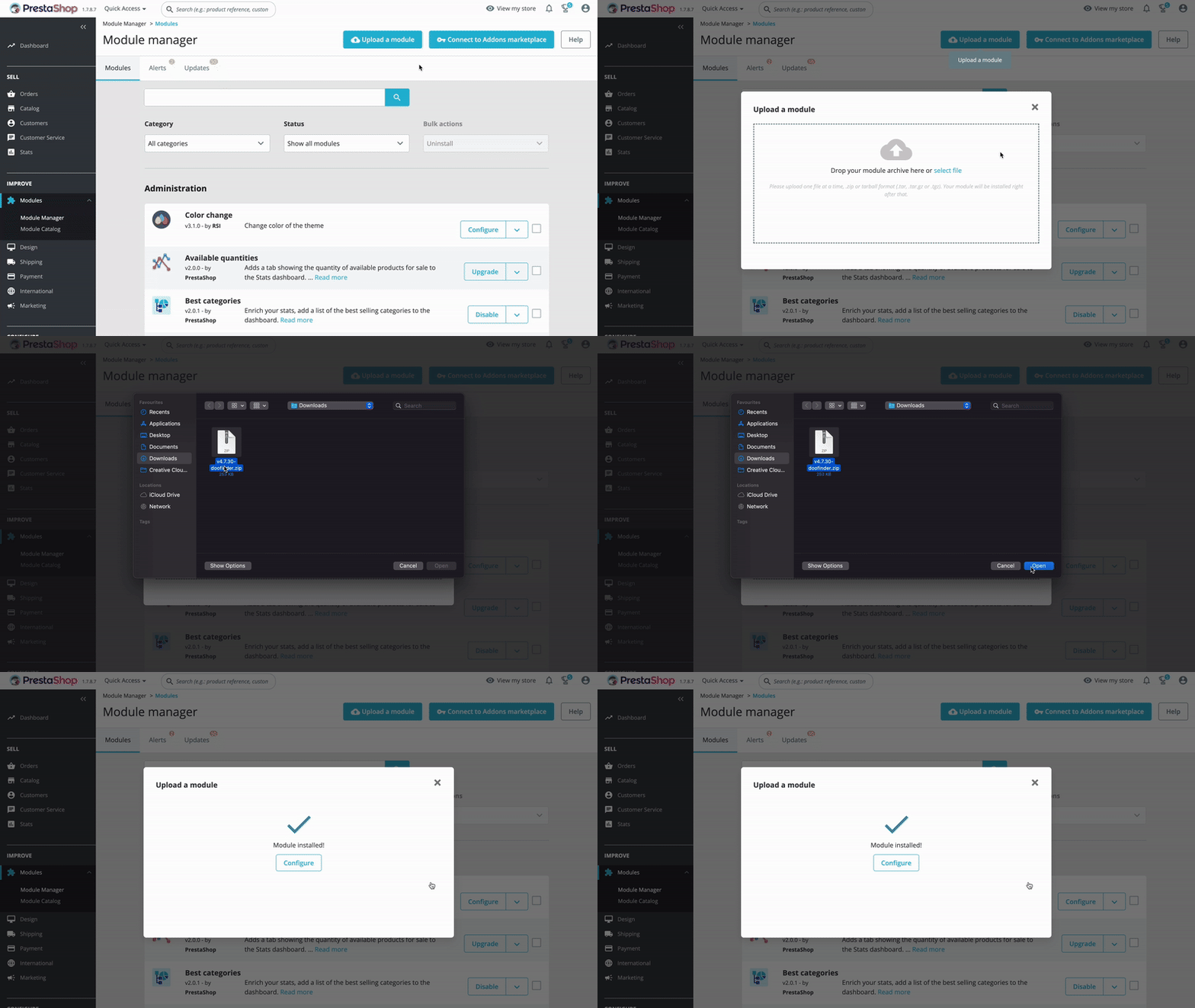
- On the Dashboard, go to Modules and select the Modules Manager.
- In the top right corner, select the "Upload a Module" button, from which a pop-up page will appear, prompting you to drag the module file there or select the file.
- In the "select the file" option, find the .zip file you downloaded earlier on, select and upload it.
- You can click on the "Configure" button or close the pop-up window and go to the Module Manager to find the Doofinder module you just downloaded and click on "Configure". Both ways are valid.
Remember, you'll need to get the Doofinder plugin from PrestaShop's official Addons Marketplace or get the plugin from our Github repository. Download the .zip file and save it on your computer to be accessed later. You can also download the .zip file when creating a store for the first time in Doofinder, during the store setup process.
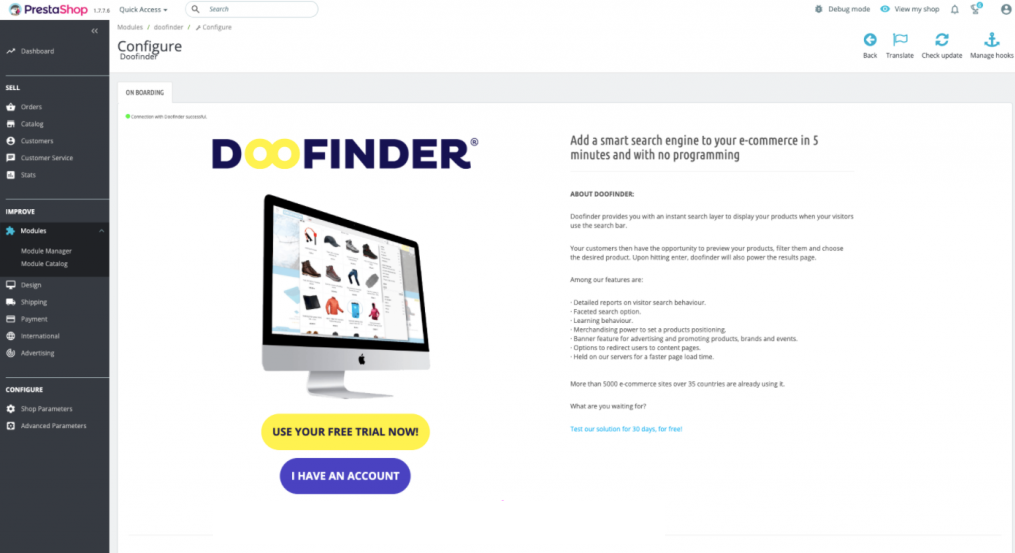
You will then be asked to log in to your existing Doofinder account or, if you do not have one, to sign up for one.
A setup wizard will appear and will run for some seconds, creating the Search Engines for all the languages and currencies you have set in your data feed.
Post-Installation
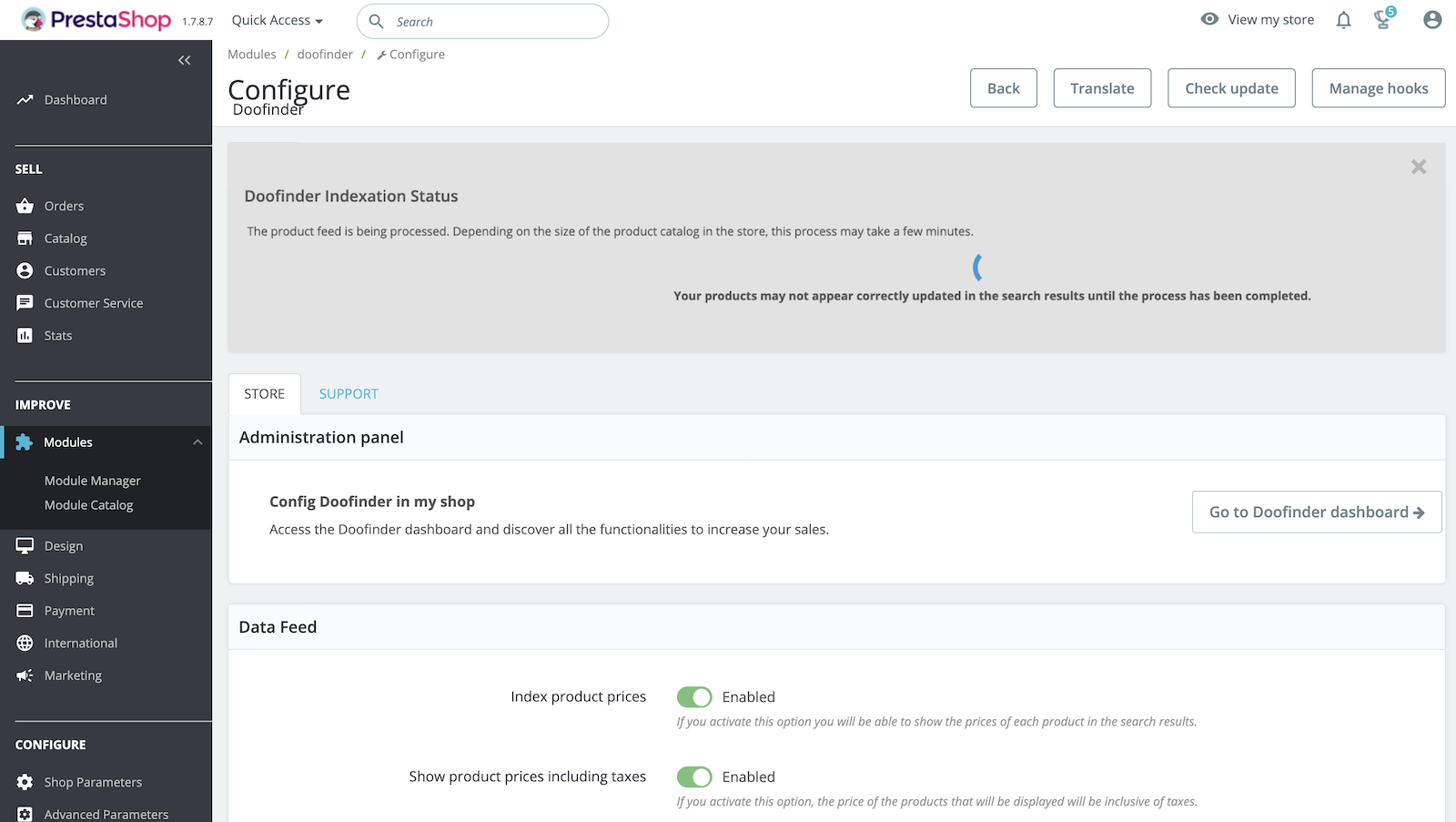
Once the plugin is installed, this is how the module screen will look like. You have two tabs: “Store” and “Support”.
Store
Let's take a look at the “Store” tab which is divided into three sections:
-
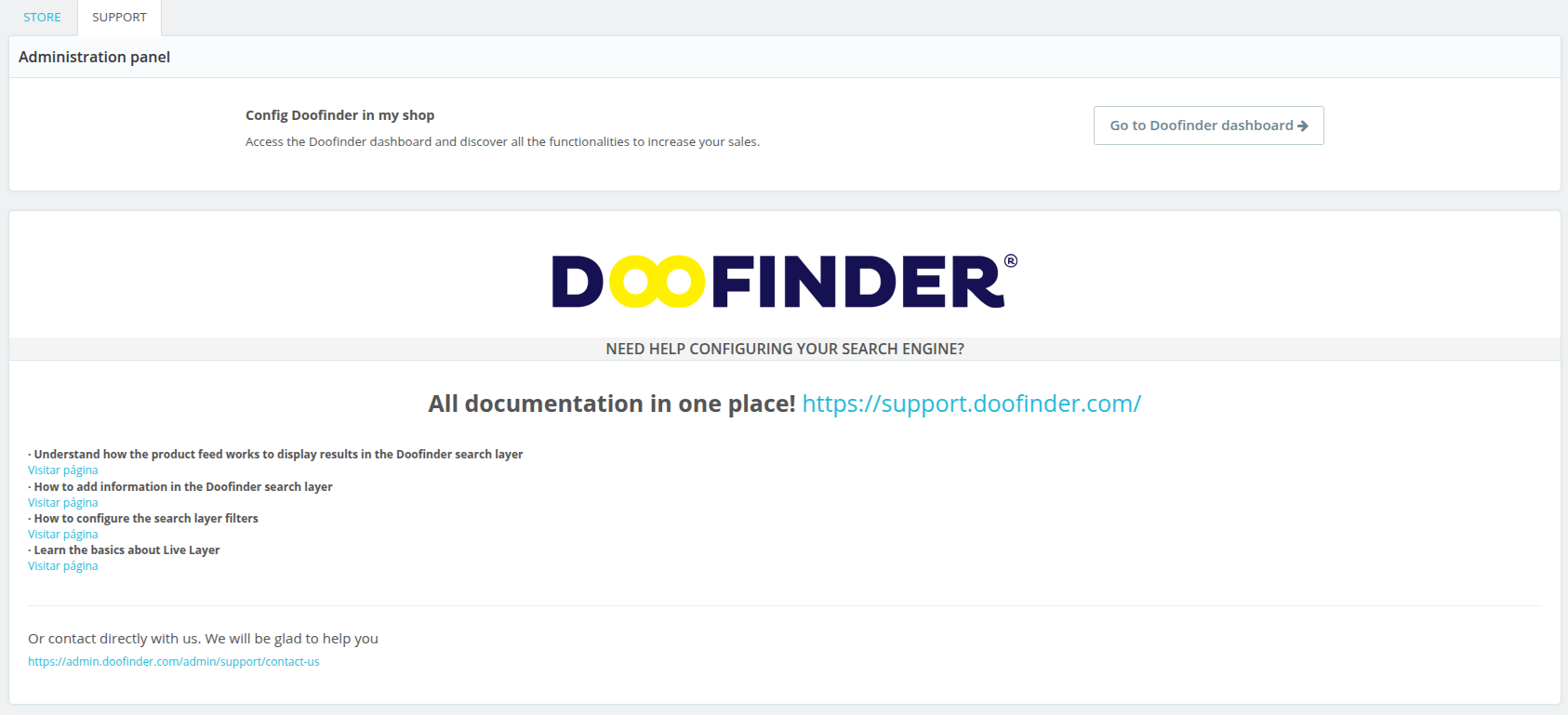
Administration Panel: You have direct access to the Doofinder Admin Panel so that you can explore all the functionalities that will help you to increase your sales.
-
Doofinder Configuration: From here you can configure the Doofinder Plugin. You'll find the following options:
- Doofinder script: Activating this option you are inserting the script into your store code. You can manage product visibility from admin.doofinder.com
- Index product prices: If you activate this option you will be able to show the prices of each product in the search results.
- Show product prices including taxes: If you activate this option, the price of the products that will be displayed will be inclusive of taxes. (Index Product Prices must be enabled to configure this option.)
- Index the full path of the product category option.
- Index product attribute combinations option. When enabled, the feed includes one row per combination and a column for each product attribute. Which of those attributes Doofinder indexes is chosen later, in the Doofinder Admin Panel.
- Product Image Size.
- Automatically process modified products option, also known as update on save. It only runs when there are changes to send. If you find this field disabled, it is because your index is set up in a way that automatic processing does not support, for example when it is fed by a CSV you uploaded by hand, or in a multi-index setup.
-
Doofinder Store ID: You can find this identifier in our control panel. Inside the side menu labeled "Store settings".
-
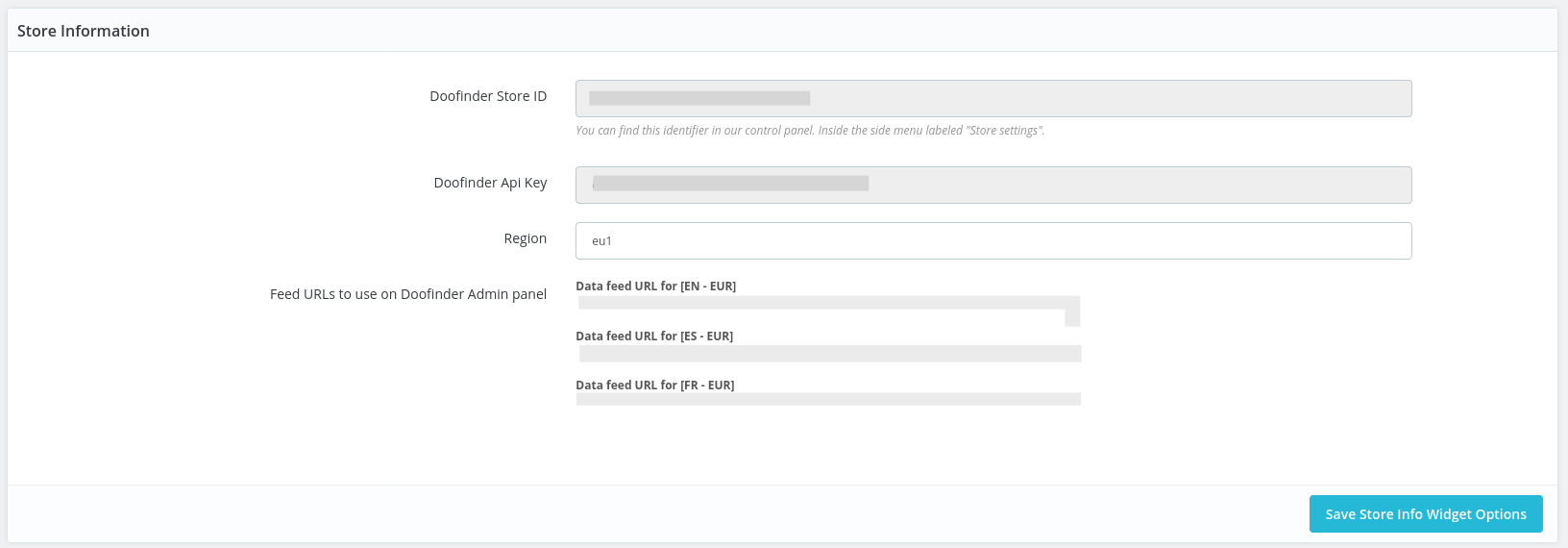
Store Information: From here, you can find your Doofinder API Keys and other aspects of your Store.
Your Doofinder Store ID, your Doofinder Store API Key, your Region and the Hashid of each Search Engine are read only fields. They are filled in with your store information when the module connects to Doofinder, and they are there for reference, not to be edited by hand.
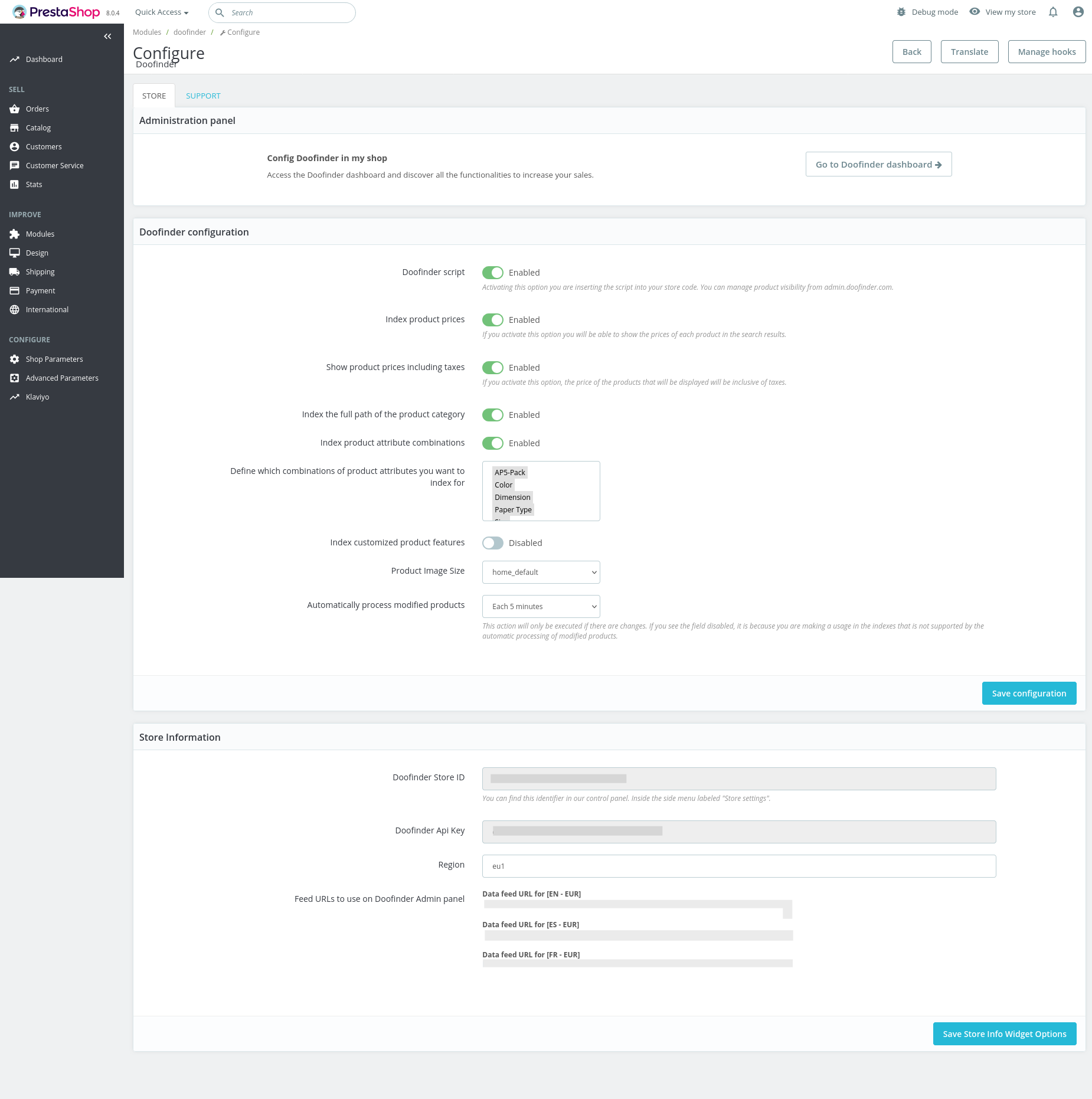
And this is the Store Information section, at the bottom of the same tab:
Creating a New Search Engine from the Module
With the latest module update, you can now create a new Search Engine directly from the Doofinder module, without having to do it manually from the Doofinder Panel. This depends on having module version 8.2.1 and above.
After updating the module, you just need to click "Create Search Engine", and everything else is automatically done. There are no additional configuration steps required.
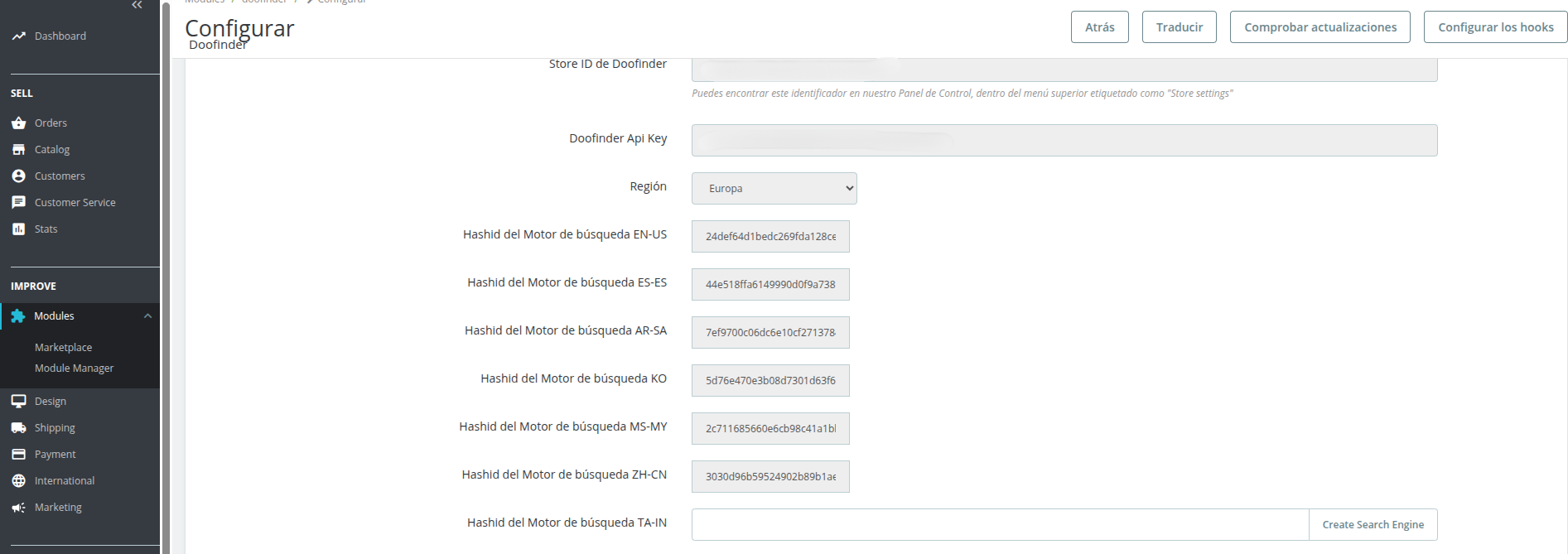
Prestashop supports multi-store setups, each new Search Engine will be created in its corresponding store within Doofinder, keeping the structure consistent with how the store is organized in Prestashop’s backend.
If a Search Engine already exists for a given language and currency combination, the new one created through this flow appears as unpublished instead of becoming a second active Search Engine. Since both would be identical, this prevents the conflicts that come from having two live Search Engines for the same configuration. Remove the previous Search Engine and publish the new one.
In case of reaching the Search Engine limit, you'll see a generic message letting you know the limit has been reached, contact support for further assistance.
Support
Now, let's take a look at the “Support” tab. Again, you will be able to access the Doofinder Admin Panel, and you will find useful links from our Support Website that will help you to improve the tool.
What the Installation Sets Up for You
Three things are put in place on their own during the installation. None of them needs any action from you.
The Doofinder script is inserted into your store code.
Your Search Engines are created, one per active language in your shop. Each Search Engine indexes one language, so a shop with two active languages gets two of them without any manual step.
The fullscreen Live Layer is enabled by default, on desktop and mobile. If you want to create a new Layer, see Create a Layer.
Prices
Multiple Currencies
Starting from January 14, 2025, new stores created in Doofinder will take advantage of the new multipricing functionality, which simplifies the structure by creating a single Search Engine for each store. This allows seamless handling of multiple prices across currencies or customer groups without the need to create separate Search Engines for each currency.
For stores created prior to this date, the reinstallation is required to benefit from the multiprice attribute and its functionalities.
B2B Pricing
This section describes the process for managing multiple types of prices in Doofinder, based on your Prestashop configurations and on different criteria such as customers, customer groups, countries, and currencies. The objective is to enable the dynamic display of products and their corresponding prices across the platform.
For new installations
We will automatically index prices according to the customer groups defined in your Prestashop configuration.
For existing Doofinder stores
You will need to update your Doofinder module to the latest version in your Prestashop admin.
The Doofinder module must be version 8.3.5 or later. You can find the released versions here.
A customer group only appears in the feed if at least one customer has that group as their default group. A group you have just created, with no customers assigned to it yet, sends no prices and will look as if it was ignored. Assign a customer to it and its prices will be included on the next indexing.
Each group sends its prices according to that group's own tax setting, taken from the group configuration in PrestaShop, and not from the "prices including taxes" option of the module. A group configured to display prices tax excluded will send its prices without tax even when the rest of the feed carries them with tax.
The module builds the prices and configures the script, so each customer sees the price of the group they belong to.
Create Additional Indices
When using the Prestashop plugin you can automatically enable different Multi-Indices, such as:
- Categories
- Website pages
Refer here to learn how to create additional indices.
Reinstalling the Module
If a store already exists in Doofinder and you reinstall the plugin, that store is reused instead of a new one being created. This is the behaviour from module version 5.2.0 onwards, and it requires the corresponding options to be defined in your Doofinder Admin Panel as well.
Older versions of the module created a second store on reinstall, leaving the previous one behind.
Module Update
Doofinder has its own Module for the majority of platforms, which must be regularly updated in order to keep the functionalities working properly, and latest updates pull through. Although not mandatory, we recommend always keeping the modules up-to-date.
How Do I Update The Module?
You have two options: firstly, you can directly upgrade it from Prestashop’s Module Manager:
- In Prestashop go to Modules > Module Manager > search for Doofinder > click on Update it. See example:
- You can also upload the module zip file directly into Prestashop. Here you have the most recent releases.


Once the module is updated there is nothing else for you to do. The data source stored in Doofinder is updated along with it, so the feed keeps being downloaded from the right URL.
If your feed stops indexing right after a module update, see My Feed Is Not Indexing. Which part of it applies to you depends on whether your store was set up by the module or created by hand in the Doofinder Admin Panel.