


Filters Configuration
Create rules to filter the recommended products displayed. You can define General Rules for all page types, and create IF THEN filters on specific product pages.
To add a filter go to “Filter results”, under the Advanced settings section. Enable the option and choose in which Search Engine you want to add a filter.
All the Search Engines added before to show the carousel will appear on this section. The first one will be the same as the first Search Engine on your list.
Once you know which Search Engine you want to add a filter to, click on the dropdown menu and select “Start configuring filters”.

General Filters
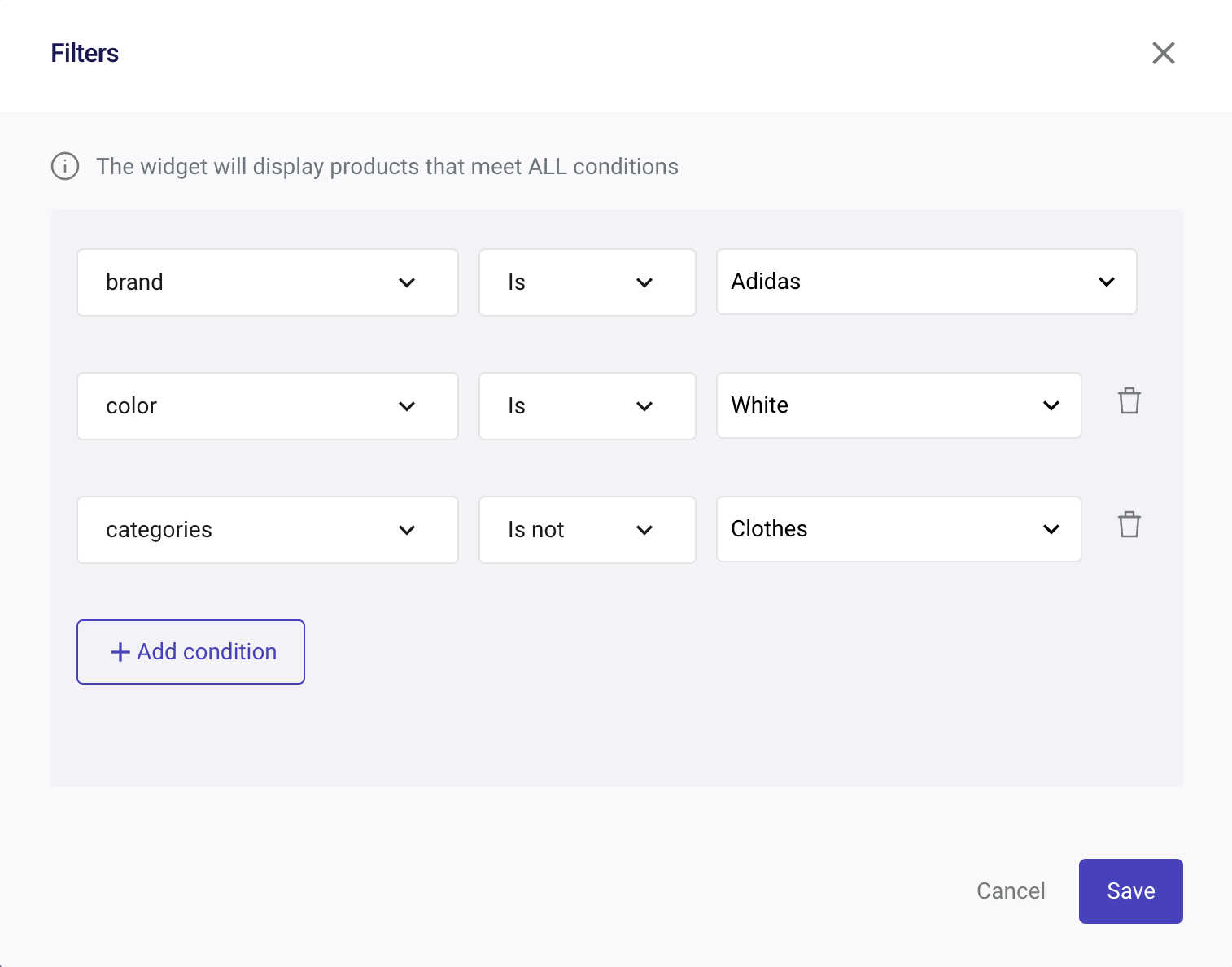
This condition will dynamically filter products based on the field value of the product being viewed. You can add as many fields as needed, clicking on “+Add Condition”.
The widget will display products that meet ALL conditions.
You can decide if the carousel attributes shown match the condition selected, which fulfills “is” or “is not” condition.
Learn by Example - General Filters
Your store sells phones, laptops and accessories, and you want a carousel that only recommends chargers. Set categories is Chargers, and the carousel will recommend products from that category alone. Click + Add condition to narrow it further, for example adding brand is not a brand you want to leave out.
Contextual Filters: IF (Context), THEN (Consequences)
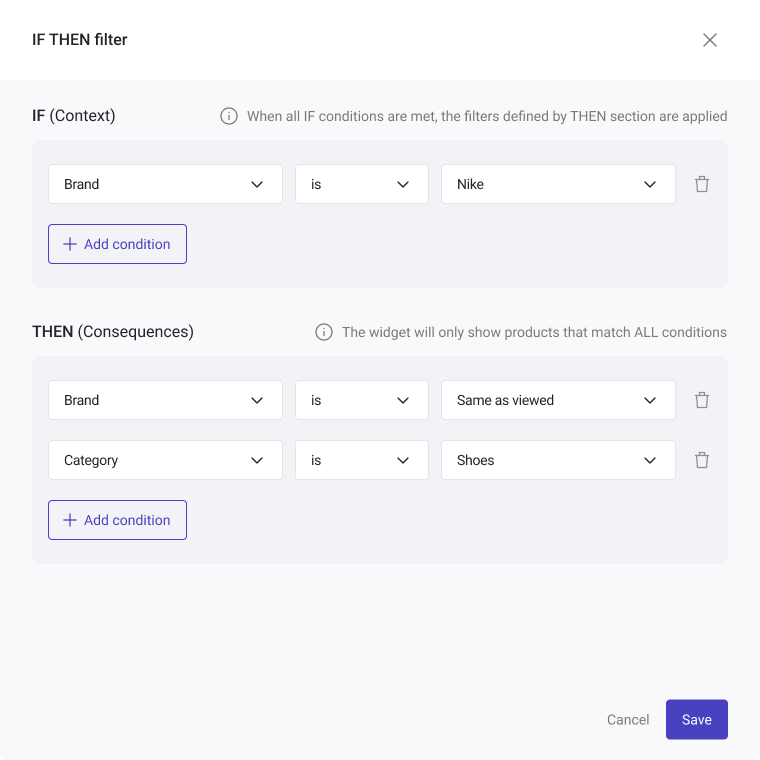
The add IF THEN filters button sits on the right of the Filter results panel. It is there for every page type, and the editor it opens is titled IF THEN filter (product pages only), so the rule is meant for carousels on product pages:

To create an IF THEN filter, click on it. This filter allows you to set conditions based on the context in which it’s applied. You can specify whether the carousel attributes shown should match a selected condition (IF), which can fulfill an “is” or “is not” criterion, followed by a consequence (THEN) for meeting that condition.
When the “IF THEN filter” matches the product viewed, the General filter is never applied. When using any of these filters, if the results from the primary logic are fewer than the configured “Number of Products To Display”, the filter will still be applied in the carousel, even if it contains fewer products than selected. However, if no results are found with the filter, the carousel will not be displayed.
Read the Fallback section to learn how it works in all cases.
Learn by Example - IF THEN Filter
A store that sells phones and accessories wants the carousel on a phone page to recommend chargers. The condition is IF categories is Smartphones, and the consequence is THEN categories is Chargers.
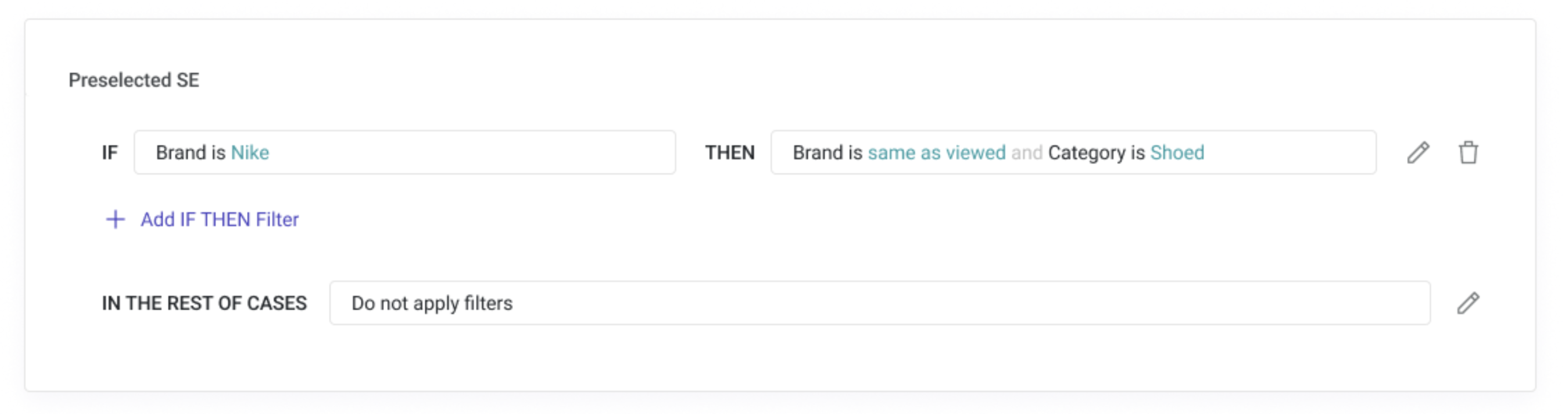
Once saved, the rule shows on one line, and the general filter is relabelled IN THE REST OF CASES, which is when it applies:
How to Use a Price Filter for a Carousel
If you want to create a price value filter, you can do so with both General and IF THEN filters.
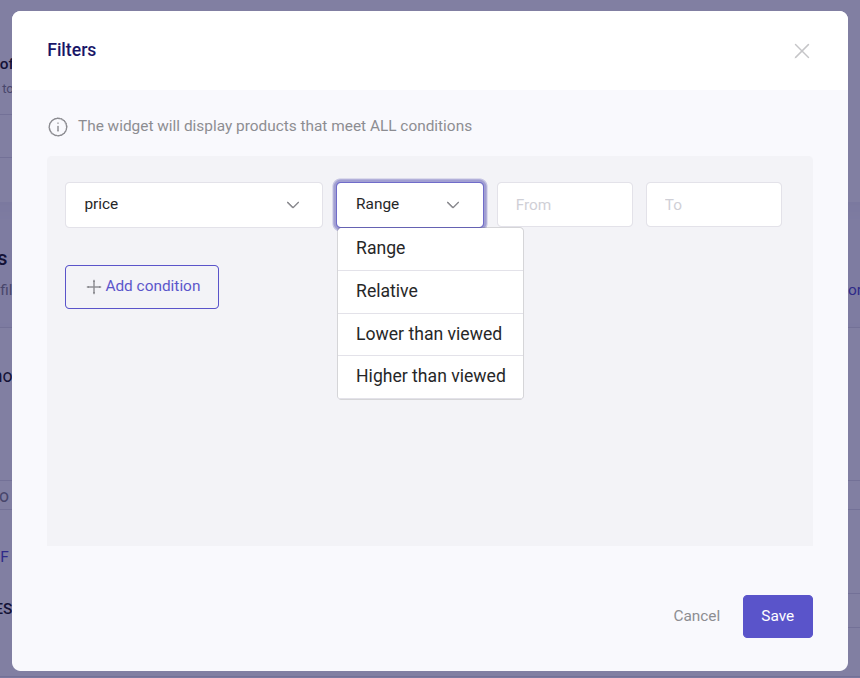
In both cases, you can use the following options to filter by price:
-
Range: select a price range to display products.
Example: show only products priced between 20,00 € and 60,00 €.
-
Relative: show products with a price that is a certain percentage higher or lower than the one being viewed. Only available for product pages.
Example: A 10% relative filter will show products priced 10% above or below the current product.
-
Lower than viewed: display products that are cheaper than the product being viewed. Only available for product pages.
Example: if a customer is viewing a 799,00 € phone, only products priced below 799,00 € will appear.
-
Higher than viewed: display products that are more expensive than the product being viewed. Only available for product pages.
Example: if a customer is viewing a 799,00 € phone, only products priced above 799,00 € will appear.
Fallback
Fallback is an optional feature that fills your Recommendations carousel when the primary logic returns fewer products than the “Number of products to display” you configured.
Fallback enablement is not mandatory. Keep it activated according to your preferences of carousel display and business goals.
When to enable or disable Fallback:
-
When fallback is inactive (Disabled): Recommendations always display products from the primary logic, no matter how many results are returned.
-
When fallback is active (Enabled): Fallback results are shown only if the primary logic returns fewer products than the “Number of products to display” configured. Fallback displays the “Popular products” logic and shows the number of products to display chosen.
The carousel will always display the primary logic title regardless of whether the fallback is enabled or disabled.
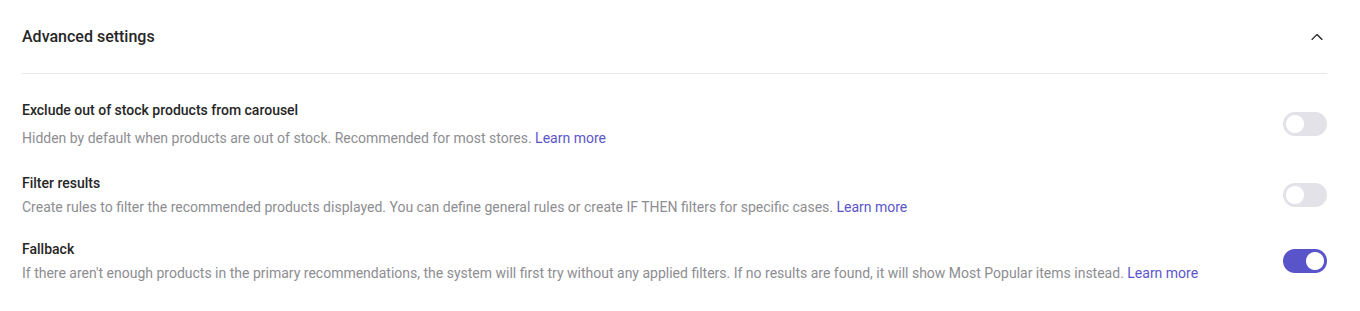
Fallback and Filters
When applying filters (whether general or contextual), if the filters do not return enough products to fill the carousel, the carousel will still display the logic with the filter.
For example, with “Number of Products to Display” set to 8 and the filters returning only 3 products, the carousel is still shown in your store with those 3. If the filter returns nothing, the carousel is not displayed.
If Fallback is enabled and the carousel shows fewer results than the ”Number of products to display” configured, the Fallback will display products using the primary logic without the filter. If no results are found from the primary logic, the Fallback will override both the logic and the filters.
For a more comprehensive understanding of how Fallback and Filters work when one or both of them are enabled and applied, take a look at the following chart.
The Minimum Number of 5 Products to Display is Not Met
| Condition | With Filters | Without Filters |
|---|---|---|
| Fallback Enabled | The fallback will apply the primary logic without the filter, if the minimum number of 5 products is not met. If no results are found with the primary logic, the “Popular products” logic will replace the primary logic and the filter. | The fallback logic replaces the primary logic if no results are found. |
| Fallback Disabled | If filters are applied but the minimum number of products to display is not met, the primary logic will run without the filter. However, if no results are found with the filters, the carousel will not be displayed. | The carousel will display the number of products found (even if fewer than 5), but it will not appear if no products are found. |
The Minimum Number of 5 Products to Display is Met but the Required Number is Not Met
| Condition | With Filters | Without Filters |
|---|---|---|
| Fallback Enabled | The primary logic and filters are applied to fetch the initial results. If the required number of products is not met, the primary logic is reapplied without the filter to fill the carousel. If the required number is still not met, a fallback mechanism is triggered, replacing the carousel with the "Popular products" logic. | The fallback logic replaces the primary logic. |
| Fallback Disabled | If the required number of products is not met, the carousel will display the available results with filters. | The carousel will display the number of products found (5 or more). |
General notes:
In the "Number of products to display" section, the minimum number of products is always 5.
The required number of products depends on the number you set in the "Number of products to display" section.
The logic with training, People also viewed, won't return results if the training status is "learning" and fallback is off.
Using the Same as Viewed filter
Use the Same as Viewed filter value to scope a carousel to whatever the shopper is looking at. Choosing it on the categories field prints the rule underneath: "The 'Categories is/is not Same as viewed' option works on product pages, shopping cart pages, and category pages (matching the category currently being viewed)".
Filters sit on top of the Logic, so the value works with any of them. On a Category pages carousel, pair it with a logic that runs there: Popular products, Best sellers, Browsing history or Custom picks. The four logics that need a reference product do not load on a category page, so the filter would have nothing to narrow down.
- Select the Logic you want to use for the carousel (e.g. Custom picks, Popular products, Similar products...)
- Add a Filter
- Choose the field you want the carousel to use for similarity
- Select the value Same as viewed
When a shopper is browsing a category page, Smartphones or Chargers for example, the carousel scopes its results to that same category on its own, without you naming the category in the configuration. This avoids creating a separate carousel for each category.
When using a “Category” page, consider:
Case-sensitive: the category name in your data feed must match exactly the data layer or the page markup. If one is in lowercase and the other is not, the filter will not work.
On the categories field, the "Same as Viewed" value works on product pages, shopping cart pages and category pages.