


The Results Preview is the section where you can test your Search Engine to see the results and assess the configuration settings for your product feed. In this article, you will understand all aspects from Results Preview.
Find it in your Admin Panel > Search > Results Preview.
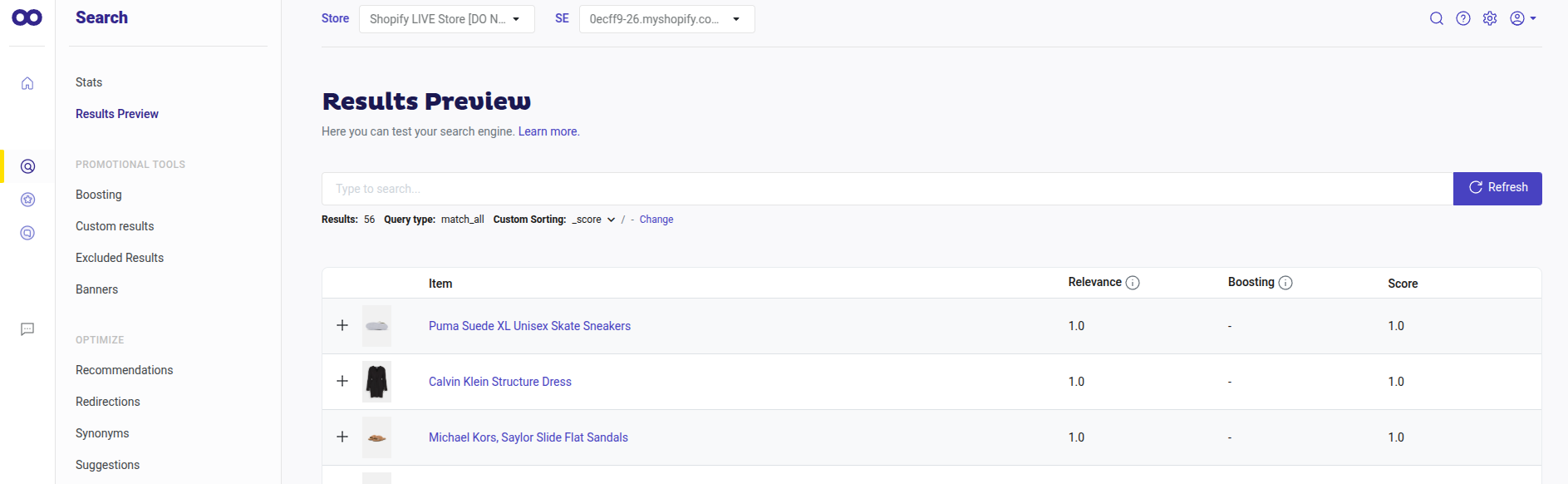
Results Preview Panel Overview
Once on the panel, you will see the search bar. Search for a specific product on it.
If you want to finish the search, a cross “x” appears on the right when writing, click on it to close that search.
If you apply any changes (for example, any boosting factor on a product), click on the “Refresh” button for them to appear on the results.
Just below the search bar appears the number of results, listing the products from your data feed; the corresponding query type; and the Relevance Criteria feature, which you can use to alter the natural order of results.
Also, when searching for a product or category of products which are configured with Suggestions, Synonyms, Banners or Custom Results, it will be indicated right under the search bar.
By clicking on top of each configured feature you will be redirected to the corresponding section.
On the main section, you will find four columns: Item, Relevance, Boosting and Score.
-
Item: list of products from your data feed. Click on the plus “+” button to unfold all information from the product. Just beside the plus "+" button, the image, and the name of the product shows up. Click on the name to see the product on your webpage.
-
Relevance: shows the original score of each product according to the search query before applying any boosting factor.
-
Boosting: displays the total boosting value after applying any boosting factor. Boosting is the feature which multiplies the original score (relevance).
To know the value assigned to each boosting (whether automatic boosting, manual boosting, and/or boosting rule) put the cursor on top of the number.
If you don’t see the changes when applying a boost, remember to click on “Refresh”, beside the search bar. Learn how to apply boosting factors by reading about Promotional Tools and Optimize.
-
Score: indicates the total value of a product. The score value determines how close the result is to the search query. The more relevant the product is to the search query, the higher the score. Learn on Score in our glossary or in our FAQs.
The score can be given by the result of Boosting multiplied by Relevance; or, by a Custom Result.
Products with a Custom Result always appear in the first positions as a rocket icon 🚀. Since it is personalized it will always provide the most relevant result.
Query Type Explained
As mentioned above, when testing the outcome of a search, you will encounter a query type. The query type indicates whether the results shown exactly match the search performed, are approximate, or return no results. There are four possible query types: match_and, match_or, fuzzy, and match_all. Keep reading to understand the differences between them.
Match_and
Indicates a perfect correspondence between the search term(s) and the indexed terms. This can occur in both single-term and multi-term queries. In the case of the latter, all searched terms must be present in the indexed content.
Examples:
-
Single term: If you search for "Nike" and receive a query type
match_and, the results will contain an exact match, such as "Nike shoes". -
Multi-term: If you search for “red t-shirt” and receive a query type
match_and, the results will contain an exact match where both terms are indexed, showing only red t-shirts, for instance.
These results are highly relevant to the search performed by the user.
Match_or
Indicates a matching type that broadens the search by returning indexed content that contains at least one of the search terms provided in a multi-term query. This query treats each term individually. As a result, it returns an exact match with the searched terms separately.
Example:
Searching for “red t-shirts” may return occurrences of "red" and "t-shirts" independently, as the exact phrase “red t-shirts” does not exist as an indexed term in the feed.
Match_all
Indicates that Doofinder returns the entire catalog. For example, when using Initial results before a search query is entered; or, when the results returns a Custom Result specifically configured for a search term, since Doofinder doesn't need to analyze the search request.
Fuzzy
Indicates that there is no exact match between the searched term and the indexed term, typically due to typos or misspellings. For example, searching for "tsirt" instead of "t-shirt". Doofinder will attempt to return the closest possible results, although sometimes it may return none.
Fuzzy terms appear in Zero-result searches within Stats. It is recommended to monitor these terms to apply Synonyms or Custom Results to ensure relevant results. Learn more about Synonyms, and Custom Results.
Unexpected Results?
See more info here on Unexpected Results!