


Video last updated before 12-31-2024
Upload Your Feed
Once you have your Product Data Feed ready with all the relevant product details, you need to upload it in your Indices section of the Doofinder Admin Panel. By doing so, you will be able to activate the indexing mechanism, which allows Doofinder to process and organize the data, making it searchable for users.
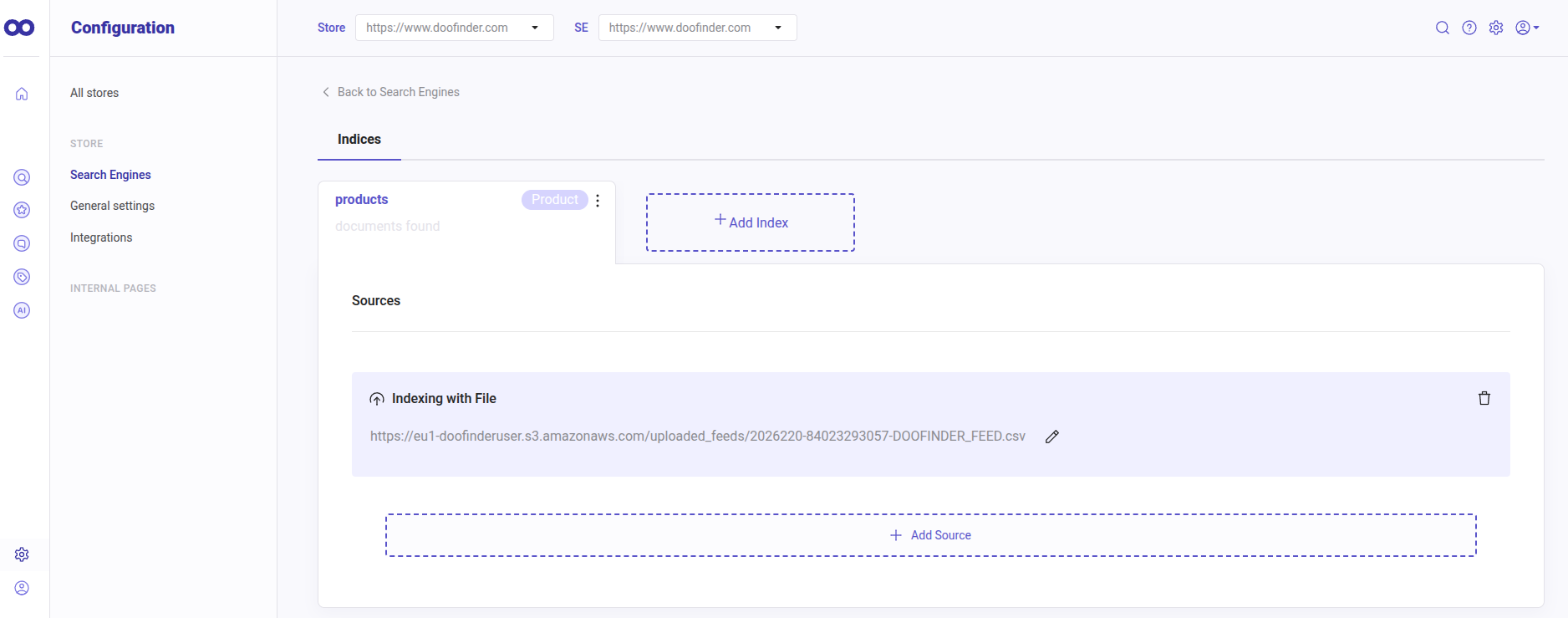
To do so, go to your Admin Panel > click on Configuration at the bottom of the left-side menu > click Search Engines > select a Search Engine > click on "See indices" and on Indices click on "Add Index".
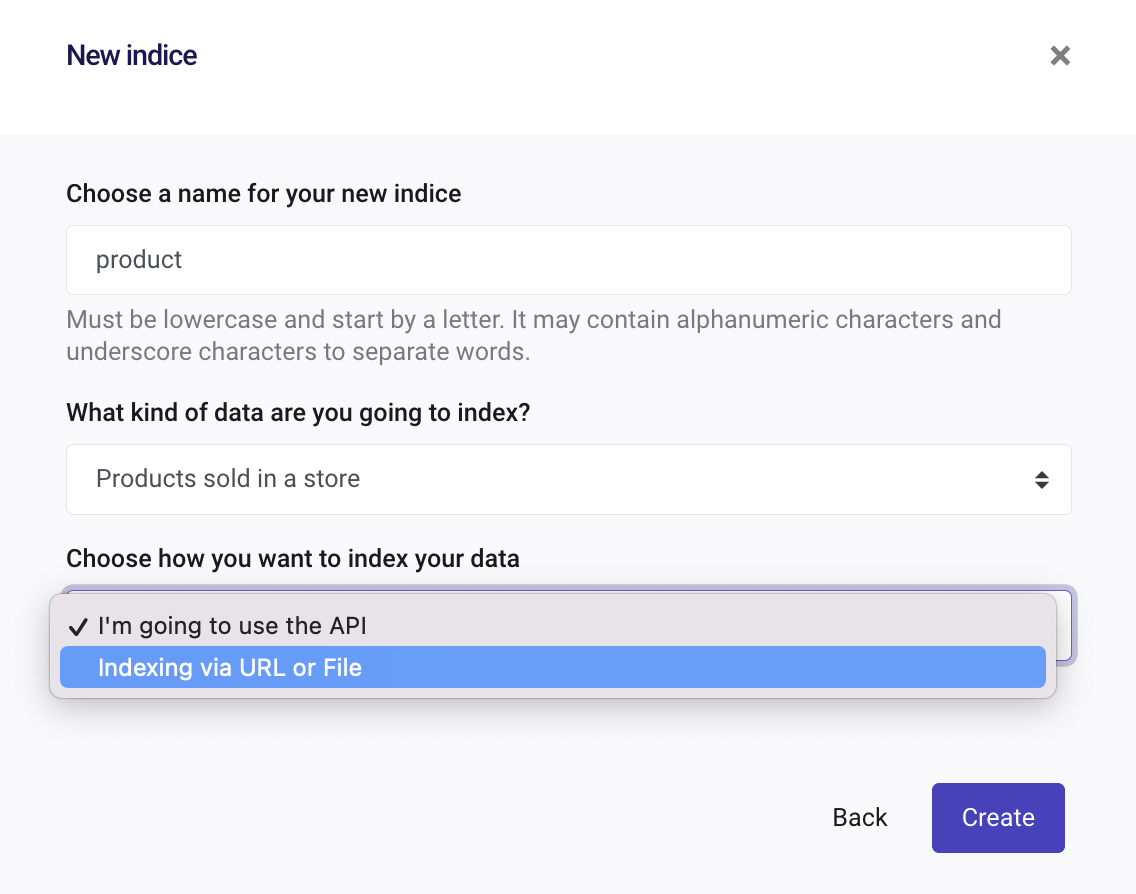
Once clicked, you have to type a name, indicate what type of data you are going to index and choose whether you want to index your data via API, URL or File. Then click on "Create".
To enter the product information (feed file or URL), you can paste the URL of the feed or upload a file to the system. To delete it, click on the trash icon.
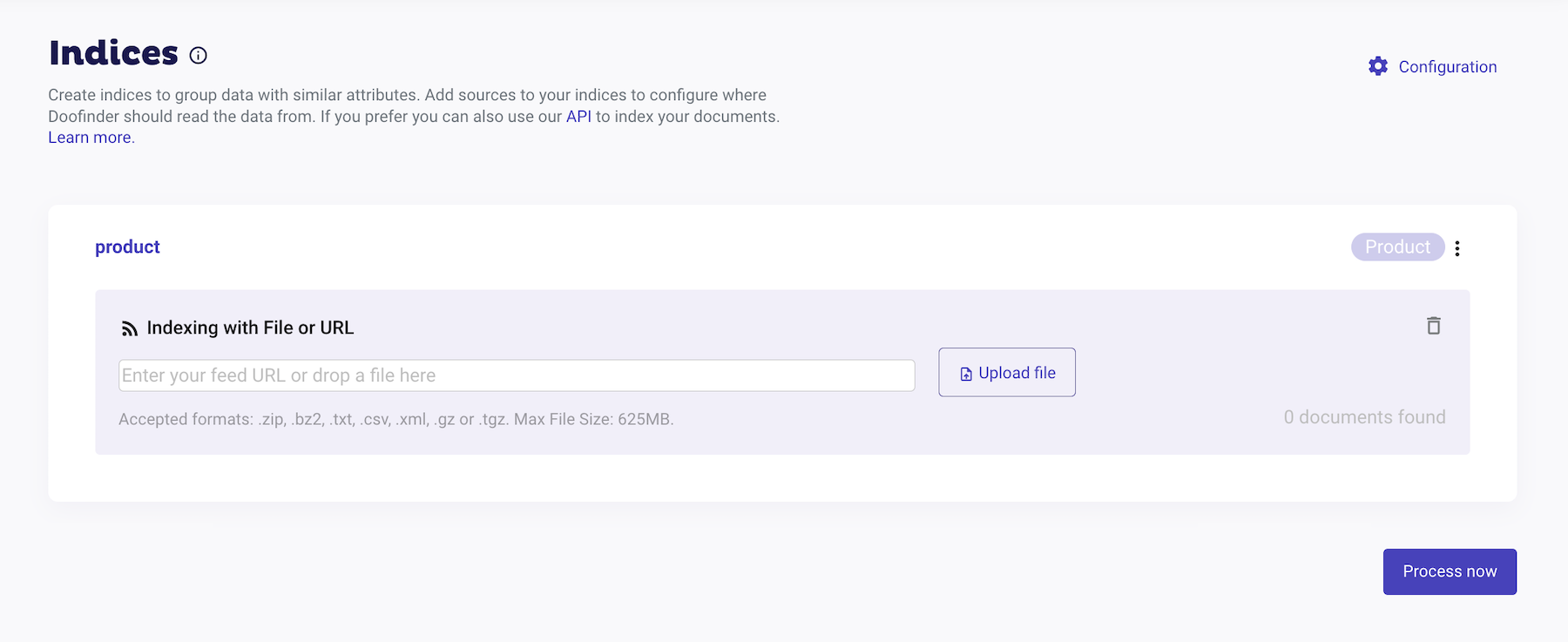
The accepted formats are: .zip, .bz2, .txt, .csv, .xml, .gz or .tgz. Max File Size: 625MB.
Process Your Feed
By default, Doofinder updates the feed once a day, so if you use the URL option, you can keep a feed up to date automatically.
To manually process your feed, simply click on the "Process Now" button at the bottom right.
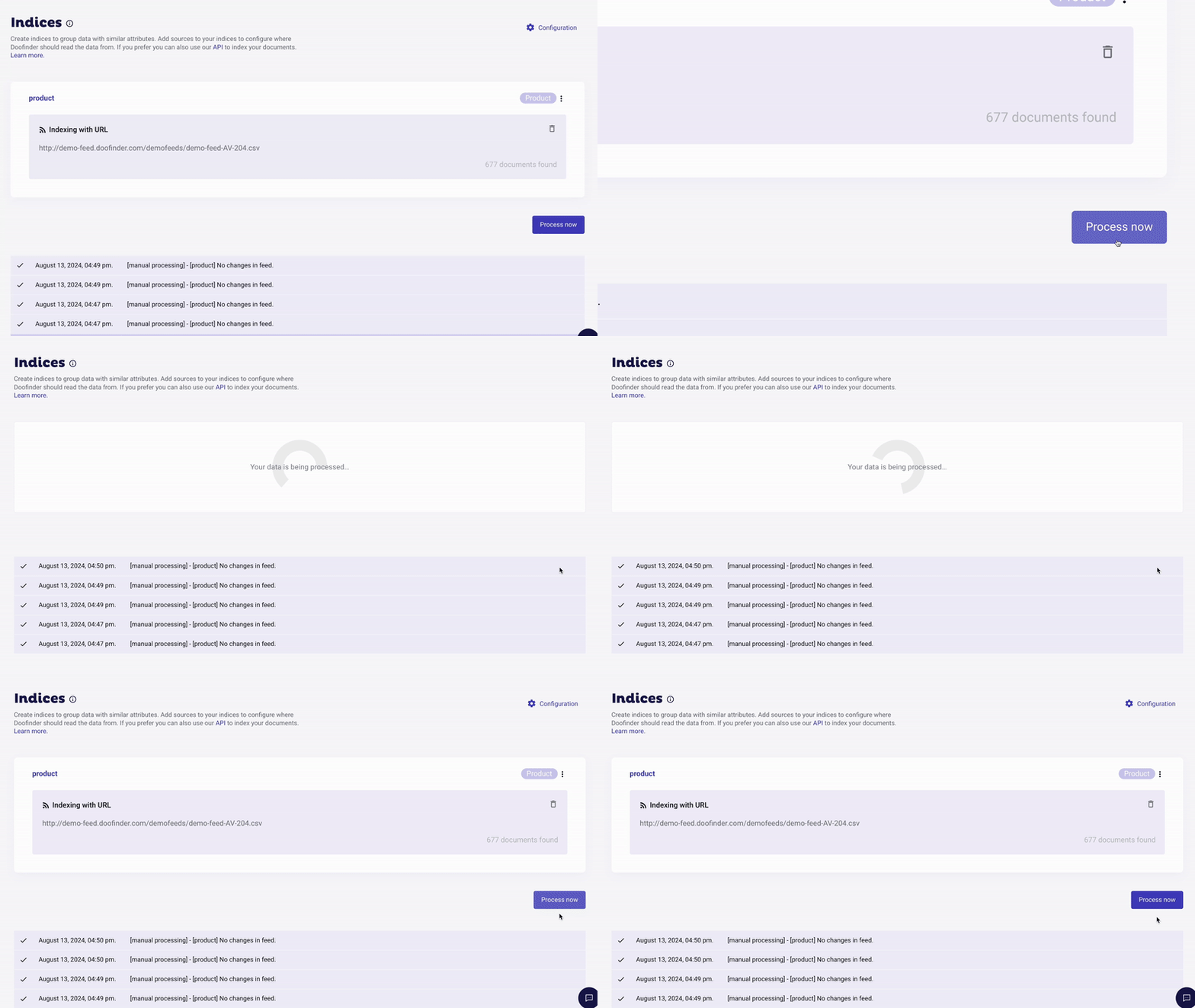
You can also set the times at which to update your feed. Learn more at this link.
When you first index products, the Layer stays inactive until indexing finishes successfully. If indexing fails, the Layer remains inactive and can’t be activated. Check the Layer States here!
Indexing Status
These indexing status messages are accessible in your Indices section. The specific indexing method displayed will depend on your configurations.
| Indexing Status Message | Description |
|---|---|
| All "product" sources were processed successfully. | Indexing task completed successfully, and the feed is up-to-date. |
| [product] No changes in feed. | Indexing task completed successfully, but no changes were found in the feed. |
| Items for [product] were modified successfully. | Use for update-on-save; modifications completed successfully. |
| [download][product] Something went wrong with feed download,... | This message indicates an error during feed download and is usually followed by an error message for further details. |
| Indexing Method | Description |
|---|---|
| [manual processing] | Performing the indexing task by hand without using automated systems. e.g.: Process now button. |
| [scheduled processing] | Automating the indexing task to run at specific times or intervals without manual intervention. |
| [api processing] | Manages communication between software systems using APIs. |
| [update on save] | Automatically saves changes made to an "item" in real-time. |
Multi-Indices
If you have several indices within a Search Engine, you will be able to view them in different tabs. This is a very useful way to organize your product and content indices.
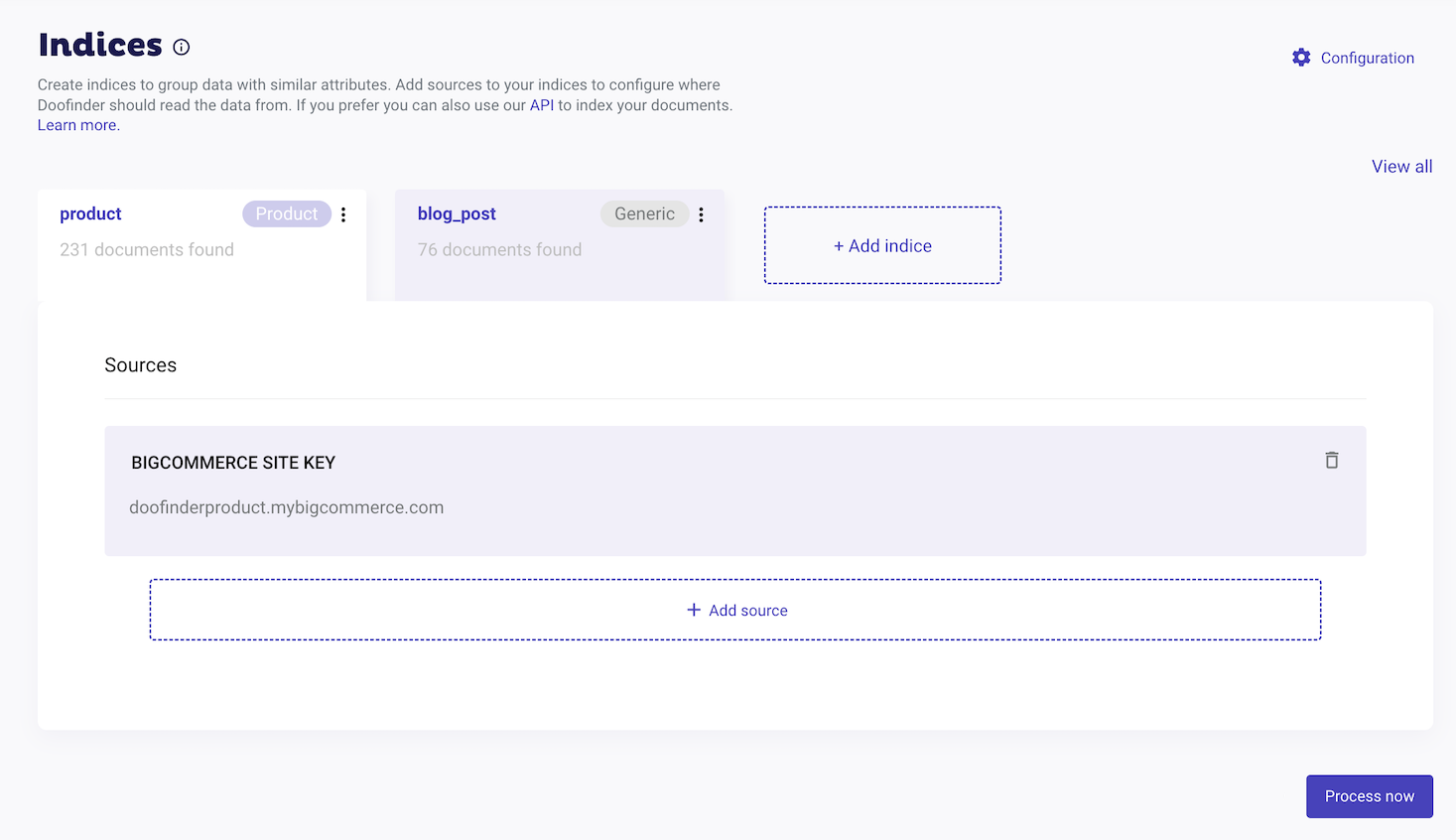
To learn more about Multi-Indices, please click here.
Add Additional Sources to an Index
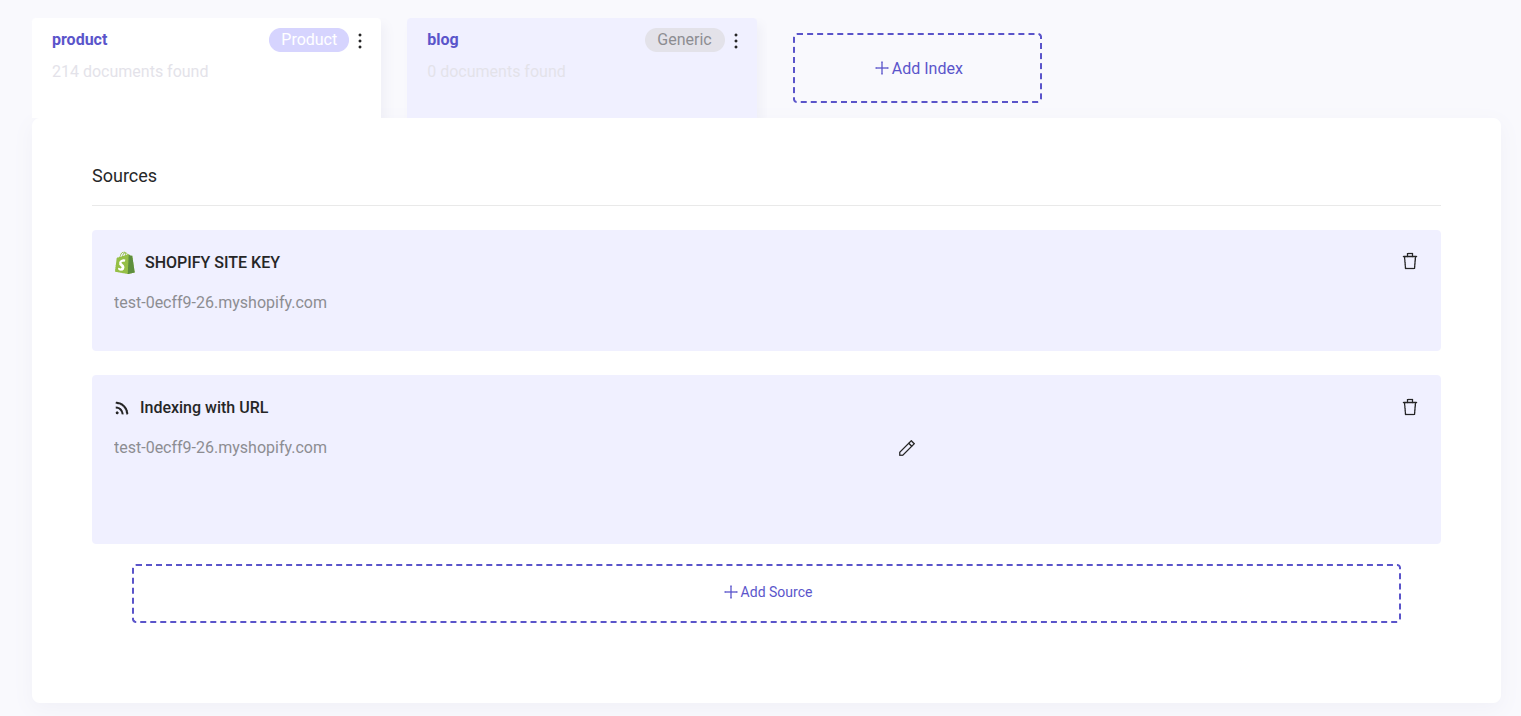
Add an additional source to your index to combine data from different feeds, enrich your index with metadata, or make multiple types of content searchable together.
- To add a source go to your Admin Panel > Configuration > Search Engines > "See indices".
- Scroll down to "Multi-index Configuration" > click the arrow to display the menu
- Enable "Activate Multi-index and source indices", and save.
- Now, you can add another source by clicking on "+Add Source" in each index.
With this you will have combined data within the same index.
How to index additional fields
This applies to every data source except the ones indexed through Doofinder's own API. Plugin and feed integrations are included.
The way Doofinder indexes the fields instead of indexing each one automatically, prioritizing the essential fields for a working connection, which will be indexed by default. Please see below the Minimal Fields:
| Category | Fields |
|---|---|
| Identifiers | id, link, sku, reference, mpn, gtin |
| Product | title, description, short_description, brand, manufacturer, manufacturer_number, meta_description |
| Classification | tags, categories, category_merchandising, searchableClusters |
| Pricing | price, sale_price, best_price, purchase_price, grundpreis, regulation_price |
| Media | image_link, images_links |
| Inventory | availability, stock_quantity, stock_id, minimum_quantity, maximum_quantity, purchase_steps, modifiable, not_published_in |
| Metadata | creation_date |
| Data Feed | df_manual_boost, df_auto_boost, df_group_leader, group_leader, df_variants_information, df_multiprice, group_id |
If additional fields are needed to be indexed, you can easily select attributes from the dropdown, see how to do it on the screenshot below, where there's a dropdown "Select the fields to be indexed" for choosing which detected feed fields get indexed on the next indexing.
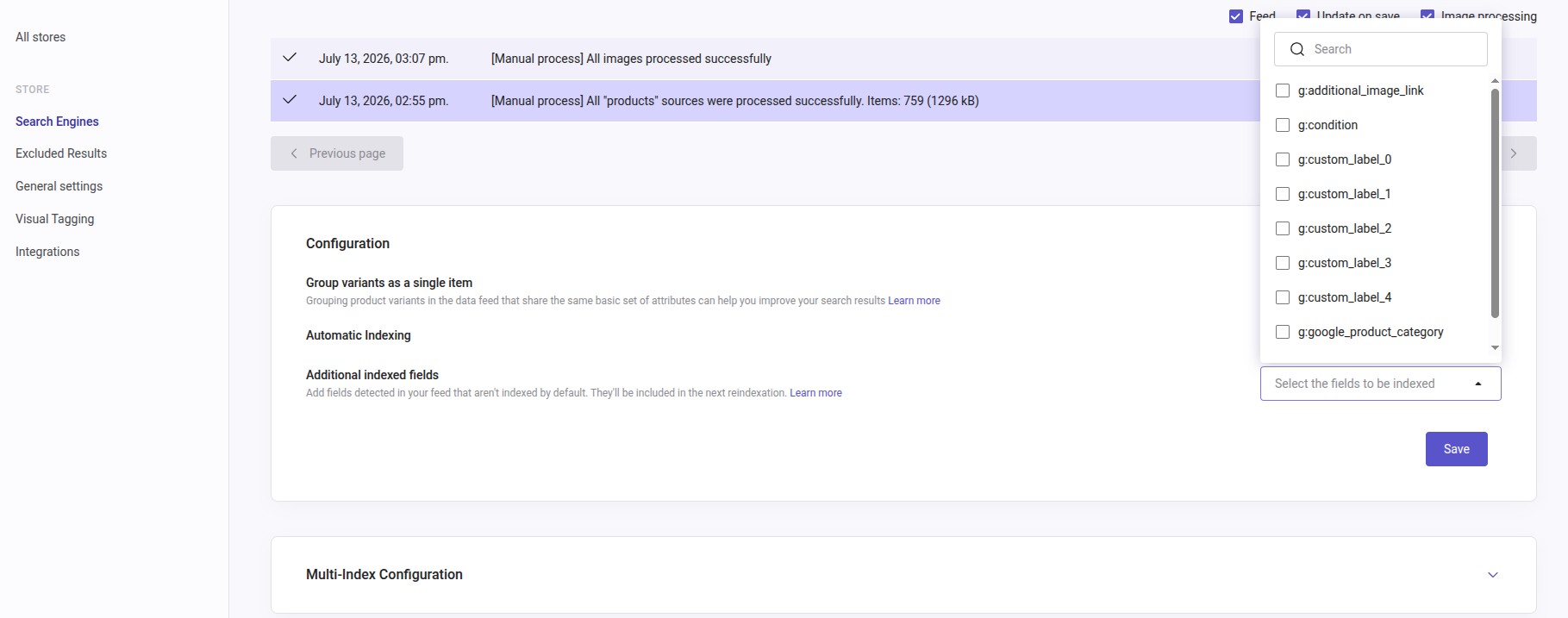
After choosing the new fields, please reindex your feed, see here!
Troubleshooting
1. Download Error Status
[download][product] Something went wrong with feed download…
This message means Doofinder's servers could not successfully retrieve your feed file. This is a connectivity issue, not a data format issue.
Before re-processing, verify the following:
- Confirm your feed URL is reachable and returns a 200 OK response outside of your browser session, see here.
- Confirm Doofinder's IPs and user-agent are allowlisted in any firewall, WAF, or CDN. See Allowlisting Doofinder's IPs.
- If the error persists after verifying both, contact Doofinder Support and include the exact timestamp when the error occurred.
2. Auto-disabling After Repeated Failures
Why did my indexing suddenly stop running on schedule?
To prevent repeated failed attempts from consuming unnecessary resources, Doofinder automatically disables scheduled (automatic) indexing after five consecutive failed attempts.
If your indexing was previously working and has now stopped without any configuration changes, check whether it was automatically disabled due to an underlying feed issue (see the download and format error messages above).
To re-enable scheduled indexing:
- Resolve the underlying cause of the failures.
- Go to Admin Panel > Configuration > Search Engines > See Indices.
- Re-enable scheduled indexing manually.
Scheduled indexing does not resume automatically once it has been disabled.
3. Partial vs. Full Reindexing Scope
Can I reindex a single product without reprocessing the whole feed?
No. Standard feed-based indexing (manual, scheduled, or file/URL upload) always processes the entire feed, not individual products. There is no way to force an update for a single item using this indexing method.
If you only need to update individual products, you can instead use one of the following:
- Update on Save through your Doofinder plugin (if supported by your platform).
- The Management API, which allows you to push updates for individual items directly without reprocessing the entire feed.