In this section, you can find the information associated with your User, which you can edit if necessary. You also have the option to choose the notifications you want to receive in your email to keep you updated.
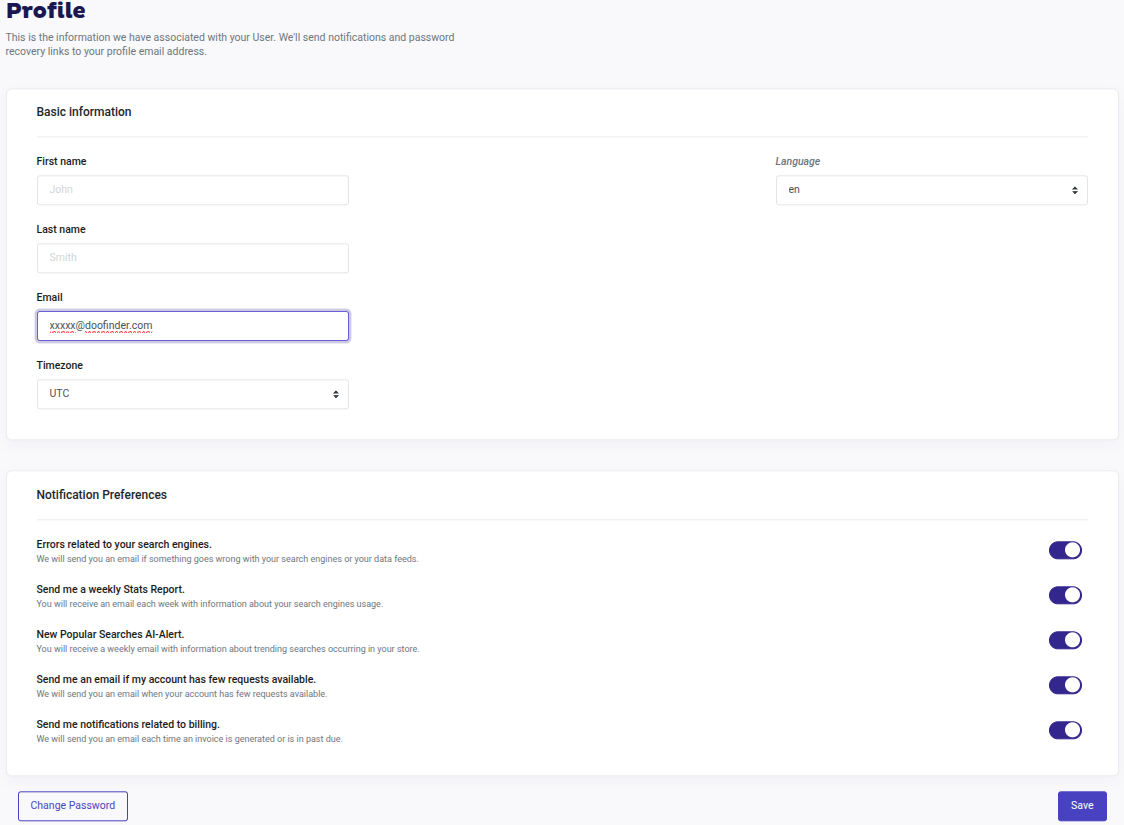
Modify Main User Email
To update the main user email, access the Admin Panel > Account > Profile, enter the new email and save the changes.
Notification Preferences
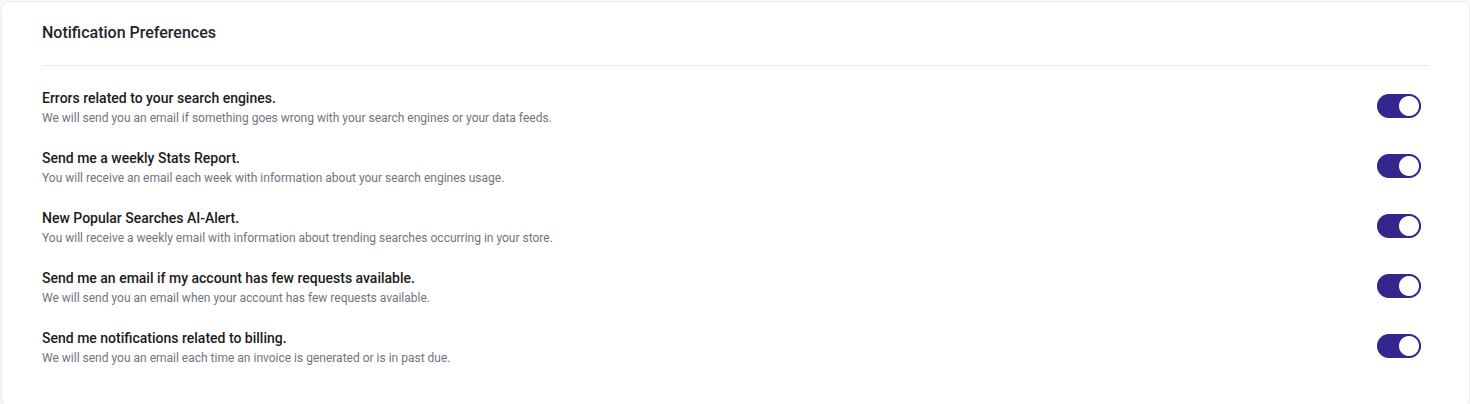
- Errors related to your search engines: We will email you if something goes wrong with your search engines or your data feeds.
- Send me a weekly Stats Report: You will receive an email each week with information about your search engines usage. Reports are sent every Monday.
- New Popular Searches AI-Alert: Receive weekly a powered AI email with trending searches occurring in your store.
- Send me an email if my account has few requests available: We will email you when your account has few requests available.
- Send me notifications related to billing: We will email you each time an invoice is generated or is in past due.
How to Change the Admin Language
Users can change the language of their Doofinder admin panel. Here's how to do it and a couple of things to keep in mind.
- Account impersonation: When you access a customer's (e.g.: agencies) account, their configured language will be applied automatically, regardless of your own language setting.
- Configuration changes: If you change the language under the configuration while impersonating a user, it only affects their account, not yours.
- View in your own language: If you would like to view the account in your own language, you can use the selector located in the upper-right corner of the impersonation bar. This action is only visual for your current session and does not modify the customer’s settings.
Follow the steps to change the Language on your Admin panel:
- In your Admin panel go to Account > Profile.
- Scroll down to find the Language selector.
- Select the preferred language and click on Save.
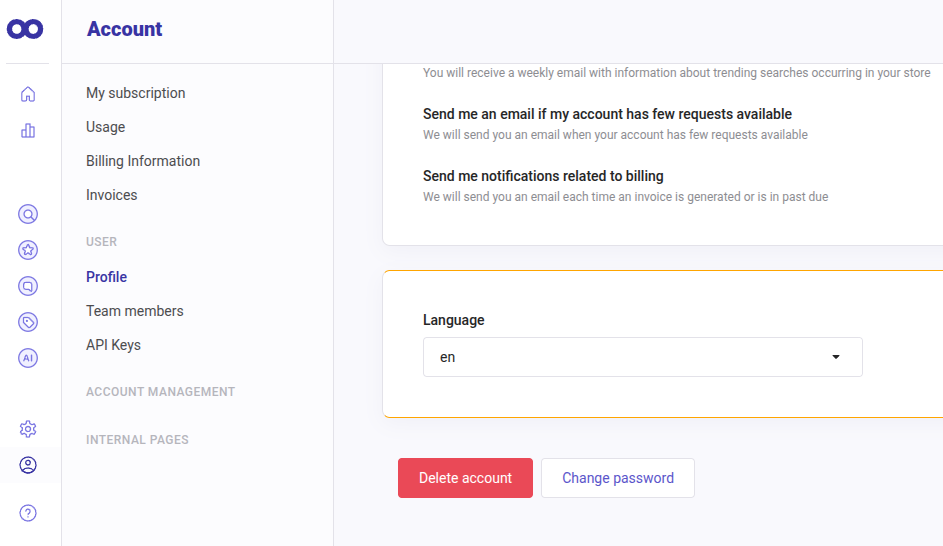
The page will reload in the new language.
Change Password
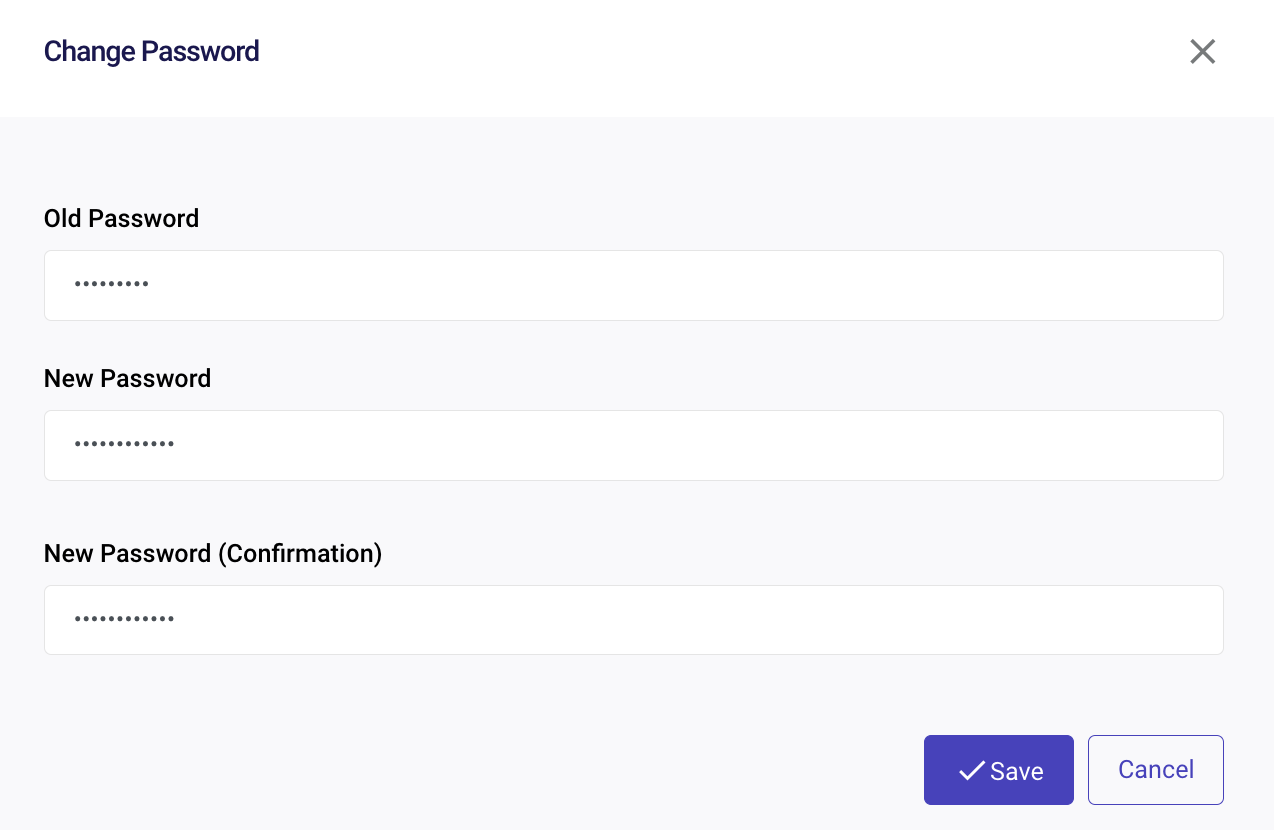
Another important action you can take from this page is to change your password by clicking on the "Change password" button at the bottom left. A pop-up window will appear for you to enter the relevant information; then, click "Save". Notice that this method requires remembering the old password. If you don't remember the password use the Forgot password? link in the login page of the site and follow the instructions provided.