


The AI Assistant is designed to understand intent and reasoning. It dialogues with users to recommend and guide them based on their needs.
An example of question that can be made:
- "What’s best for hiking in the rain?"
The assistant would respond with a selection of recommended products:
- "These waterproof boots provide traction and support."
The greatest advantage of this Discovery product is to make the customer experience simple by giving direct advice, understanding the user intent and offering a personalized suggestion.
The assistant understands natural language, compares products, and answers customer questions using your product data feed and information uploaded, we will go more in depth below. It also adapts to your search layer look and feel, matching its design.
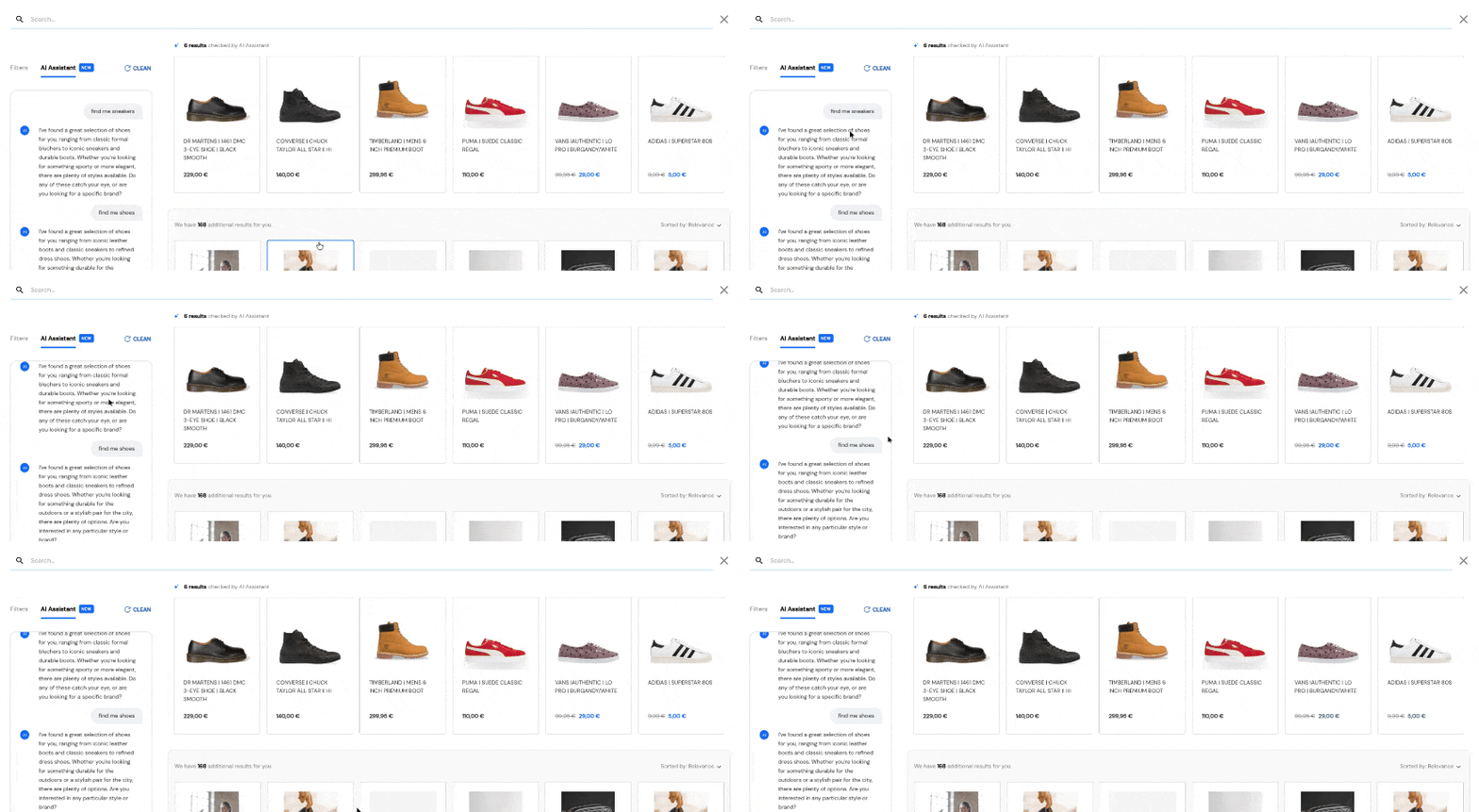
Compatible layers
The AI Assistant works with every layer type. What changes is where the chat opens.
On a product page, the chat bubble and the AI Assistant on a product page open the chat in a side panel, with the product the customer is viewing at the top. This is the same with every layer type.
On any other page, it depends on the active layer of the store:
- AI Fullscreen Layer: the chat is part of the search layer. It opens in a tab next to the filters, with the products still visible beside it. The chat bubble also opens the chat there.
- Other layers: the search layer does not include the chat. The chat bubble opens it in a side panel.
Prerequisites
Before configuring the AI Assistant, ensure that:
-
You have an active Store and Search Engine in your Doofinder Admin Panel (products must be already indexed).
-
Your data feed includes the fields you want the Assistant to use when recommending products (e.g.: title, price, best_price, color, categories, brand, description, dfid, etc).
-
Field names in your feed are properly mapped to Doofinder’s normalized fields, especially if you use custom field names. You can use Field Name Mapping for this.
-
Ensure that the script is updated to the single script, it looks like this on your HTML. With that, Bubble and the mobile version of the AI can work correctly.
-
To include the chat inside the search layer, create an AI Fullscreen Layer and set it as the active layer, as the following message suggests:

If you have any previous configurations on your layer you should copy all CSS and Template codes over to the new layer.
Configuration Steps AI Assistant
In the following steps, you will learn how to configure your AI assistant. Notice that this configuration is per store:
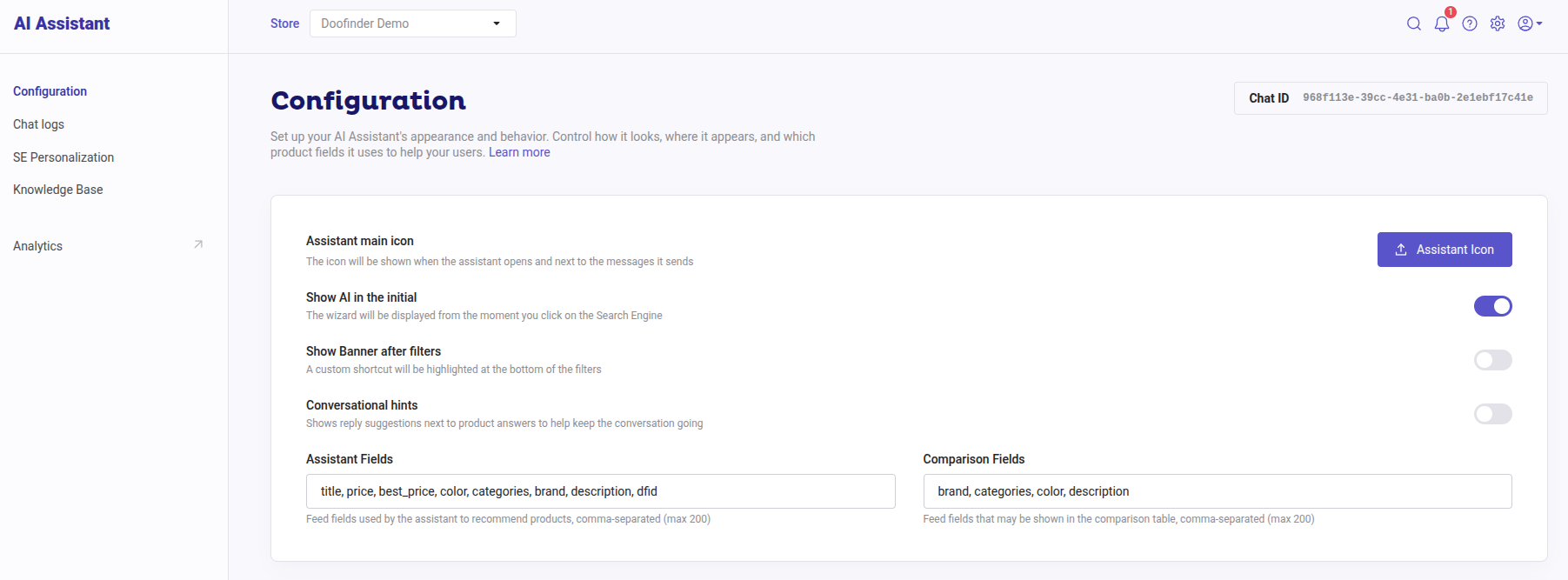
Show AI in the initial
If the toggle is enabled, the AI assistant will be shown from the moment the search box is clicked on, alongside the initial results. Otherwise, you will need to first type something in the layer.
Show Banner after filters
If the toggle is enabled, the assistant will be shown at the bottom of the filters, otherwise, it will be on top of it.
Conversational hints
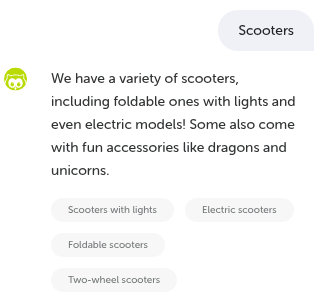
If activated, it suggests common responses to users to keep the conversation flowing. It makes it easier for continuing interaction by simply clicking on the answers, avoiding typing, as it asks follow-up questions, and explore products.
See the following example with "Scooters":
Assistant Fields
Here you can choose the feed fields used by the assistant to recommend products, they must be separated by comma, see example below:
- title, price, color, brand, etc.
However, if the box is empty, we will use a default list of fields: title, price, best_price, color, categories, brand, description, dfid. The purpose of this is to add fields when you need to control what you want the AI assistant to read instead.
The assistant reads the first 140 characters of each field.
Comparison Fields
In the Comparison Fields you can opt for feed fields that may be shown in the comparison table, separated by comma, see example below:
- brand, categories, color, description.
The system will use the selected Comparison Fields to show a side-by-side comparison of the products, using only the fields you defined. However, if the box is empty, the system will pick the most relevant fields in your data feed.
Chat bubble
Show chat bubble
You can enable it to draw your customer's attention to the AI Assistant beyond the standard interface on the layer. Once activated, the bubble will appear on all website pages, apart from the checkout view, providing users with a direct entry point to open the conversational layer.
You are also able to customize the chat, see available options:
Vertical offset
Shift the bubble upward or downward. Negative values move it downward.
Bubble icon color
Easily change the bubble icon color using hexadecimal format.
Bubble background color
Change the chat bubble background color.
Send bubble message
The bubble will send a message to make it more noticeable to users. If enabled, customers will be directly addressed on your web by the assistant.
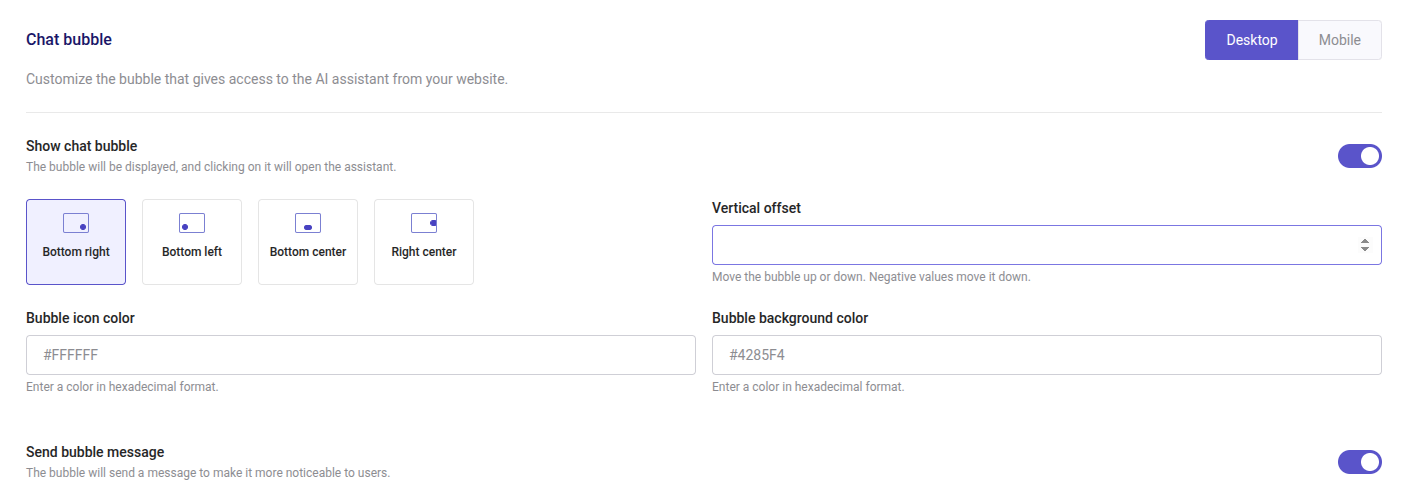
Notice you can activate both Bubble “chat” and “message” for desktop and mobile.
Customize using CSS
You can use CSS styling for more advanced changes to the appearance of your chat:

Notice this CSS will affect all devices and the whole page.
The AI Assistant on a Product Page
You can activate the AI Assistant also on products pages, by configuring it under your AI Assistant’s configuration block.
How does it work? The AI, activated from a Banner, will use the product page context to provide more precise answers, as well as search for relevant information when needed, without extra configuration. It also considers the full Knowledge Base in every response.
The AI on the product page opens in a side panel, allowing your customers to continue browsing and buying.
Follow the steps below to achieve it:
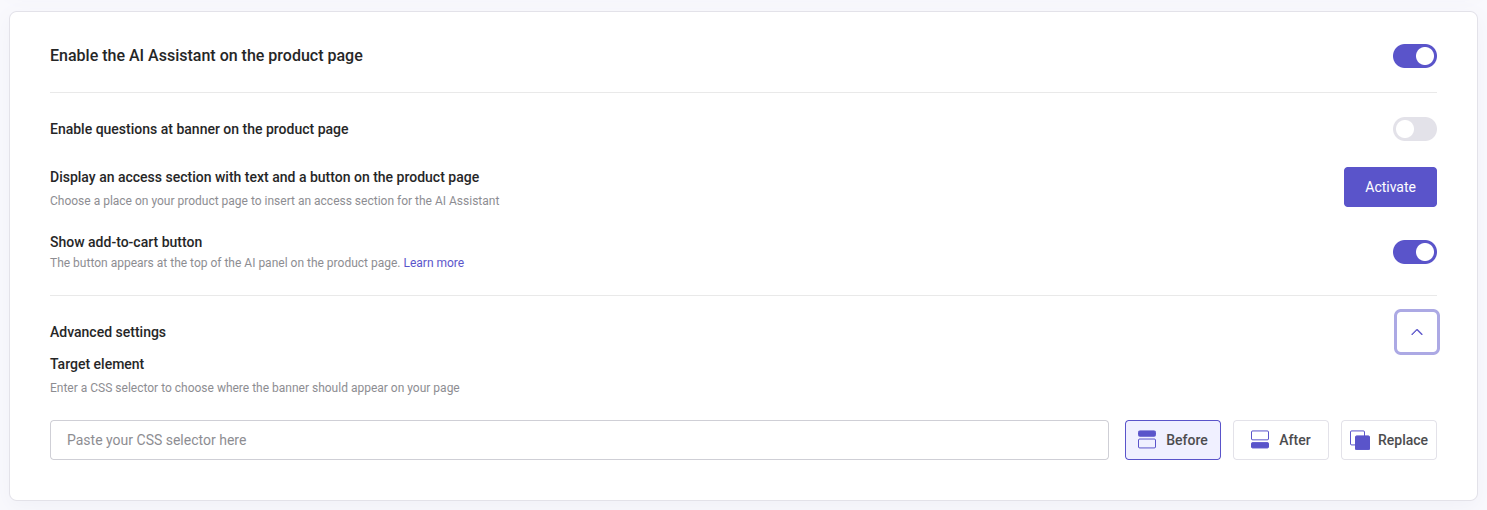
- Activate if under AI Assistant panel > Configuration > Enable the AI Assistant on the product page.
- You can Enable questions at banner on the product page if you would like the Assistant to provide some guidance to buyers.
- You can also enable the option of Display an access section with text and a button on the product page, you'll need to select a place on your page, follow through step 4.
- Choose a CSS selector to define the right place on your product page and the position of the element.
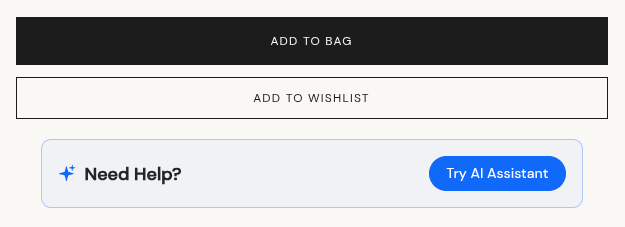
You can place the access section where you prefer. In the example below, it is under the page’s own add to cart button:
In the same section you can also enable the Add to cart button. It is shown in the assistant’s side panel, next to the product the customer is viewing, so they can add it to the cart without leaving the conversation.
Enable both toggles (AI Assistant + Questions in banner) on the product page. Generation can take time, especially for large catalogs. If the questions still don't show up, check your custom CSS and Selector.
Define Your AI Assistant’s Behavior (System prompt)
Here you can add basic information about your store to help the assistant to answer questions about your business, shaping how the assistant responds. However, it is not necessary to modify or add information in this field for the assistant to function properly. Our recommendation is to leave it blank at first: test the assistant with your current setup and only add information here when you need to correct or refine its behavior. Keep in mind that any changes will affect all responses and, if not carefully written, may reduce quality or lead to unexpected behavior.
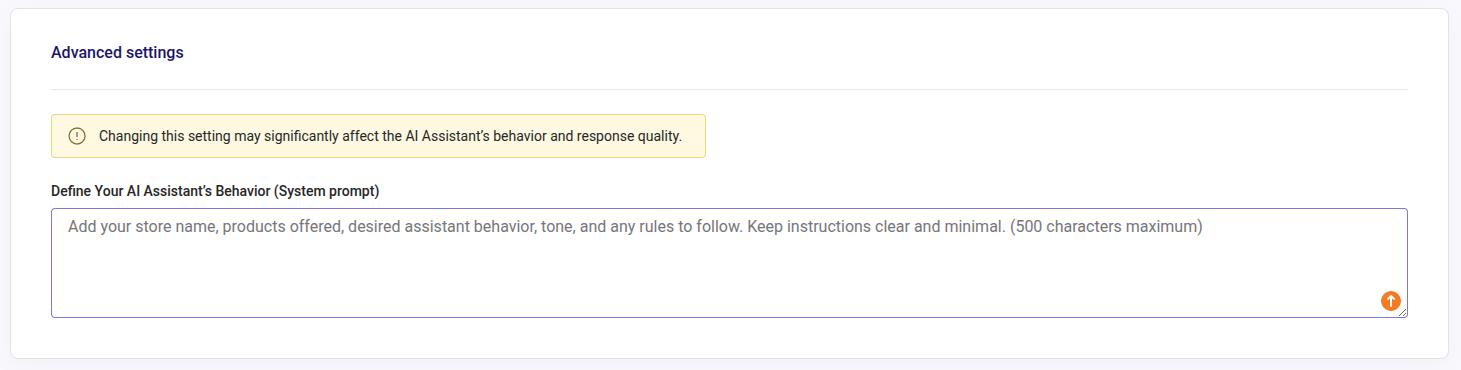
Nonetheless, if you need to add information, it’s important to make clear and concise instructions in order for an accurate performance. The field accepts up to 1,000 characters. You may include:
- Store general information: name, industry, general information.
- What kind of products do you sell? This helps the AI Assistant to know when it should use your feed to answer (vs the knowledge base).
- Specific instructions on how the assistant should handle certain questions.
- Tone of the AI responses.
Notice that this section is not the same as the Knowledge Base section you will see below in this guide, which instead allows you to upload and manage additional store information that the AI Assistant cannot get from the product data feed.
Search Engine personalization
In AI Assistant > SE personalization you can customize the name, messages and suggestions of your AI Assistant. They are set for each Search Engine. Choose the Search Engine in the drop-down on the right of the Search Engine personalization box, and then edit its texts:
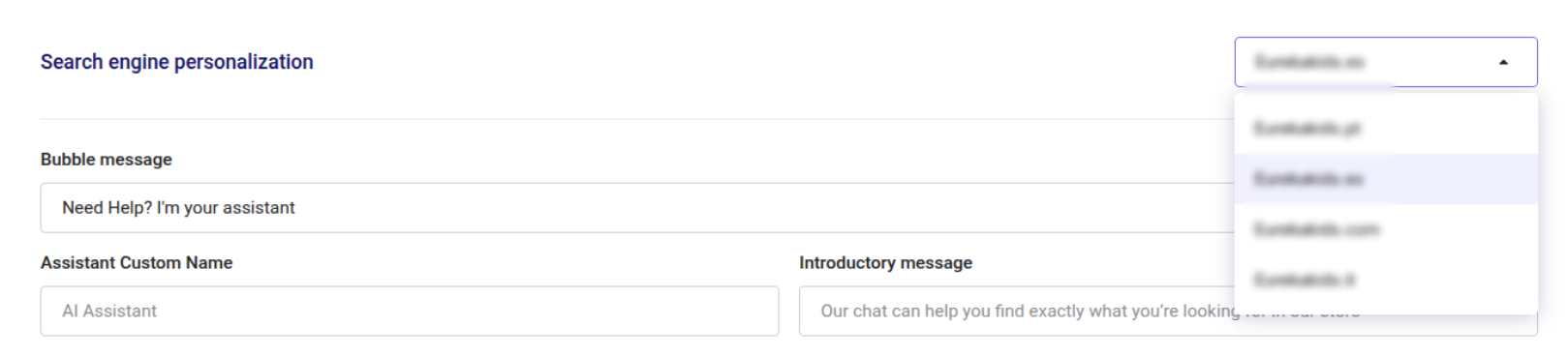
Bubble message: the message the chat bubble shows when it addresses the customer directly. By default, “Need help? I'm your assistant.”
Assistant custom name: the name shown as the title of the assistant, instead of the default “AI Assistant”:
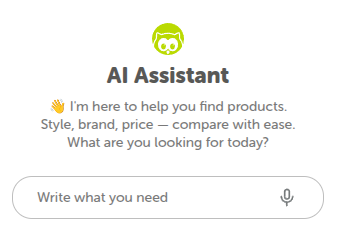
Introductory message: the first message of the assistant. By default, “Our chat can help you find exactly what you're looking for in our store”.
Introductory message (product page): the first message of the assistant on a product page. Use %{product_title} to include the product name. By default, “I'm here to help you with your purchase. What do you need to know about "%{product_title}"?”
Suggestion 1, Suggestion 2 and Suggestion 3: add your own suggestions, see real case example:
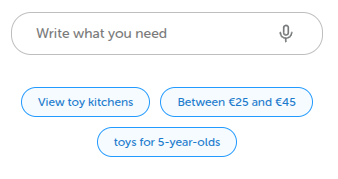
You can use for example, your top searches data to turn it into questions.
Assistant's response to the suggestion: under each suggestion, the answer the assistant gives when the customer clicks on it.
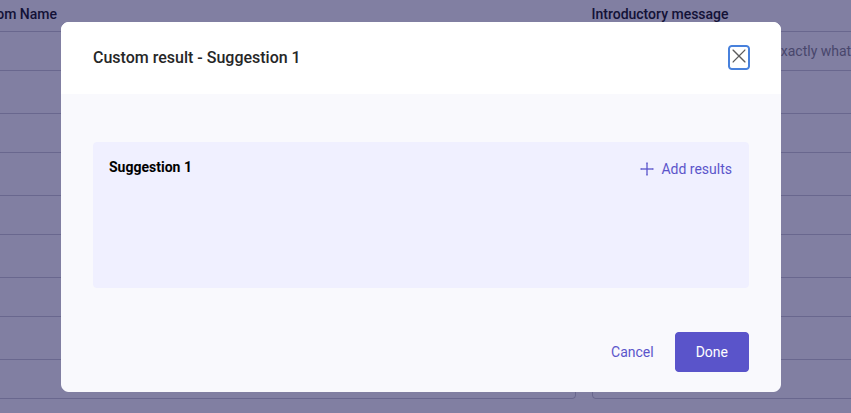
Custom result: next to each suggestion, you can add a custom result. When the customer clicks on the suggestion, the chat shows the products of that custom result, so write the suggestion to match them. When adding a custom result, you will be required to fill in both the Suggestion and the Assistant's response to the suggestion.
How to do it? Go to your AI Assistant > SE personalization > Suggestion > add the message > click on Custom result > Add results, where you can add Individual items or a set of products using Rules, see more here.
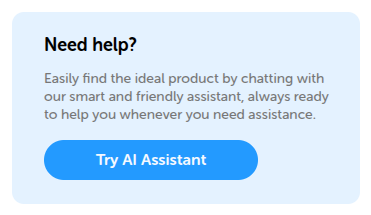
Banner title (in layer and in the product page): the title of the AI Assistant banner. By default, “Need help?”.
Banner Button Text (in layer and in the product page): the text of the banner's button. By default, “Try AI Assistant”.
Banner description: the text under the banner title. By default, “Easily find the ideal product by chatting with our smart and friendly assistant…”.
See below:
Other AI Assistant Texts
The texts shown in the layer can be changed from Search > Layer Settings > Translations, including the texts related to the AI Assistant. Find the text in the list of fields and enter its new value. See how in Translations.
Chat logs & Stats
Once you start getting interactions, at first, you will see the insights box. The Insight functionality is a feature that automatically analyzes the assistant activity and generates concise summaries highlighting key trends, user interests, and opportunities.
Chat Log Filters
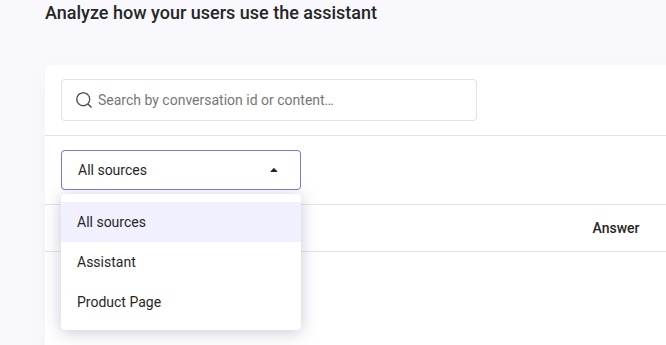
You can filter the conversations by date using the Calendar, Origin, Device and Conversation, that is, with or without sale.
You count also with a dedicated search field to search within chat logs by keywords or text.
Directly on the chat cards you can find:
- Date & Time of the conversation.
- The product given during the interaction.
- Answers from the interaction with the customer.
- Date of the conversation.
- An arrow at the left of the chat logs to expand the conversation.
Logs will be preserved for 6 months.
Chats download
You can export your assistant's chat messages to a CSV file directly from the admin panel. However, notice that:
- You can select up to 1 month of messages per export.
- Each export is capped at 30,000 messages (around 1,000/day).
See how:
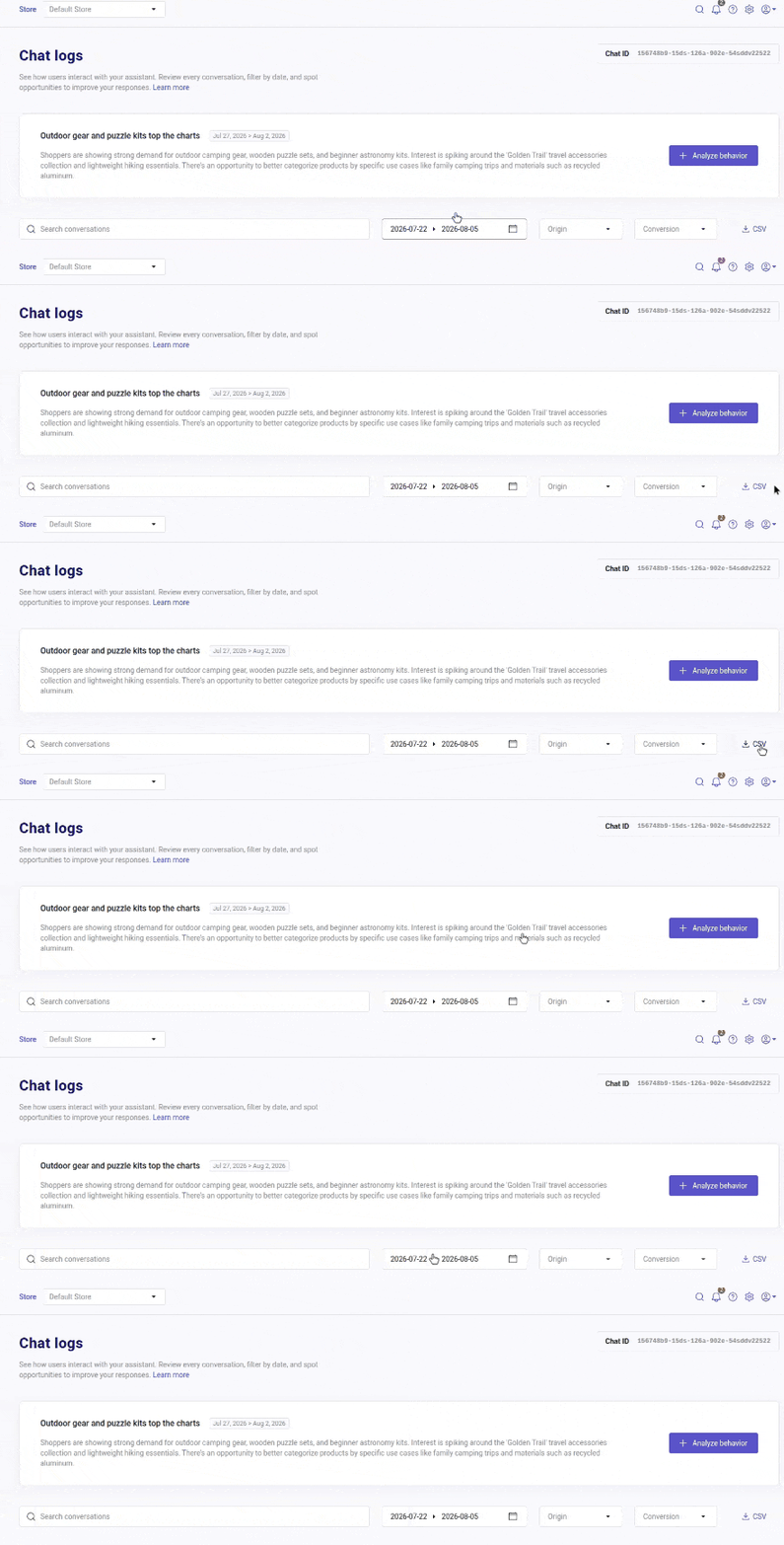
The date range of the downloaded data will be taken from the information set by the filters.
Knowledge Base
The AI Assistant will mainly get all information from the data feed of your products, however, with this functionality, you can increment its expertise adding up any type of information about the store, shipping and payment methods, contact, address, policies etc. The Knowledge Base is the section where you can upload it.
We also suggest adding a document containing contact information, customer service hours, and related details. The assistant identifies what each document covers from its content, so it knows when to reference it.
Notice this section won't complement your product data feed but add more clarity to the Assistant to answer specific questions.
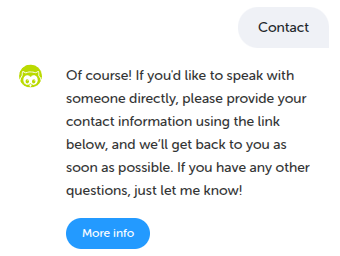
Real case example:
- If a customer asks how to contact your store, the chat will pull the details from the Knowledge Base and display the contact information with a clickable URL or button:
The data format
Data source: the limit is 100 sources in total, combining Text, URL, and File sources. Each source can contain up to 40,000 characters. Any content beyond that limit is cut off.
Files: you can upload .txt, .md, and .pdf files, up to 15 at a time. Each file can be up to 1 MB.
Data Training: up to 30 training attempts per day are allowed without a waiting period (informed when the limit has been reached). Once that time has passed, you’ll need to click “Save & train” again manually. After you do, the system will immediately process and apply the latest modifications.
Training time grows with the volume of content you upload. When you approach 100 sources and the documents are long, “Save & train” takes longer to finish than the usual few minutes.
How to upload it?
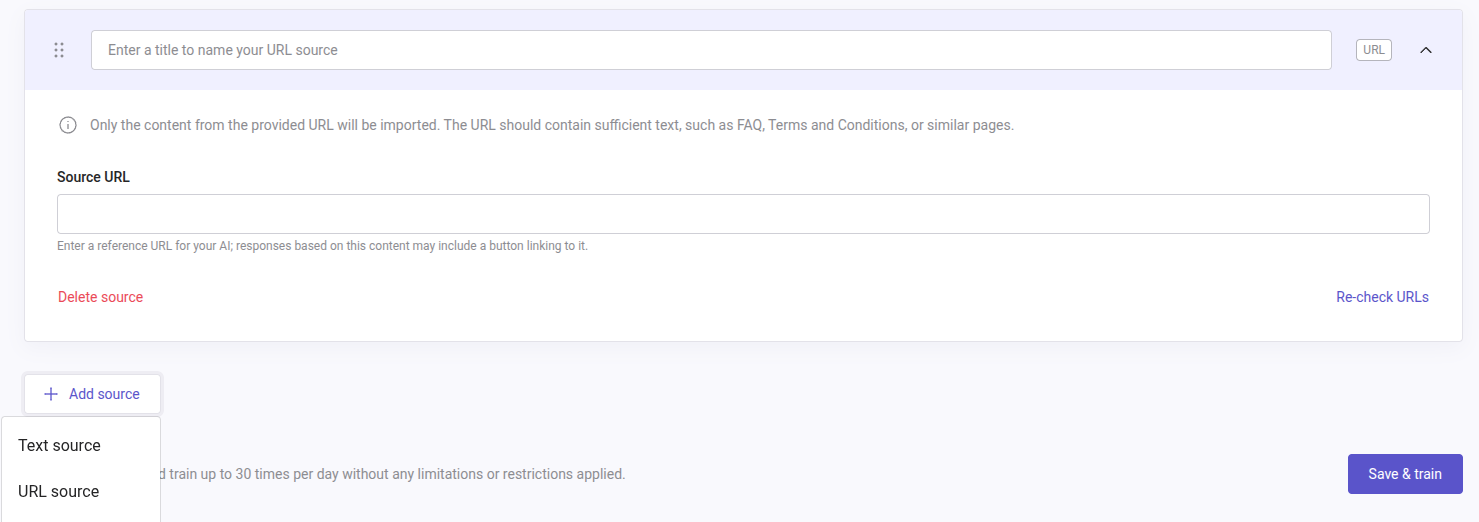
Upon click on the button “Add source” you can choose between Text source, URL source, or File source.
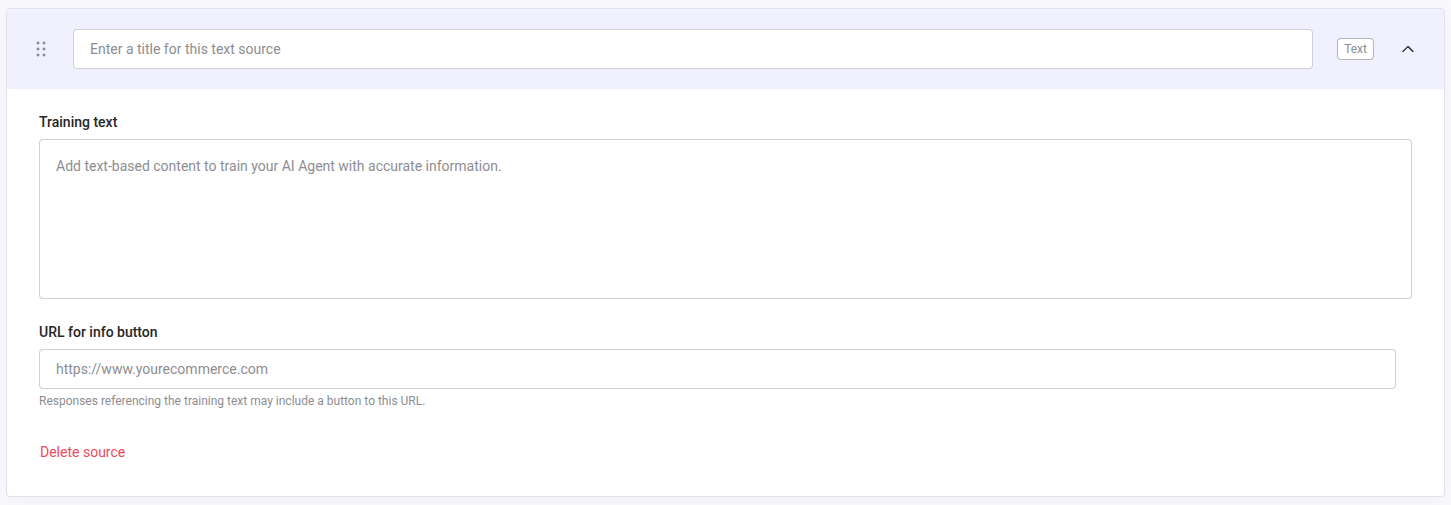
Option 1 - Text source: you can add the text directly into the text box as you can see below:
- Gather all important information.
- Convert it on a clean and organized text (with titles and sections, if applicable).
-
Copy and paste it into the text box.
-
Once you have finished adding all prompts, click on "Save & train". This might take a few minutes.
Option 2 - URL source: you can add a text URL source.
Only the content found directly on the provided URL will be imported, meaning that linked pages or sections within that URL will not be processed.
Source URL: paste the URL in the box.
Do not forget to "Save & train".
Option 3 - File source: you can upload .txt, .md, and .pdf files, up to 15 at a time. Each file becomes a source, so the limits in The data format apply to it.
Once the files are uploaded, click on "Save & train".
Clickable links in text sources
When you add a URL to the Knowledge Base text source, it will appear as a clickable link in the search layer for as long as its domain is listed in the Security section, see here.
If the domain is not authorized, the link will show as plain text. See how to achieve it:
- Go to Admin Panel > Configuration > General Settings > Security > Authorized domains and confirm the domain is listed.
- Add the URL to your text source URL for info button.
- Save and re-index.
Customers will now be able to click the link directly from the chat responses.
Languages
The configured texts inherit the language defined for the layer in your admin panel of Doofinder.
Once in the AI assistant, you can interact in any language. The system will automatically detect your input and understand it correctly. However, responses will be generated in the language configured in the search engine, regardless of the language you use.
Adding The AI Assistant To Any Element on Your Web
You can link your AI assistant to any element on your website, accessing it from your backend. This implementation uses a standard HTML ‘onclick’ event handler, which is an attribute that executes JavaScript when the element is clicked.
This allows you to call the method when clicking the element that opens the AI Assistant.
Add onclick="Doofinder.AI.Assistant.open()" to any div, img, button, etc, see:
<!-- Example using a div -->
<div onclick="Doofinder.AI.Assistant.open()">
  Open AI Assistant
</div>

<!-- Example using an image -->
<img
  onclick="Doofinder.AI.Assistant.open()"
  src="https://EXAMPLE.com/image.png"
/>

<!-- Example using a button -->
<button onclick="Doofinder.AI.Assistant.open()">
  Open AI Assistant
</button>
Multi-Index
Multi-Index is currently supported only partially within the AI-powered Search Layer. Tabs for viewing results from multiple indices are displayed exclusively during standard searches. When a query is submitted to the AI Assistant, these multi-index result tabs are not shown.
More information about the Multi-Index can be found here.
Best Practices
- Include the suggestions: this functionality allows you the opportunity to better guide your customers.
- Enable Conversational hints: to improve the user experience, especially on mobile.
- Enable the AI Assistant Chat Bubble: this will give your customers the ability to access the chat from any page on your website.
- Knowledge Base: upload any kind of pertinent info, such as FAQs about payments and shipping, it helps your AI Assistant to cover up those questions.
More info about the product can also be found here in our Discovery section: https://www.doofinder.com/en/ai-assistant