


The Currencies section allows you to configure the different currencies of your web. This is very helpful when multiple languages and payment types are available on your website, which are not applied directly to the Doofinder products, such as the search layer.
For the correct display of the prices, you have to configure the language + currency of your web following the instructions below, to guarantee that our products are aligned with your web prices.
Configuration
- To access your currencies configuration, go to your Doofinder admin panel > Configuration > General Settings > Currencies.
- Once in the Currencies, click on: + Add currency.
- You will then be directed to the following page:
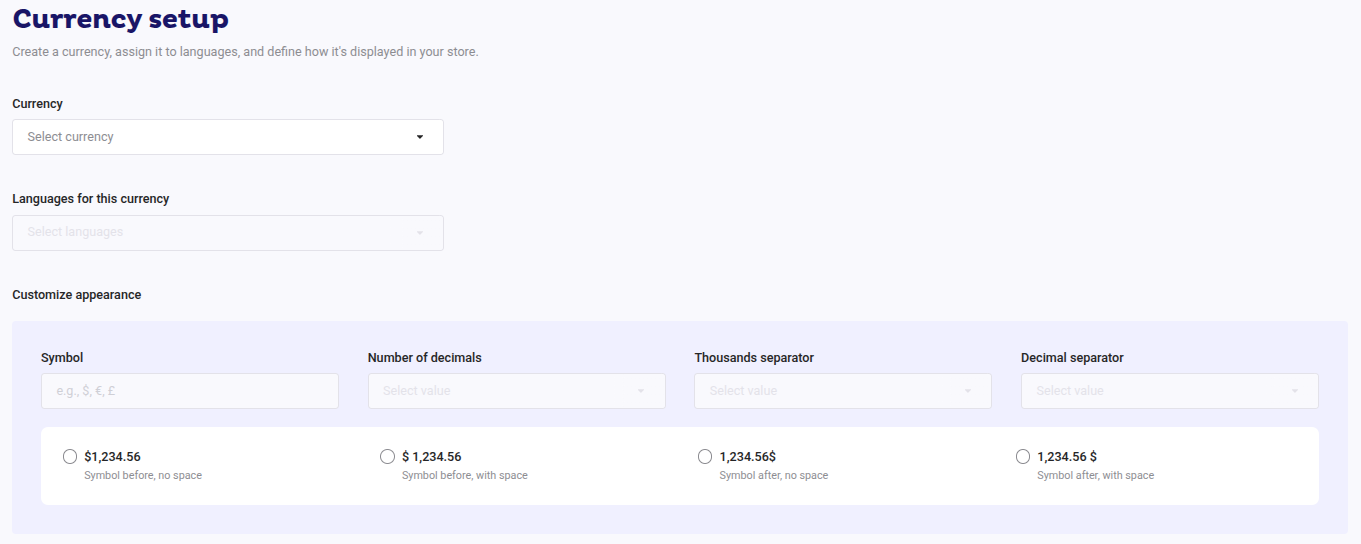
The following fields must be completed:
- Currency: here you can choose the currency of your web, e.g.: Euros (€), British Pounds (£) or Dollars ($). You must choose only one and, you can use the search bar to find yours.
- Languages for this currency: you can choose as many languages as necessary. If you have a multilingual web in English, Spanish and German, and it's all under the Euro currency, then you can select the 3 languages at once.
- Customize appearance:
- Symbol: although mostly will be introduced by default, you can change the currency symbol at any time. Acronyms are also supported, such as ‘USD’, ‘USD $’, ‘EUR’, etc.
- Number of decimals: you can select multiple or no decimals at all.
- Thousands separator: change the thousand price to a period, comma, blank space, etc.
- Decimal separator: change the decimal separator to a period, comma, blank space, etc.
In the following customization we have made, you can see the result preview right under the customizable boxes:

In this example, we used the Euro as the symbol - 4 decimals - Period as the thousand separator - Comma as the decimal separator. The result is: **€ 1.234,5600 **
Now save the changes! You should be all set.
Once saved, under the Currencies section, you will notice a preview of your configuration:
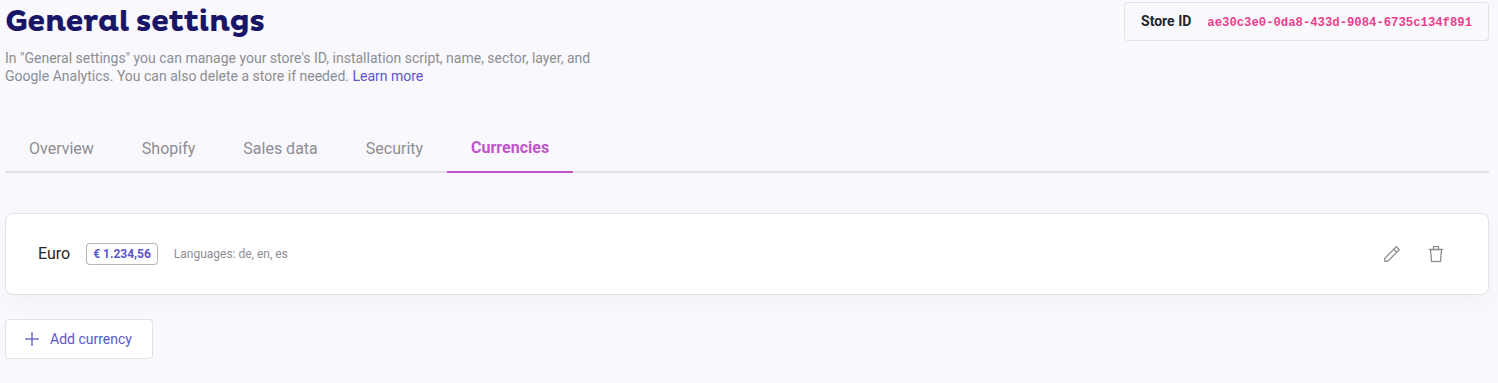
You can also use the pen on the right-hand side of the currency created to edit the details, or the icon of a trash can to erase it completely.
Troubleshooting
If your changes aren’t being applied, check the language code in use. The language stated under the currency configuration, must be the same as the language configured under your General Settings > Published Store Search Engines. If the language of your search engine is “en” then the currency must also use the “en” language attribute.