


In WiziShop, the platform can generate data feeds, this includes Google Shopping feeds, without any additional cost. These feeds are created directly within the system and only require having a Google account. WiziShop installation is done manually, as we do not have a module available to download in their marketplace.
1. Prerequisites
You will need:
- A WiziShop store.
- A Doofinder account:
- If you don't have one, you can sign up here to get your 15-day free trial period. (This is optional, as you can create one during the installation process for the first time).
- Your Installation ID.
- The single script snippet from the Doofinder admin, under Configuration > General settings.
- A product feed URL (XML/CSV) coming from WiziShop.
2. Catch the product feed in WiziShop
WiziShop can generate several product feeds. The easiest option is usually Google Shopping, which is free and only requires a Google account.
- In WiziShop, set up the Google Merchant Center / Google Shopping export (follow WiziShop’s own guide for Google Merchant Center), see here!
- Once configured, Google Merchant Center will give you a feed URL (XML/CSV) that contains your products.
- You will later use this URL in Doofinder as the data source.
Alternatively, you can use a custom product export in WiziShop instead of Google Shopping, as long as you get a stable feed URL.
3. Connect the WiziShop feed to Doofinder
In your Doofinder admin:
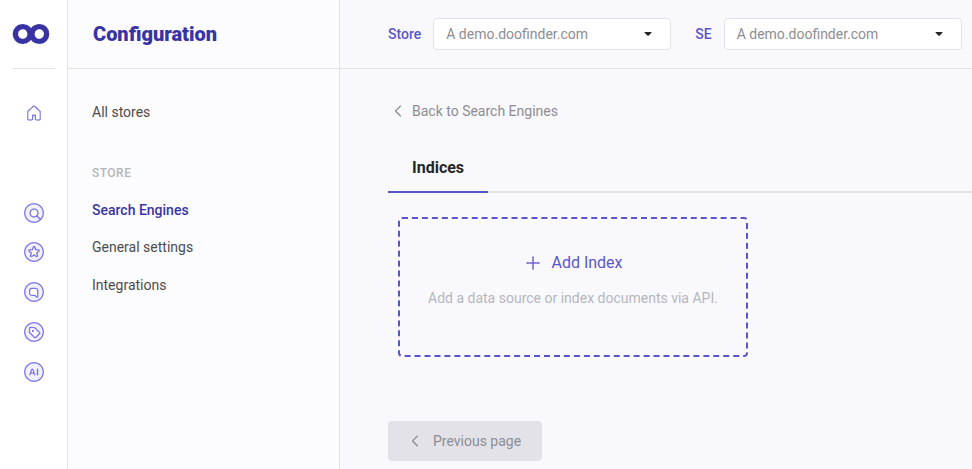
- To add a data feed source, go to your Admin Panel > Configuration > Search Engine > Indices.
-
Create a new data source:
-
Type: Google Shopping or a generic XML/CSV file.
-
-
Paste the feed URL you got from Google Merchant Center or from your custom export in WiziShop.
- Run the feed indexing by clicking on process:
- Check that products are imported from the Results Preview.
- Verify basic fields: ID, name, URL, price, image, etc.
When everything looks good, schedule the automatic updates!
4. Add the Doofinder script in WiziShop
WiziShop allows you to add custom scripts via the “free script” feature, without editing template files.
- Log in to your WiziShop admin.
- Go to the page linked for free scripts!
- Click Add a script (or Ajouter un script).
-
Fill the options:
- Sites: Site classique + version mobile.
- Present: Sur toutes les pages du site (on all pages of the site).
- Emplacement (location): Avant le contenu de la page <head> (before the <head> content).
- Script name, e.g.: Doofinder.
-
In the script content field, paste the snippet provided by Doofinder. Example structure:
<script src="https://eu1-config.doofinder.com/2.x/YOUR-INSTALLATION-ID.js" async></script> -
Click Save/Enregistrer le script.
If everything followed correctly, you should be finished with the installation!