


Although we do not have a module for LightSpeed, you can integrate it with your Doofinder account, and only require having a Google account if you’re using Google Shopping.
1. Prerequisites
You will need:
- A LightSpeed store.
- A Doofinder account.
- Google Shopping File or a custom feed, such as Channable.
2. Catch the product feed
-
See here how to create a feed within the platform!
A product feed is a file/URL Google uses to automatically read your products:
The standard feed URLs are:
URLNAME/feed/googlebase

URLNAME/feed/googlebase/international
Example:
yourstore.com/feed/googlebaseInternational feed
yourstore.com/feed/googlebase/international -
Once the feed is generated, please follow the steps of Installing Doofinder! If you already have your Doofinder account, follow with step 3 of instructions.
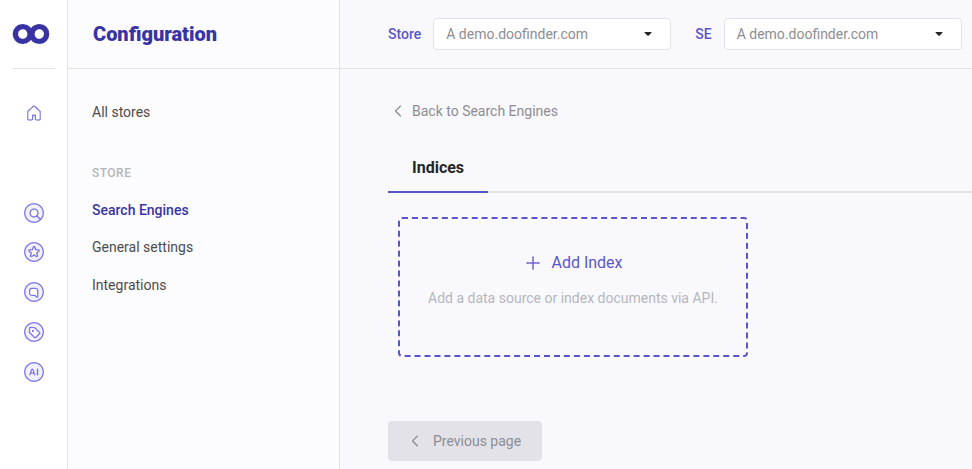
- To add a data feed source, go to your Admin Panel > Configuration > Search Engine > Indices.
-
Create a new data source:
-
Add the data feed file and process your feed!
3. Add the Doofinder script in LightSpeed
- On the left menu of the back office go to Settings > Website Settings > Web Extras.
- Click on Custom JavaScript. See in detail how to!
- Go back into the Doofinder Admin, copy your script of Doofinder from the General Settings > Installation script, steps here!
- Finally, place it on the Custom JavaScript section of LightSpeed.
If everything followed correctly, you should be finished with the installation!
Conversion Rates Configuration
To track your sales you might configure your conversion rate. This is the percentage of users who perform a search using Doofinder that leads to a sale. You can set up your Search Engine to count your customers' purchases to get the conversions.
You will need to configure the Sales Data on your Doofinder admin under General Settings. The standard URLs will be:
- Payment Confirmation page URL: /thankyou
- Checkout Summary page URL: /cart