


The Sales Data Configuration feature lets you track completed orders (sales) in Doofinder. Once set up, it unlocks features such as:
- Bestseller logic in Recommendations
- Search conversion-rate statistics
- Accurate checkout cart and sales performance insights
By configuring this section, you will enable advanced sales data collection, helping you improve your sales through solid analytics and enhanced product recommendations.
Sales Data Prerequisites
- New Doofinder users: Single Script installed
- Older Doofinder users: Single Script updated
Sales Data tracking only works if the Single Script is correctly installed on your website.
Accessing the Sales Data Panel
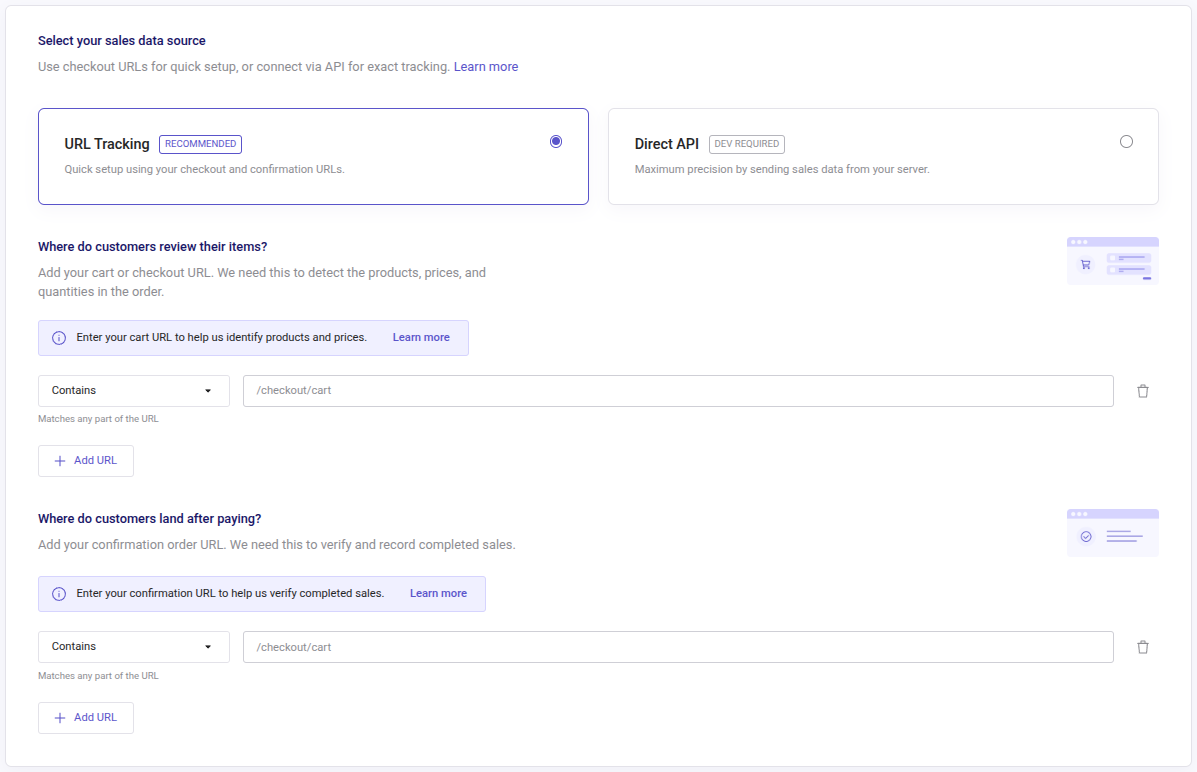
To configure Sales Data:
- Go to your Doofinder Admin Panel > Configuration > General Settings.
- Select your Store in the top bar.
- Open the Sales Data panel.
This section includes three parts:
- Select your sales data source
- Where do customers review their items?
- Where do customers land after paying?
Managing Sales Data configuration at store level ensures that all Search Engines are configured consistently in one place. If you use checkout and confirmation URLs, make sure to configure all checkout and payment URLs for every Search Engine in this panel.
Select Your Sales Data Source
You can choose between two options:
- Use checkout & confirmation URLs (recommended)
- Receive sales data via API (advanced, for exact precision)
The Checkout & Confirmation URLs option is the easiest and fastest way to send sales data, as it uses the Single Script to automatically gather and display data.
Select the API option only if:
- You have technical knowledge, and
- You do not have the Single Script installed or updated.
If using API, read the Sales Data API Integration section to configure Sales Data.
Even if using the API, you must still configure the Payment Confirmation Page URLs.
How to Configure Checkout Summary and Payment Confirmation URLs
Where do customers review their items?
- Checkout Summary Pages: these are the pages where customers review their selected products before payment (the cart page).
The cart URL field will mostly be pre-configured automatically, reducing manual setup errors. Otherwise, manually set it up.
For Multi-language URL stores that are managed in multiple languages, where the same page exists under different URLs (/cart, /carrito, /carrello) you will need to either add each URL individually or use a regex pattern to cover all variants.
Where do customers land after paying?
- Payment Confirmation Page: these are the pages customers reach after completing payment (typically a “Thank you” page).
To configure Checkout Summary and Confirmation pages:
-
Enter your checkout and confirmation page URLs in the corresponding boxes.
Ensure all URLs belong to the same domain or add URLs for each language version.
-
To add more URLs, click on "+ Add URL”.
- To remove a URL, click on the trash icon next to it.
- Once finished, click on "Save" at the bottom of the panel.
Types of URL Configuration
You can configure both page types using one of four matching methods:
| Type | Use Case | URLs Examples |
| Contains | For partial or simple URL patterns to match all URLs sharing the same structure. | https://learn.doofinder.com/cart matches fr/cart/, checkout/cart/index/
|
| Equals | For exact URL matches. | https://learn.doofinder.com/confirmation-order/ (to only match this URL)
|
| Regex | For advanced cases requiring precise pattern control. Use only if simpler options don’t work. | https://learn.doofinder.com/payment-method/*/credit-card(use asterisk to match anything in between)
|
If you are going to use an asterisk (*) within the Sales Data configuration, for example when adding `/cart/checkout/*/confirmed`, it is important to use the Regex method instead of Contains, so the pattern is interpreted correctly.
URL Configuration Considerations and Best Practices
After diving into the examples of URLs that can be used to configure sales data, make sure you consider the following aspects:
Ensure Doofinder Script Loading
The Doofinder script must load on all checkout and confirmation pages; otherwise, no sale events will be registered.
Using the Correct Page URL
When adding a URL to each section of the Sales Data Panel, use the correct page URL.
Only enter cart or checkout URLs for Checkout Summary Pages, and order confirmation URLs for Payment Confirmation Pages.
Too Generic URLs
Generic URLs like https://support.doofinder.com/ or Regex patterns with only an asterisk (id=*) will not work correctly.
Always include the specific checkout or confirmation page path.
Incorrect or Overly Specific URLs
Incorrect URL settings prevent sales tracking. For instance:
/es/carrito?action=showid234or/confirmation-order?user_id=234will only match a single user or order./pay/?orderId=VQ2G5LL3LRwill only match that specific order.
Sales Data API Integration
Remember, this applies only if you choose “Receive sales data via API (advanced, for exact precision)” instead of the Checkout Summary Pages URLs.
Find full access to the API documentation to integrate cart sales data via API.
API Integration Steps
- In the Doofinder Admin Panel, select Receive sales data via API (advanced, for precise control).
- Implement this API request in your checkout flow