


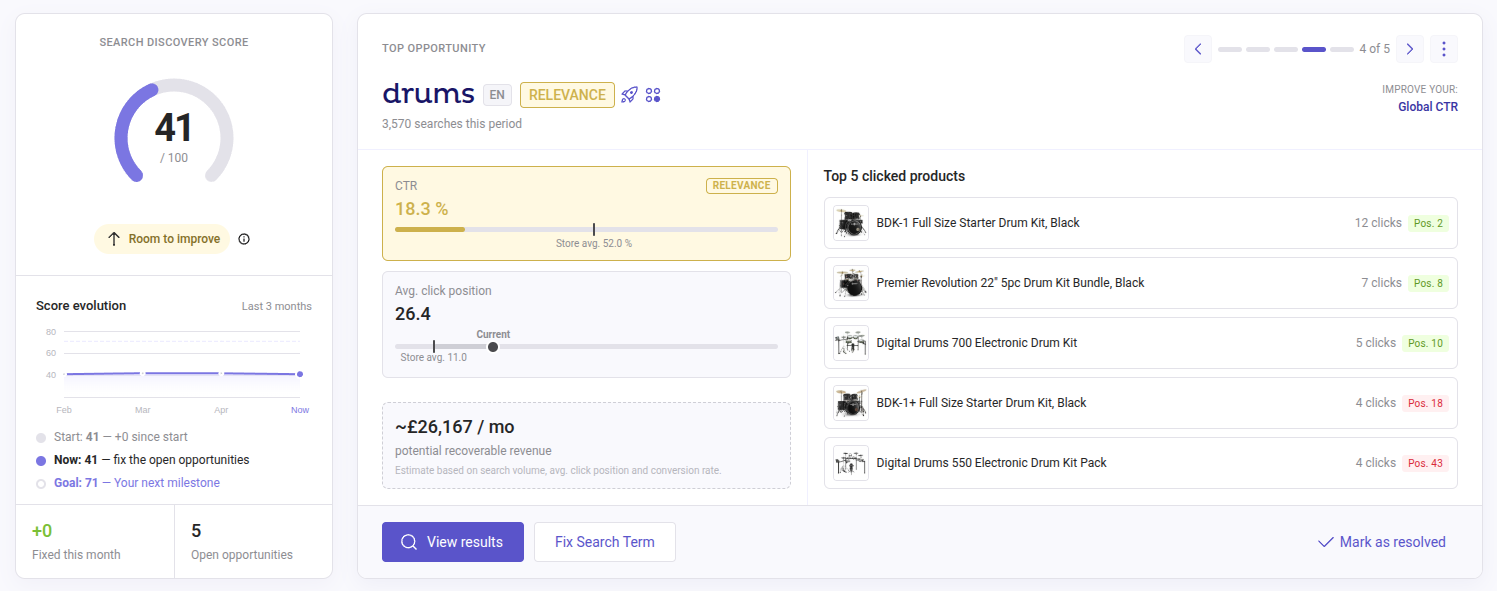
This document provides an overview of the Stats Optimization feature allowing users to monitor and improve their store's search performance through a search discovery score with a dynamic improvement goal. The highlights here lie on actionable “top opportunities” generated from underperforming search queries.
Here you will be able to access key data information such as Click Through Rate (CTR), Average Click Position (ACP) and Potential Recoverable Revenue (PRR), so you can take direct action to fix or tune your search terms and drive more conversions.
Search Discovery Score and dynamic improvement target (“Goal”)
When accessing your Optimization screen, the first table to see is the Search Discovery Score, which represents the score of “success” you currently have based on the searches versus the results. This table helps you measure performance and set goals, in order to reach the full potential of your Search product.
When hovering over the information below your score information, you can see the Score Levels to see where you stand:
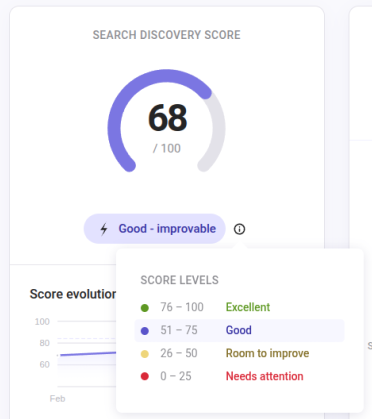
You will notice that the final score combines user engagement (CTR) and ranking quality (RP), while penalizing poor quality signals through an exponential decay factor. The goal is designed to move the score halfway toward 100.
This approach creates:
- Easier short-term milestones.
- Continuous improvement incentive.
In sum, the scoring table computes a search quality score from CTR and a penalized relevance factor, then sets a dynamic “Goal” halfway between the current score and 100 to create progressive improvement milestones. Once the score reaches 100, the goal is removed.
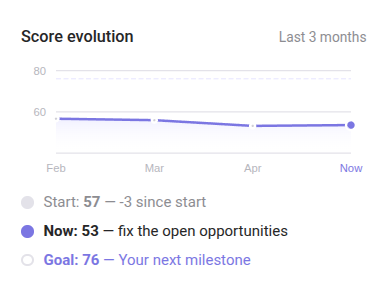
Score Evolution
As previously explained about the Score table, here you have a visualization of your evolution:
Fixed This Month
At the bottom part of the table, a search is considered “fixed” when over the last 30 days, its metrics have improved and it no longer appears in the list.
- No Results: the search now returns results.
- Low CTR: the CTR is no longer more than 10 points below the global CTR.
- Low ACP: the ACP is no longer more than XX points below the global ACP.
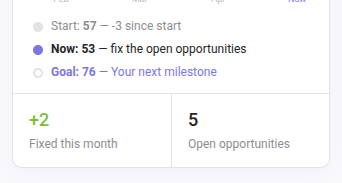
Right next to it, you can see “Open opportunities” which are the ones you will see in the following topic below!
Top Opportunity
In this view, you will be able to see the current Opportunities you have.
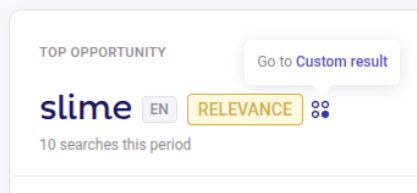
Firstly you will see the Opportunity query and under it all the searches checked during the 15 day period.
Notice that, if the search term already has an associated rule (Custom result, Boosting or Synonym), it will be indicated by the icons displayed to the right of the term, see:
Slide indicators: on the right-hand side will show which “slide/page” you are currently positioned and allow navigation between them:

In the 3 dots next to the slide indicators, you can mark the opportunity as “resolved”, if improved, or “dismiss”, if not intended to work on it, see:
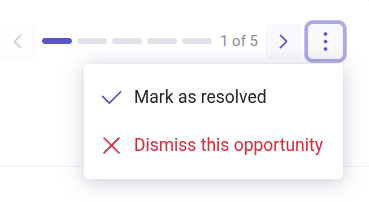
If marked as resolved, the opportunity will disappear, and only reappear after 15 days if it continues to not improve.
In case you dismiss the opportunity, the query won’t show until after 30 days. However, notice that every time you dismiss the same opportunity, the time will increase from 30 days to 90, then 180, and so on.
In both cases, a pop window will appear to warn you and confirm the action.
New opportunities will be highlighted in green on the slide indicator.
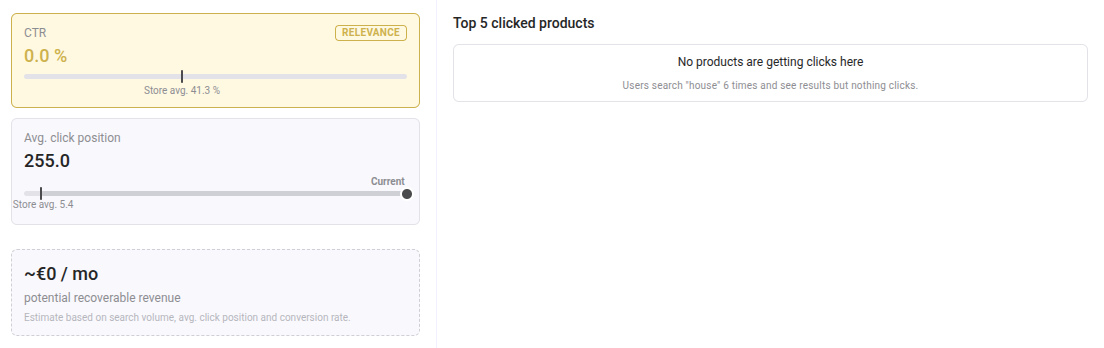
Moving into the mid section of the Top Opportunity table, you will see:
- CTR: the percentage of searches that led to clicks during the selected main period.
- ACP: Average position of clicks on the page, weighted by the number of clicks.
- PRR: an estimated revenue your business could generate from this opportunity.
- Top 5 clicked products: if there were products clicked during the search of the opportunity query, then you will see the main 5 ones.
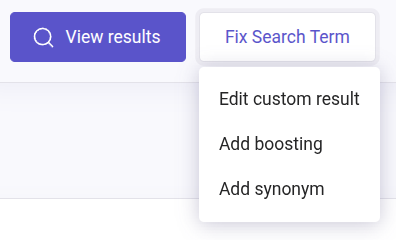
Finally, at the bottom of this table, you will have available the buttons: “View results” and “Fix Search Term”:
- View results: an overview of what that search query finds among your products.
- Fix Search Term: allow you to edit or add a new rule to that search query. See the rules documentation here.
If the opportunity term has an associated rule the button label will display “Edit” instead of “Add.”
NOTA: Data fetches every 15 days and every Friday the system will check which searches have been fixed, which ones still have low metrics, and which ones should still not be shown again despite having average metrics because 15 days have not yet passed since they were marked as resolved.
What Doofinder does for you
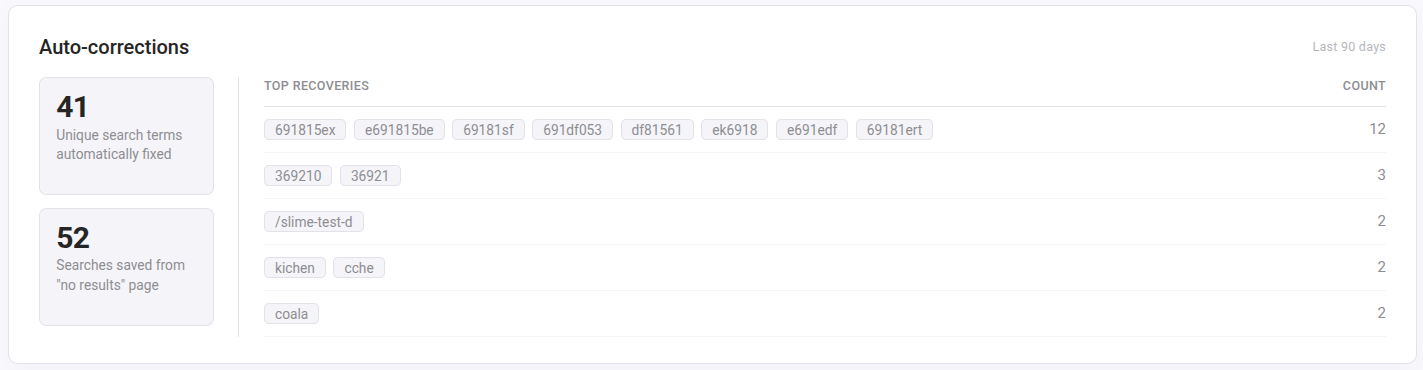
Here you can see the MPNs of the products automatically fixed and the searches recovered from no results. In general, these cases will not be considered opportunities, as they are primarily driven by misspelled written queries with a low search volume. We display them as an example of how Doofinder helps prevent them from resulting in a “no results” experience.
Best Practices
- Fix catalog gaps first, like add missing high-demand products, or terms. Data feed recommendations can be found here.
- Replace custom results with boosting rules and synonyms so ranking can be enhanced.
- Improve synonym coverage for brands.
- Reduce UX friction by improving filters and reducing scroll depth so users reach relevant products faster.