


Shopify changed how apps add their scripts to a theme, moving away from manual edits to the theme code and toward the App Theme Extension.
The previous in-admin migration option is no longer available because the permissions required by the app to manage and remove scripts directly from the admin have been deprecated by Shopify (the relevant script management was phased out starting in 2025).
If your store was set up some time ago, your Doofinder Installation Script may have been added manually inside your theme (for example, in theme.liquid). The Doofinder script is now managed only through the Shopify App Theme Extension, where you enable or disable it.
You might’ve received an email about this if your store still has an old or custom version of the script in your theme.
Stores that still have the old script installed in their theme will now need to remove it manually.
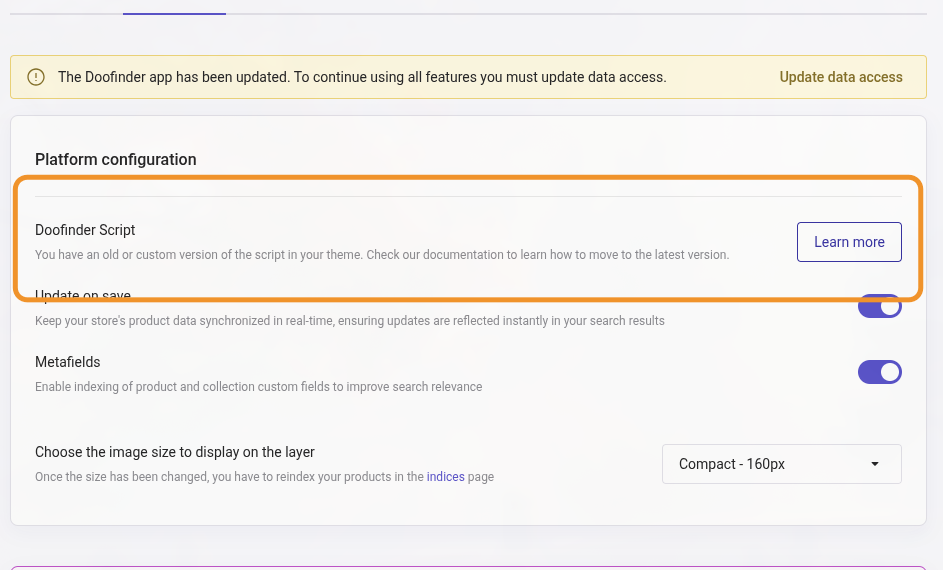
App Theme Extension
Before anything, you should activate your App Theme Extension following the steps below:
You can also access it by entering the Shopify panel and going to:
/admin/themes/current/editor?context=apps&template=index
From your Shopify Backend you can go to Edit Theme > App embeds (icon on the top bar) > Activate the Doofinder extension as shown below:
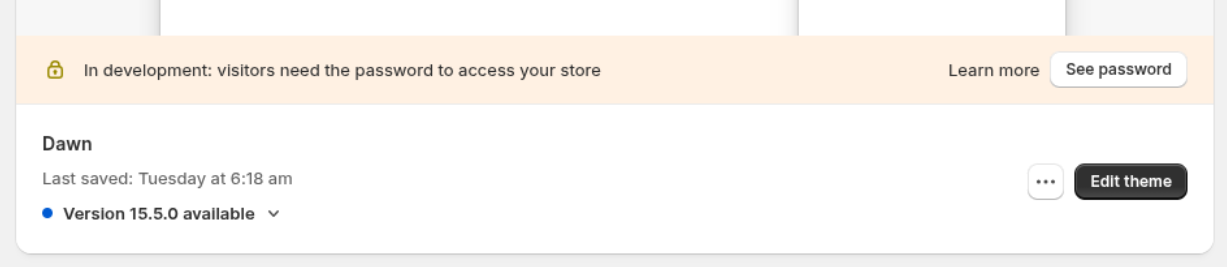
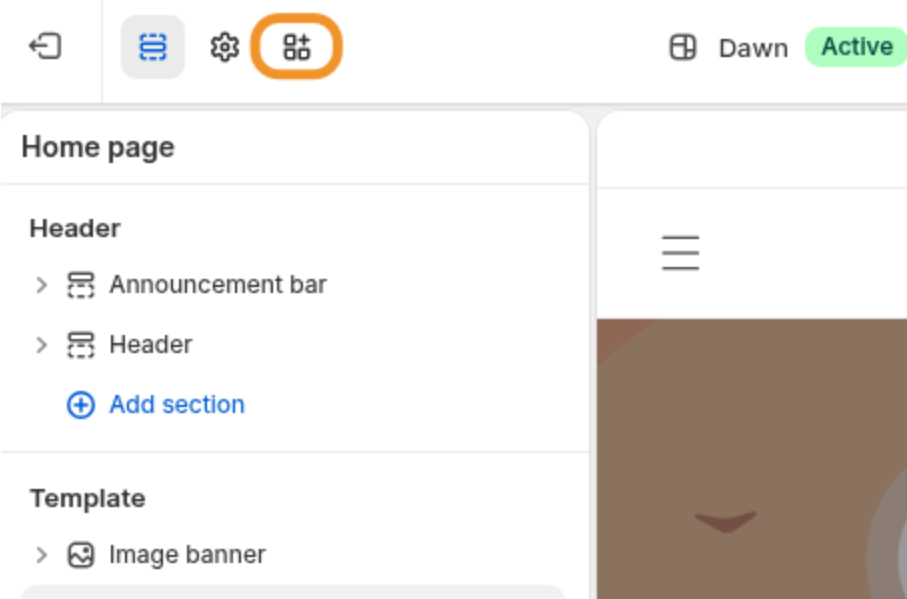
There, activate the App Theme Extension toggle.
Remove the old script from your theme
To remove the old script injected into the theme:
Step 1
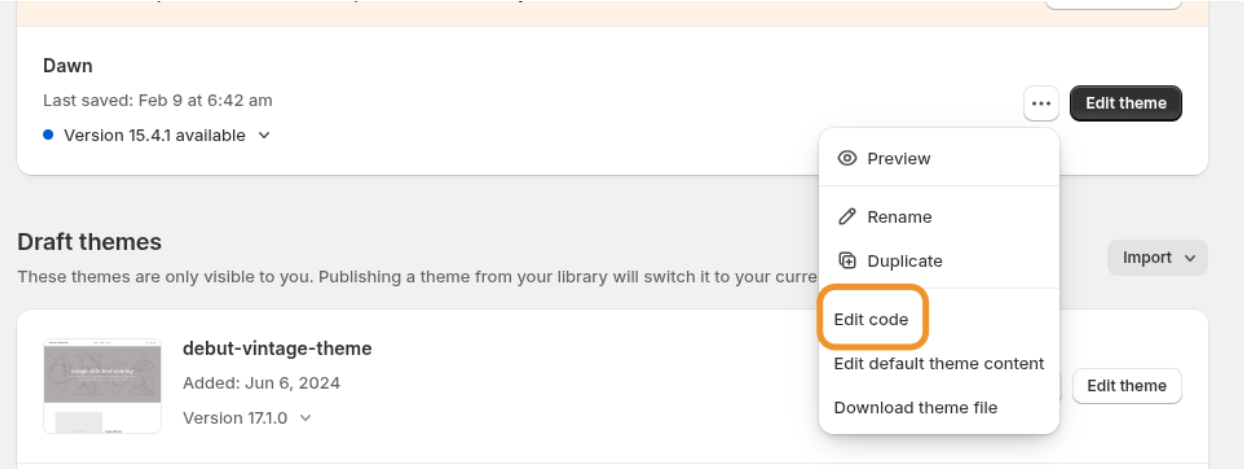
Go to your Online Store > Three dots > Edit code. Open the layout/theme.liquid file and look for a block of content like this:
liquid
<!--DOOFINDER-SHOPIFY-->
{% if content_for_header contains 'doofinder-installed.js' %}
{% render 'doofinder-script-tag' %}
{% endif %}
<!--/DOOFINDER-SHOPIFY-->
In other words, look for anything contained between:
<!--DOOFINDER-SHOPIFY-->
and
<!--/DOOFINDER-SHOPIFY-->
See:

Delete both the <!-DOOFINDER-SHOPIFY-> and <!--/DOOFINDER-SHOPIFY--> markers, as well as the content between them.
Step 2
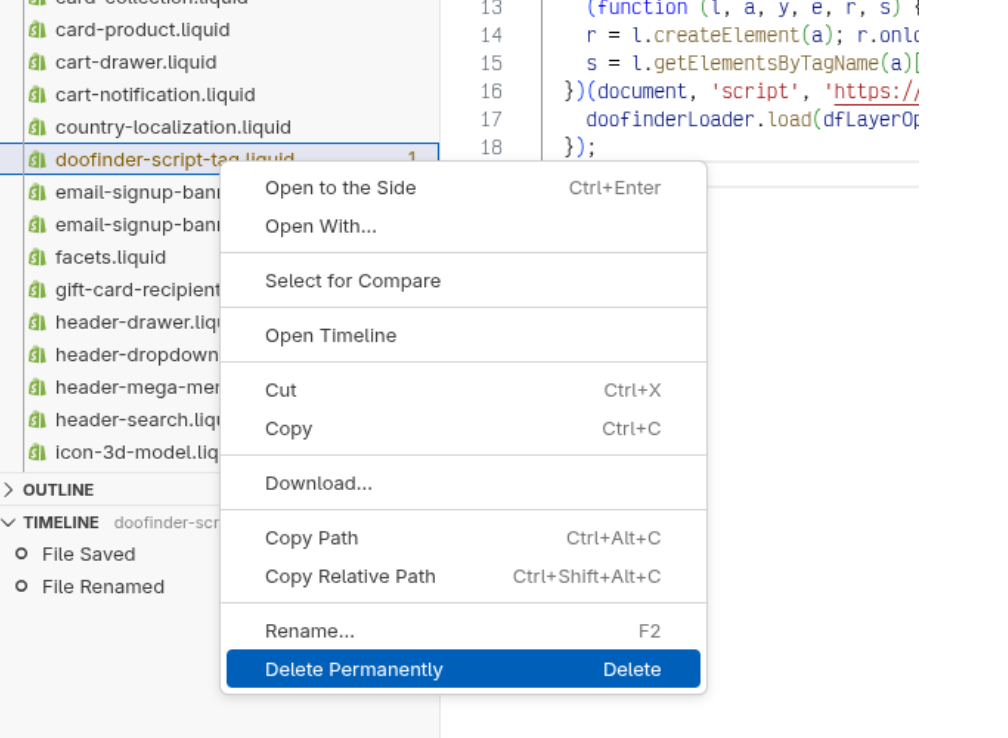
Finally, find the snippets/doofinder-script-tag.liquid file and delete it (the file itself).
Will my search stop working during this change?
No. Your search and the Doofinder layer keep working while the old script is still in place. This change only affects how the script is loaded going forward.
Why do I see the Doofinder script loaded twice?
This happens when both versions of the script are active at the same time:
- the old script, still present in your theme (for example, in
theme.liquid), and - the new script, enabled through the App Theme Extension.
Both load together, so the script appears duplicated. The fix is to keep only the App Theme Extension version and remove the old one from your theme.
How do I fix the duplicated script?
Step 1
If you have followed with the step above “Remove the old script from your theme” correctly:
Make sure the Doofinder script is enabled in the App Theme Extension
- In your Shopify admin, open the App Theme Extension for your live theme and locate the Doofinder script toggle.
- Turn the Doofinder toggle off.
- Click Save.
- Turn the Doofinder toggle on again.
- Click Save again.
Step 2
Confirm the script now loads only once
Reload your storefront and check that Doofinder loads a single time.
How to check it? Go into your web HTML (source code), right click anywhere on your web > View Source > CTRL + F > search for Doofinder, there should be only one script, similar to:
<script src="https://eu1-config.doofinder.com/2.x/store_id_here.js" async></script>
If only one, then you’re all set!