


The AI Assistant can be embedded directly on your product page to help customers get answers about the product they are viewing. This functionality will help you to place your AI Assistant chat Banner more effectively on your web.
The AI Assistant is displayed as a banner on the product page, however it can also be triggered via the chat bubble. When a customer clicks on the banner, a product card panel opens alongside the conversational interface. The product card provides context for the conversation, as it shows the item the customer is currently viewing, giving relevant answers without the customer having to describe the product.
Access your AI Assistant’s configuration to try the "AI Assistant Banner placement" feature, and have a preview of your website, and find an appropriate spot.
Where to find it?
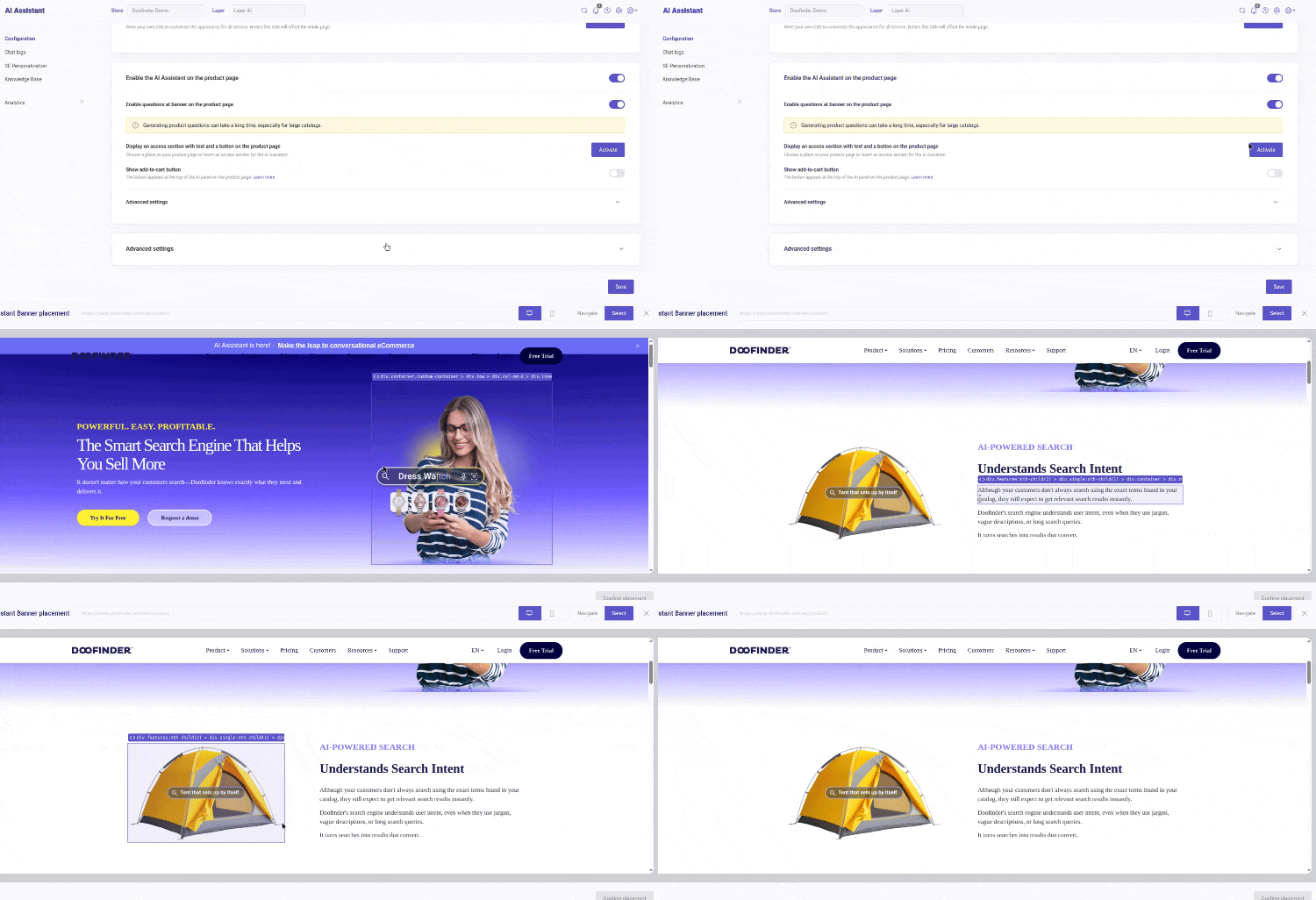
The Banner placement can be found in your Admin > AI Assistant > Configuration > Enable the AI Assistant on the product page > Display an access section with text and a button on the product page, see:
How to configure the Banner?
- In the initial step of this section you can choose the page within your web where you want to display your Banner.
- Once you click on Display an access section with text and a button on the product page > Activate, a new window will pop up, and you will see the following options:
- Page: your web’s product page URL. Manually introduce the desired URL in the Banner placement box. Notice that you must be in “Navigation” mode in order to edit it.
- View: desktop or mobile.
- Mode:
- Navigation: browse through your product page to find the place where you want to add the Banner.
- Select: use the selector mode to hover over your web elements and select the exact spot where to add your Banner. Upon click, you will have the option to set the positioning (above/below element, replace, etc.).
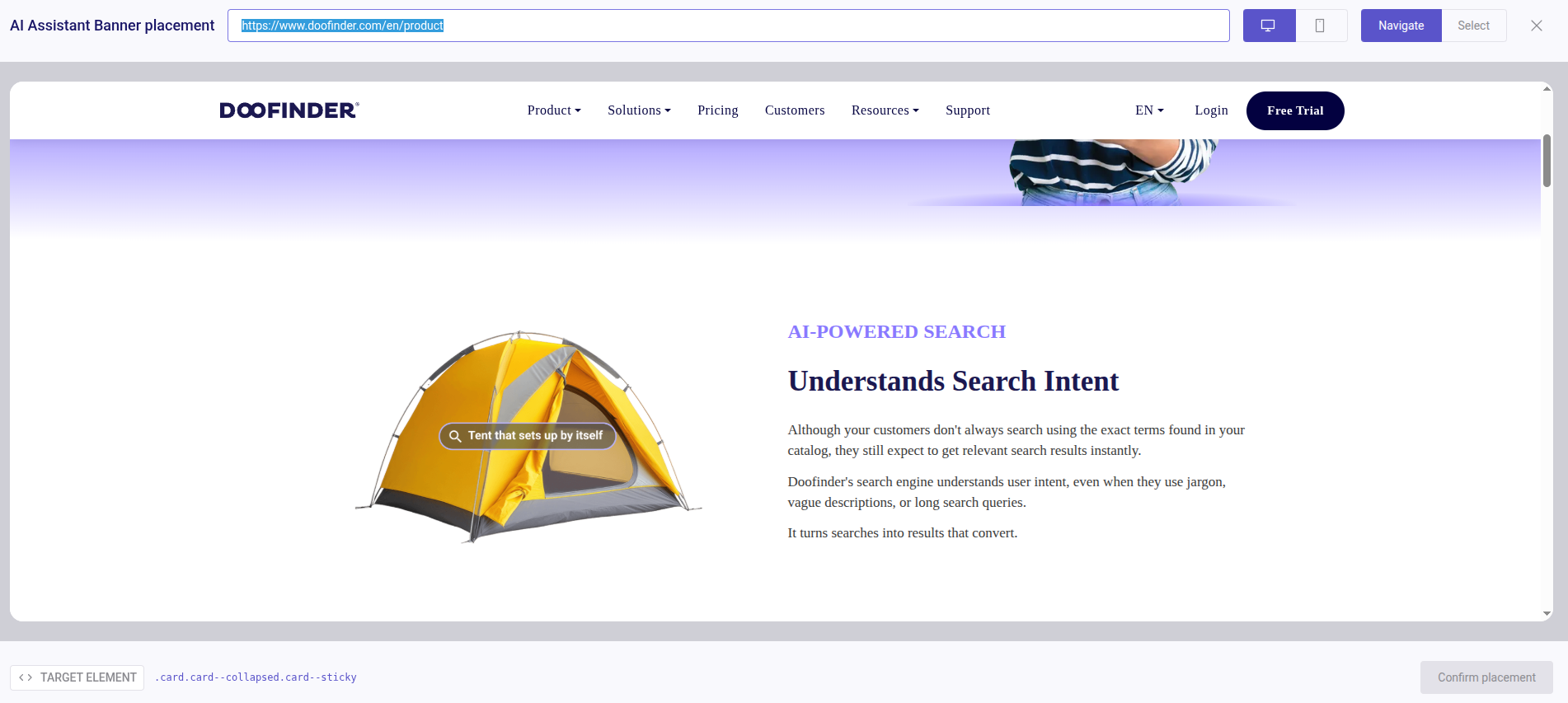
If the Banner is inserted in a location that appears across multiple pages, the Banner will be displayed on all those pages during navigation.
Customizing the Banner
If you want to customize your Banner titles, you can from the tab Search Engine Personalization:
-
Banner title: the text displayed at the top of the assistant panel.
-
Banner Button Text: the label shown on the button that opens the assistant.
-
Banner Description: add a description to your banner.
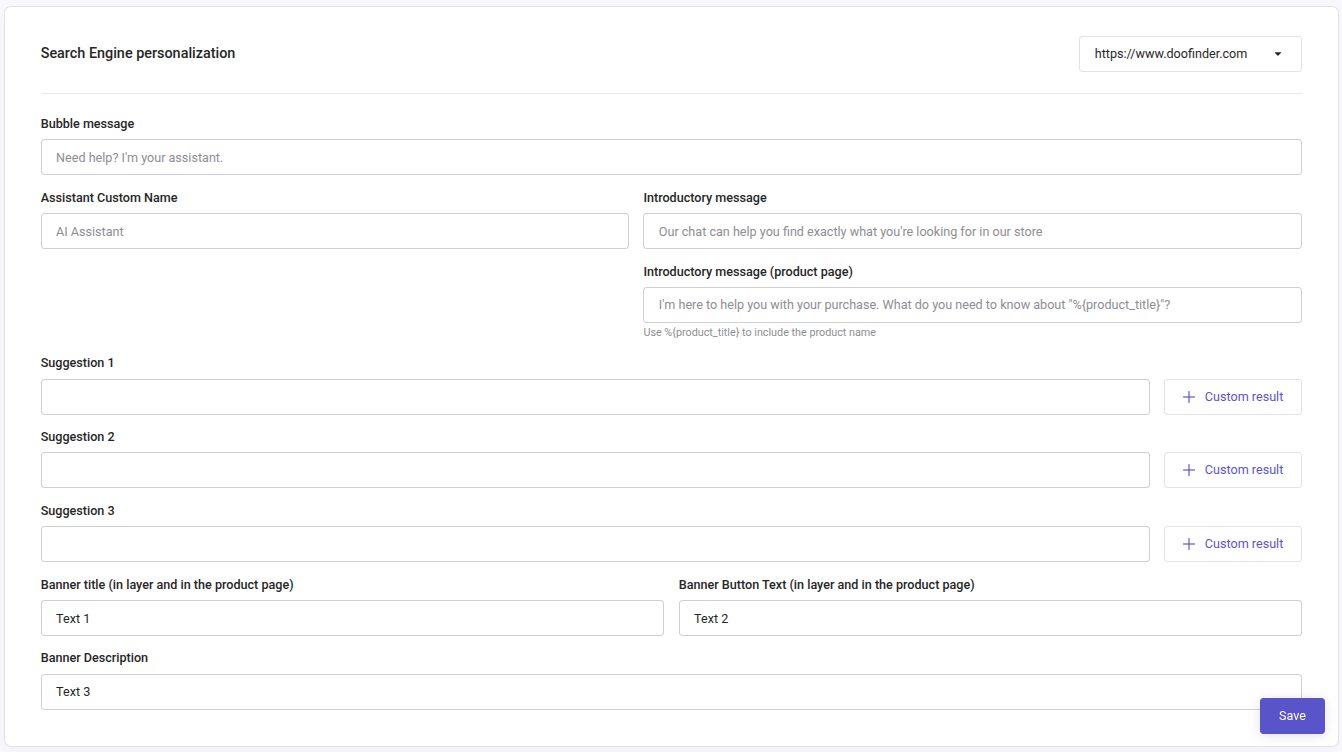
Notice that changing the title names will also affect the filter column banner in the AI Search mode.
The assistant panel opens instead of the standard conversational layer. Both cannot be displayed at the same time on the product page.
Mobile Behavior
The AI Assistant panel on the product page is supported on mobile devices. Make sure to verify the layout and placement of the chat bubble on both desktop and mobile after configuration, as available space and element positioning may differ.
Manually configure your CSS Selector
If you prefer the option to manually find a CSS selector, this is possible. It can be found under Enable the AI Assistant on the product page > Advanced settings > Target element see steps here of how to identify the correct selector on your web.