


If your Doofinder Layer is not visible on your website, it usually means that something is blocking the script, preventing it from loading, or stopping the Layer from being initialized correctly. Use the following checklist to identify and resolve the issue.
1. CSS Selectors
The CSS selector tells Doofinder which element on your page triggers the Layer, usually your search input field.
How to choose the selector
- Open your website in the browser.
- Right-click the search input and click Inspect.
- Identify a reliable selector: By ID
#search-box; By class.search-input; By attributeinput[name="q"].
Where to configure it:
Go to: Admin > Search > Layer Settings > Configuration > paste your selector into ‘Enter the search input CSS selector’
If using an embedded Layer, you also need a selector for the container where results will be inserted.
Go to: Admin > Search > Layer Settings > Layer Configuration > Search Sequence > Insertion point.
All about Layer selectors here.
2. Content Security Policy
In some cases your Content Security Policy (CSP) blocks Doofinder’s script/CDN, preventing the Layer from showing up on your website.
This prevents:
- The Doofinder search layer from loading.
- The JS script from
cdn.doofinder.comfrom executing.
The root cause is the site CSP of your web, that does not include Doofinder domains in allowed sources, so the browser blocks:
https://cdn.doofinder.com.- (possibly) other Doofinder-related subdomains or scripts.
Error seen in browser console: Refused to load script because it violates Content Security Policy, see:

How to resolve:
- Allowlist Doofinder in CSP.
- You must update your server or application CSP headers.
- Finally, clear the cache.
3. Script
The Doofinder script (example below) is the main responsible for the layer showing correctly on your front end.
Doofinder script example:
<script src="https://eu1-config.doofinder.com/2.x/YOUR-INSTALLATION-ID.js" async></script>
Check if the script has the same format as the above script, and if the script is placed in your HTML.
Checking option 1:
To check this, open your website in a browser > right-click anywhere on the page > select View Page Source > search for “doofinder" or "2.x" > if the script URL looks like the above, you are all set!
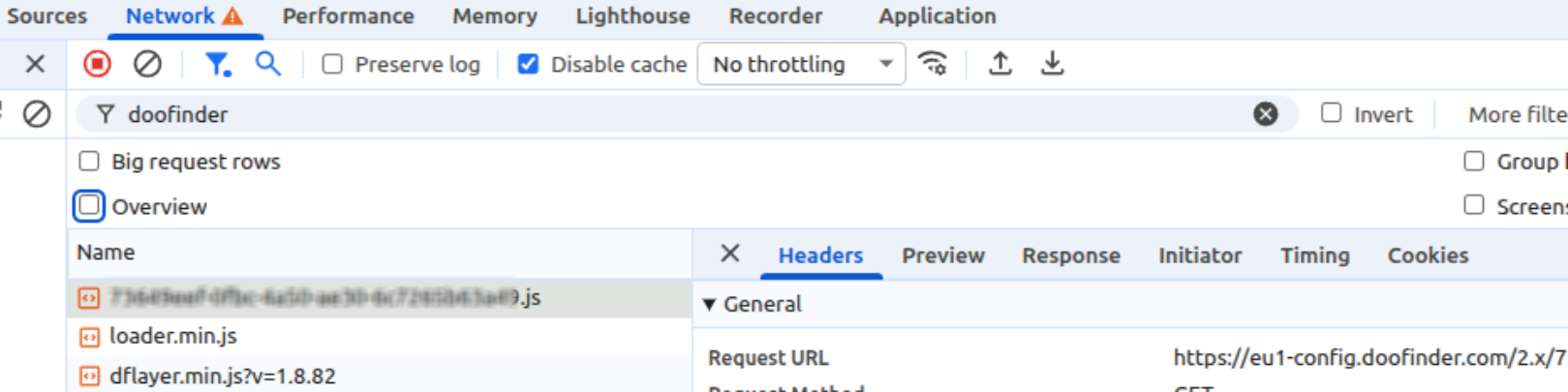
Checking option 2:
Especially if you are using Google Tag Manager to place our script, this is the best option!
Open your web site again and right-click > Inspector > Network > search for Doofinder > reload the page > and in Network you should see the Doofinder script as well, see image below:
If in any of the options you can’t find it, please reach out to support.
4. Security Domains
Sometimes your website can be blocked by our Security, that should usually automatically allowlist your web domain. However, you can check that by:
- Open your website in a browser > right-click anywhere on the page > select Console > search for Doofinder and reload the page.
- Then you should check for error messages on the Console, if it’s the case it will point out to blocking your domain.
- Copy the exact domain URL the error message is showing, and paste it under the Doofinder Security tab under the Configuration > General settings > Security.
- Clear cache and reload your web page, the Layer should start showing.
See more information about it here.
5. Search Engine Active and Published
Make sure to have an active Search Engine and Indexed products, this can also be the cause you are still not seeing the layer.
Check here how to Create a Search Engine.
Index your products information here.
6. Layer Configuration
Check if you have a Search Layer configured and active, see here how to create a layer.
7. Plugins
In Doofinder, integrations are also managed through plugins, and most of these include an option in the plugin manager to deactivate them. Please verify that the Doofinder script is enabled and active within your plugin settings.
Not sure how? Here you have some of the Plugins integrations guides that can help you find that information: Shopify, WooCommerce, BigCommerce, Prestashop, Magento 2, Shopware.
8. Cache
Finally, but not least important, your cache plays important role in the functioning of Doofinder. Please clear your cache fully from your server to ensure the script of Doofinder isn’t being cached and therefore not showing on the web.
In any case, the Doofinder script should not be cached under any circumstances as this will affect how the Layer will perform on your web.
If you are using Cloudflare or other kind of caching system to reduce traffic to your website:
- Offload the feed URLs to a subdomain that is not cached.
- Ensure nothing times out, giving enough execution time to your web server (NGINX, Apache...) (will depend on the amount of products in the catalog). Keep in mind that cloud load balancers might also time out.
- Allowlisted Doofinder IPs. See here more information about it!