


Doofinder’s search engine is designed to deliver the most relevant products to your users while balancing precision, flexibility, and stock availability.
Our search system works by scanning specific fields in your product feed to find matches for the user’s query. The accuracy and relevance of results depend on how those fields and configurations are set up.
The more specific the information in your data feed, the more accurate results will be on the search.
1. Product Data Feed Quality
The system relies heavily on how data is structured in the feed.
Relevant words should appear together in the same field, not scattered across different ones. This is important to note because if the specific information is found among a large number of words, the search might be compromised.
Clean and consistent data leads to much more accurate matches.
2. Search Fields
Search fields define where Doofinder looks for matches (e.g., title, description, tags).
If too many fields are included under the Search Fields section, such as df_all, the search becomes broad and it might return irrelevant results just because the search term appears somewhere in the feed.
Understanding the Search Fields is highly important. For information on our basic search fields, reference here.
By selecting only the most relevant fields, the search focuses on the right data and delivers more precise results.
It’s also crucial that the field actually contains the information users are likely to search for, for example: if product identifiers are in the tags, that field must be included under the search fields. However, consider also the type of field. Example:
-
If a word is in a short information field (such as “Title”), it’s more important.
-
If it’s in a long information field (like “Description”), it’s less important, as it gets lost or irrelevant in so much text.
Example: “Apple” in the Title, when usually is very concise, is more relevant than “Apple” in the Description field, when most likely gives lots of details about the product.
If changes are not looking good, remember you can revert the changes by clicking on “Reset” at the bottom of the page. But notice that if you hit “Save”, there isn’t a way to bring it back.
Let’s check another scenario:
When people search using two words, like "sea” or “food” the search system needs to clearly recognize both words.
For this to work properly, those words need to be clearly listed in the product information. For example:
- As a tag like “sea food",
The issue is that sometimes, some words (like “food”) only appear inside longer words (for example, “seafood”).
This works fine when someone searches for just “food”, but not when they search for “sea food”. In that case, the system has trouble connecting both words to the same product.
In simple terms: the search works best when each important word is clearly listed on its own, not hidden inside longer words.
3. Relevance Criteria
Relevance Criteria lets you decide how results are ordered.
How it works:
-
Normally, Doofinder orders products by Score (from highest to lowest).
-
If two products have the same score, Doofinder uses the next rule in your Relevance Criteria list.
Example:
- If two products have the same score, Doofinder can check price, stock, or sales quantity to decide which comes first.
Types of Order:
-
Ascending: 0 > 99999 or A > Z
-
Descending: 99999 > 0 or Z > A
Always keep Score as your first rule, changing this leads to direct drastic changes on your search results! This is what makes your results accurate and keeps Boosting and Custom Results working properly.
Read in detail about Relevance Criteria.
4. Using MPN or GTIN
Choose what matters most for your searches:
-
If you search mainly by Title, give it a higher weight.
-
If you search by MPN or GTIN, don’t lower their weights too much, they’re important for finding exact products by their reference number.
On top of that, gtin.light.explode and mpn.light.explode: these fields allow the search engine to use parts of the reference number of a product to perform searches. When combined with MPN or GTIN, it boosts those searches, making it more precise.
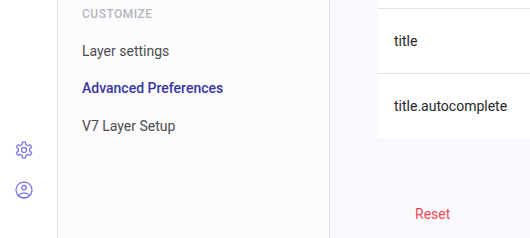
Give it a try! If you want to search the products by their MPN or GTIN, go to Search > Advanced Preferences > Search Fields > Add the fields and their corresponding light.explode > hit Save > and test your results.
5. Product Not Showing Even After Changing Configuration
- Make sure the product is actually in the data feed or allowed to be indexed if you use a plugin.
- Check if the product isn’t out of stock and hidden by that, see here.
- Try searching by the Title, but also, the Reference / MPN / GTIN, etc.
- Clear your cache and then process the feed.
- If still not showing, contact us providing the URL for the product page of the missing item.
Key takeaways:
-
Decide if you want "precise" or "broad" results:
-
You can’t have both at the same time.
-
Precise = fewer results, more accurate or even exact results.
-
Broad = more results, less exact, Doofinder will try to give alternatives if no exact matches are found.
-
-
Don’t overload your setup with too many configurations:
-
It can cause conflicts and strange product orders. Choose wisely what Search Fields to use, clear up Custom Results, synonyms or any other configurations.
-
Keep "Score" (descending) first in your Relevance Criteria, this ensures a more natural product result.
- Use the "Results Preview", it helps you understand what your users will see. You can test "boosting", "search fields", and "relevance criteria" easily. See more here.
-
Keeping the configuration lean improves performance. Over-complicating the setup with too many filters, rules, or fields can dilute relevance and slow down the search.
Subjects of direct impact on the matter: