


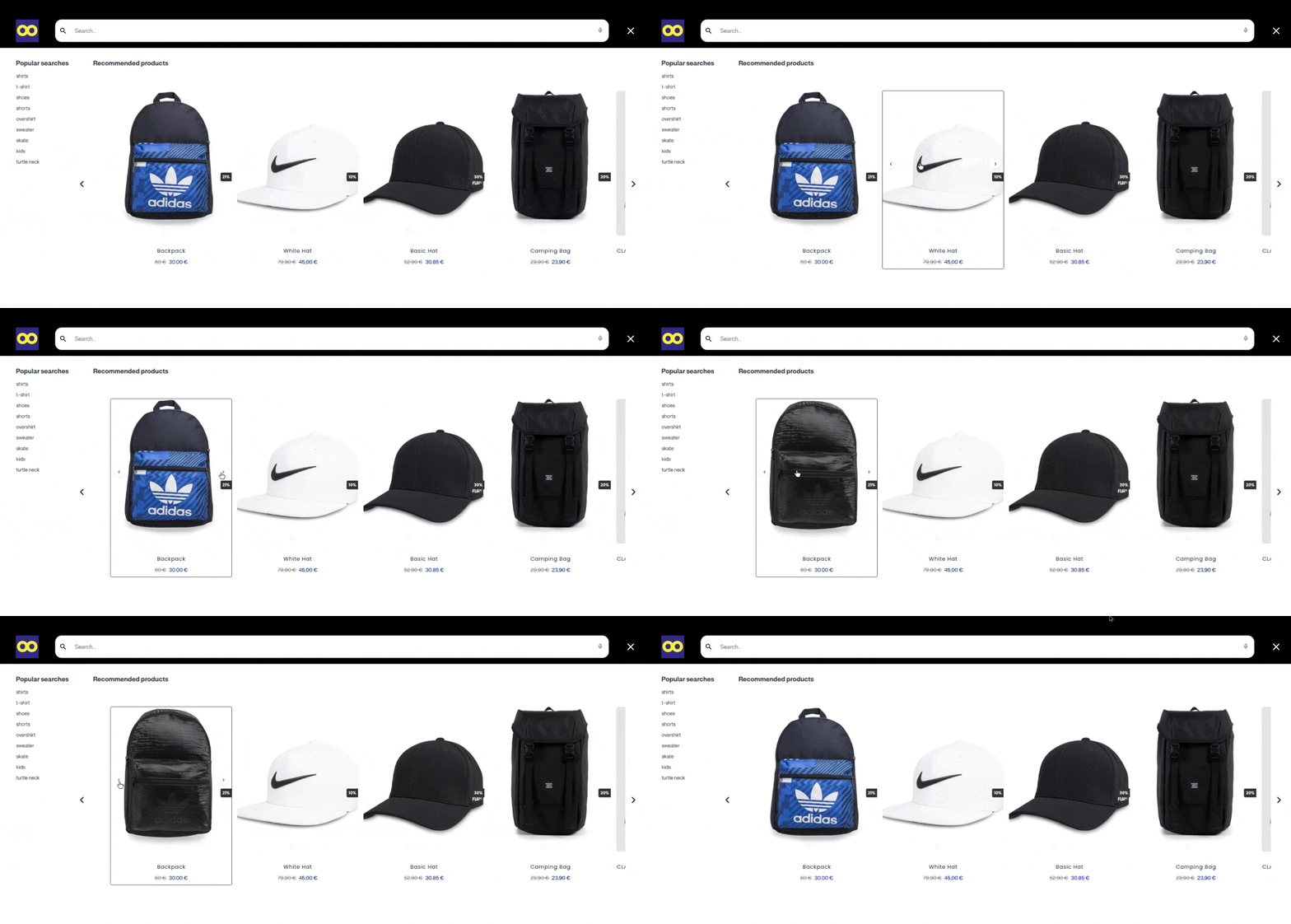
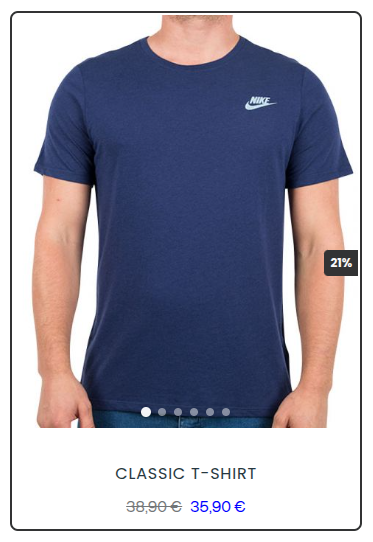
You can replace the default product card image with a multi-image carousel that lets customers browse product images directly from search results. The carousel supports arrow navigation on desktop, swipes on mobile, and dot indicators to show the current image on display.
Note that: This is an advanced customization that requires editing the Product Card Template, adding Custom CSS, and injecting Custom JavaScript.
Prerequisites
Before setting up the carousel, make sure the following are in place:
-
Your product data feed must include an
image_linkfield (main image) and animages_linksfield (additional images).
The images_links field in your data feed should contain a list
of additional image URLs for each product. Here is an example of how the
field looks in the feed:
{
  "image_link": "https://example.com/images/product-front.jpg",
  "images_links": [
    "https://example.com/images/product-back.jpg",
    "https://example.com/images/product-side.jpg",
    "https://example.com/images/product-detail.jpg"
  ]
}
The carousel combines image_link and
images_links into a single image list, removes duplicates, and
displays them in order.
Replace the example URLs with your actual product image URLs. The field name `images_links` must match exactly what is configured in your data feed
- If you plan to inject JavaScript, you need access to your site's theme code or Google Tag Manager.
Follow through the step-by-step below!
1. Edit the Product Card Template
The Product Card Template controls the HTML structure of each product card in the search results. You need to replace the image section of the template with the carousel code.
You need access to Advanced Customization in the Doofinder Admin Panel. Go to Search > Layer Settings > Configuration > Advanced customization > Product Card Template.
Find the image section in your current template. It typically looks like this:
<%= if has_value?(@item, "image_link") do %>
<div class="dfd-card-media">
<img src={@item["image_link"]} alt={@item["title"]} loading="lazy" />
</div>
<% end %>
See:
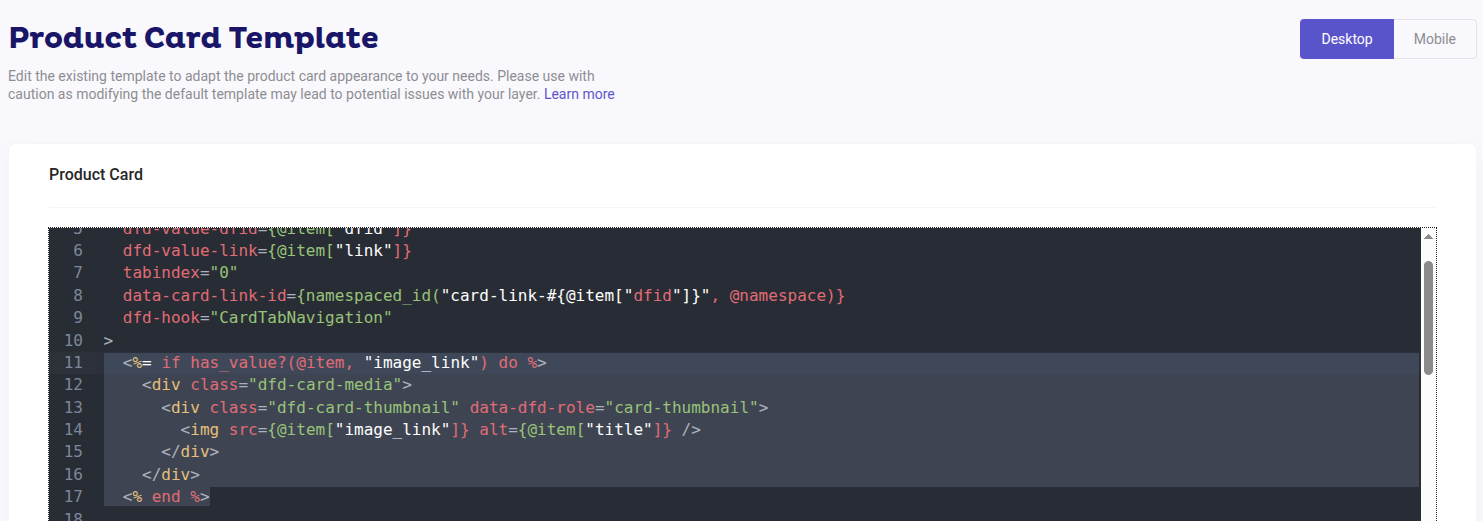
Desktop template
Replace the image section above with the following code. This adds the carousel with arrow buttons and dot indicators:
<%= if has_value?(@item, "image_link") do %>
<div class="dfd-card-media">
<% main_image = @item["image_link"]
extra_images =
case @item["images_links"] do
nil -> []
list when is_list(list) -> list
binary when is_binary(binary) -> [binary]
_ -> []
end
all_images = Enum.uniq(Enum.filter([main_image | extra_images], &(&1 not in [nil, ""]))) %>
<div class="custom-carousel">
<div class="custom-carousel-track">
<%= for {link, _index} <- Enum.with_index(all_images) do %>
<img src={link} class="custom-carousel-slide" alt={@item["title"]} loading="lazy" />
<% end %>
</div>
<%= if length(all_images) > 1 do %>
<button
class="custom-carousel-btn custom-carousel-btn-prev"
type="button"
aria-label="Previous image"
>
‹
</button>
<button
class="custom-carousel-btn custom-carousel-btn-next"
type="button"
aria-label="Next image"
>
›
</button>
<div class="custom-carousel-dots" aria-label="Image indicators">
<%= for {_link, index} <- Enum.with_index(all_images) do %>
<button
class={"custom-carousel-dot#{if index == 0, do: " active", else: ""}"}
type="button"
aria-label={"Go to image #{index + 1}"}
data-index={index}
aria-current={if index == 0, do: "true", else: false}
>
</button>
<% end %>
</div>
<% end %>
</div>
</div>
<% end %>
The rest of your product card template (title, price, flags, add-to-cart, etc.) stays the same. Only the image section changes.
Mobile template
On the top right-hand side, you will see the “Mobile” toggle. Once there, replace the image section with the following code. This adds the carousel with dot indicators only (no arrow buttons, since navigation is done by swiping):
<%= if has_value?(@item, "image_link") do %>
  <div class="dfd-card-media">
    <% main_image = @item["image_link"]

    extra_images =
      case @item["images_links"] do
        nil -> []
        list when is_list(list) -> list
        binary when is_binary(binary) -> [binary]
        _ -> []
      end

    all_images = Enum.uniq(Enum.filter([main_image | extra_images], &(&1 not in [nil, ""]))) %>
    <div class="custom-carousel">
      <div class="custom-carousel-track">
        <%= for {link, _index} <- Enum.with_index(all_images) do %>
          <img src={link} class="custom-carousel-slide" alt={@item["title"]} loading="lazy" />
        <% end %>
      </div>
      <%= if length(all_images) > 1 do %>
        <div class="custom-carousel-dots" aria-label="Image indicators">
          <%= for {_link, index} <- Enum.with_index(all_images) do %>
            <button
              class={"custom-carousel-dot#{if index == 0, do: " active", else: ""}"}
              type="button"
              aria-label={"Go to image #{index + 1}"}
              data-index={index}
              aria-current={if index == 0, do: "true", else: false}
            >
            </button>
          <% end %>
        </div>
      <% end %>
    </div>
  </div>
<% end %>
The rest of your product card template (title, price, flags, add-to-cart, etc.) stays the same. Only the image section changes.
2. Add the Custom CSS
The CSS controls the visual appearance of the carousel. You need separate CSS for desktop and mobile.
Go to Search > Layer Settings > Configuration > Advanced customization > CSS.
Desktop CSS
Paste the following into the Desktop CSS section:
/* Carousel layout */
.custom-carousel {
  position: relative;
  overflow: hidden;
  width: 100%;
  z-index: 5;
}

.custom-carousel-track {
  display: flex;
  width: 100%;
  transition: transform 0.35s cubic-bezier(0.25, 0.1, 0.25, 1);
}

.custom-carousel-slide {
  min-width: 100%;
  width: 100%;
  height: auto;
  object-fit: cover;
  flex-shrink: 0;
  -webkit-user-drag: none;
  user-drag: none;
  pointer-events: none;
}

.dfd-card-link {
  position: relative;
  z-index: 0;
}

/* Arrow buttons */
.custom-carousel-btn,
.custom-carousel-btn:hover,
.custom-carousel-btn:active {
  position: absolute !important;
  display: flex !important;
  align-items: center !important;
  justify-content: center !important;
  width: 34px !important;
  height: 34px !important;
  min-width: 34px !important;
  min-height: 34px !important;
  max-width: 34px !important;
  max-height: 34px !important;
  padding: 0 !important;
  margin: 0 !important;
  font-size: 20px !important;
  line-height: 1 !important;
  border: none !important;
  border-color: transparent !important;
  border-radius: 50% !important;
  vertical-align: baseline !important;
  white-space: normal !important;
  text-align: center !important;
  background-color: rgba(255, 255, 255, 0.9) !important;
  color: #333 !important;
  cursor: pointer;
  z-index: 3 !important;
  opacity: 0;
  transition: opacity 0.2s ease, background-color 0.15s ease,
    transform 0.15s ease;
  box-shadow: 0 1px 4px rgba(0, 0, 0, 0.15);
}

.custom-carousel-btn-prev {
  left: 8px !important;
  top: 50% !important;
  transform: translateY(-50%) !important;
}

.custom-carousel-btn-next {
  right: 8px !important;
  top: 50% !important;
  transform: translateY(-50%) !important;
}

.custom-carousel-btn::before {
  content: none !important;
}

.custom-carousel:hover .custom-carousel-btn {
  opacity: 1;
}

.custom-carousel-btn:hover {
  background-color: rgba(255, 255, 255, 1) !important;
  transform: translateY(-50%) scale(1.08) !important;
  box-shadow: 0 2px 8px rgba(0, 0, 0, 0.2);
}

.custom-carousel-btn:active {
  transform: translateY(-50%) scale(0.95) !important;
}

/* Dot indicators */
.custom-carousel-dots {
  display: flex;
  justify-content: center;
  align-items: center;
  gap: 8px;
  padding: 8px 0 4px;
  position: absolute !important;
  bottom: 8px !important;
  left: 0 !important;
  right: 0 !important;
  z-index: 2;
  pointer-events: none;
}

.custom-carousel-dot,
.custom-carousel-dot.active {
  display: block !important;
  width: 8px !important;
  height: 8px !important;
  min-width: 8px !important;
  min-height: 8px !important;
  max-width: 8px !important;
  max-height: 8px !important;
  border-radius: 50% !important;
  border: none !important;
  border-color: transparent !important;
  padding: 0 !important;
  margin: 0 !important;
  font-size: 0 !important;
  line-height: 0 !important;
  vertical-align: baseline !important;
  white-space: normal !important;
  text-align: center !important;
  cursor: pointer;
  pointer-events: auto;
  background-color: rgba(255, 255, 255, 0.45) !important;
  transition: background-color 0.2s ease, transform 0.2s ease,
    box-shadow 0.2s ease;
  position: relative !important;
  box-shadow: 0 0 2px rgba(0, 0, 0, 0.2);
  top: auto !important;
  left: auto !important;
  right: auto !important;
  bottom: auto !important;
}

.custom-carousel-dot::before {
  content: none !important;
}

.custom-carousel-dot:hover {
  background-color: rgba(255, 255, 255, 0.75) !important;
  transform: scale(1.2);
}

.custom-carousel-dot.active {
  background-color: rgba(255, 255, 255, 0.95) !important;
  transform: scale(1.25);
  box-shadow: 0 0 3px rgba(0, 0, 0, 0.3);
}
Mobile CSS
Paste the following into the Mobile CSS section. This uses smaller dots (6px) and includes touch-specific properties for swipe support:
/* Carousel layout */
.custom-carousel {
  position: relative;
  overflow: hidden;
  width: 100%;
  z-index: 5;
}

.custom-carousel-track {
  display: flex;
  width: 100%;
  transition: transform 0.35s cubic-bezier(0.25, 0.1, 0.25, 1);
  touch-action: pan-y;
  -webkit-user-select: none;
  user-select: none;
  will-change: transform;
}

.custom-carousel-slide {
  min-width: 100%;
  width: 100%;
  height: auto;
  object-fit: cover;
  flex-shrink: 0;
  -webkit-user-drag: none;
  user-drag: none;
  -webkit-touch-callout: none;
}

.dfd-card-link {
  position: relative;
  z-index: 0;
}

/* Dot indicators */
.custom-carousel-dots {
  display: flex;
  justify-content: center;
  align-items: center;
  gap: 6px;
  padding: 8px 0 4px;
  position: absolute !important;
  bottom: 4px !important;
  left: 0 !important;
  right: 0 !important;
  z-index: 2;
  pointer-events: none;
}

.custom-carousel-dot,
.custom-carousel-dot.active {
  display: block !important;
  width: 6px !important;
  height: 6px !important;
  min-width: 6px !important;
  min-height: 6px !important;
  max-width: 6px !important;
  max-height: 6px !important;
  border-radius: 50% !important;
  border: none !important;
  border-color: transparent !important;
  padding: 0 !important;
  margin: 0 !important;
  font-size: 0 !important;
  line-height: 0 !important;
  vertical-align: baseline !important;
  white-space: normal !important;
  text-align: center !important;
  cursor: pointer;
  pointer-events: auto;
  background-color: rgba(255, 255, 255, 0.5) !important;
  transition: background-color 0.2s ease, transform 0.2s ease;
  position: relative !important;
  top: auto !important;
  left: auto !important;
  right: auto !important;
  bottom: auto !important;
}

.custom-carousel-dot::before {
  content: '' !important;
  position: absolute !important;
  top: -19px !important;
  left: -19px !important;
  right: -19px !important;
  bottom: -19px !important;
}

.custom-carousel-dot.active {
  background-color: rgba(255, 255, 255, 0.95) !important;
  transform: scale(1.3);
}
Furthermore, if you want to edit the CSS styling, we have some recommendations here, however, be very mindful, as this can change the aspect of the carousel.
3. Add the JavaScript
The JavaScript handles all carousel interactions: arrow clicks, dot clicks, swipe gestures, keyboard navigation, and product card click-through. A single script file works for both desktop and mobile.
Inject this script via your site's theme code or Google Tag Manager. It must load on every page where the Doofinder search layer appears.
<script>
(function () {
  var initialized = false;

  document.addEventListener('doofinder.layer.load', function () {
    if (!initialized) {
      initialized = true;
      initCarouselSystem();
    }
  });

  document.addEventListener('doofinder.layer.update', function () {
    if (initialized && typeof initAllCarouselsGlobal === 'function') {
      setTimeout(initAllCarouselsGlobal, 100);
    }
  });

  var fallbackPoll = setInterval(function () {
    if (initialized) {
      clearInterval(fallbackPoll);
      return;
    }
    var carousel = document.querySelector('.custom-carousel');
    if (carousel) {
      initialized = true;
      clearInterval(fallbackPoll);
      initCarouselSystem();
    }
  }, 500);
})();

var initAllCarouselsGlobal = null;

function navigateToProduct(card) {
  var nativeLink = card.querySelector('a.dfd-card-link');
  if (nativeLink) {
    nativeLink.click();
    return;
  }
  var href = card.getAttribute('dfd-value-link');
  if (href) {
    window.location.href = href;
  }
}

function initCarouselSystem() {
  'use strict';

  var SLIDE_TRANSITION = 'transform 0.35s cubic-bezier(0.25, 0.1, 0.25, 1)';

  var isTouchDevice = (function () {
    try {
      if (window.matchMedia('(pointer: coarse)').matches) return true;
      if ('ontouchstart' in window || navigator.maxTouchPoints > 0) return true;
      return false;
    } catch (e) {
      return 'ontouchstart' in window;
    }
  })();

  var carouselStates = {};

  function getCarouselId(carousel) {
    var card = carousel.closest('[dfd-value-dfid]');
    if (card) return card.getAttribute('dfd-value-dfid');
    var parent = carousel.closest('.dfd-card');
    if (parent) return parent.id;
    return null;
  }

  function getState(carousel) {
    var id = getCarouselId(carousel);
    if (!id) return null;
    if (!carouselStates[id]) {
      var slides = carousel.querySelectorAll('.custom-carousel-slide');
      carouselStates[id] = {
        currentSlide: 0,
        totalSlides: slides.length
      };
    }
    return carouselStates[id];
  }

  function goToSlide(carousel, index, animate) {
    var track = carousel.querySelector('.custom-carousel-track');
    var state = getState(carousel);
    if (!track || !state) return;

    if (index < 0) {
      index = state.totalSlides - 1;
    } else if (index >= state.totalSlides) {
      index = 0;
    }

    state.currentSlide = index;
    var targetTransform = 'translateX(' + (-index * 100) + '%)';

    if (animate !== false) {
      track.style.transition = SLIDE_TRANSITION;
      requestAnimationFrame(function () {
        requestAnimationFrame(function () {
          track.style.transform = targetTransform;
        });
      });
    } else {
      track.style.transition = 'none';
      track.style.transform = targetTransform;
    }

    updateDots(carousel, index);
  }

  function updateDots(carousel, activeIndex) {
    var dotsContainer = carousel.querySelector('.custom-carousel-dots');
    if (!dotsContainer) return;
    var dots = dotsContainer.querySelectorAll('.custom-carousel-dot');
    for (var i = 0; i < dots.length; i++) {
      if (i === activeIndex) {
        dots[i].classList.add('active');
        dots[i].setAttribute('aria-current', 'true');
      } else {
        dots[i].classList.remove('active');
        dots[i].removeAttribute('aria-current');
      }
    }
  }

  function initSingleCarousel(carousel) {
    try {
      var slides = carousel.querySelectorAll('.custom-carousel-slide');
      if (!slides || slides.length <= 1) {
        var prevBtn = carousel.querySelector('.custom-carousel-btn-prev');
        var nextBtn = carousel.querySelector('.custom-carousel-btn-next');
        var dotsContainer = carousel.querySelector('.custom-carousel-dots');
        if (prevBtn) prevBtn.style.display = 'none';
        if (nextBtn) nextBtn.style.display = 'none';
        if (dotsContainer) dotsContainer.style.display = 'none';
        return;
      }
      var state = getState(carousel);
      if (state) {
        goToSlide(carousel, state.currentSlide, false);
      }
    } catch (error) {
      console.error('Error initializing carousel:', error);
    }
  }

  function initAllCarousels() {
    try {
      var carousels = document.querySelectorAll('.custom-carousel');
      carousels.forEach(function (carousel) {
        initSingleCarousel(carousel);
      });
    } catch (error) {
      console.error('Error in initAllCarousels:', error);
    }
  }

  initAllCarouselsGlobal = initAllCarousels;

  if (isTouchDevice) {
    var touchState = {
      startX: 0, startY: 0, startTime: 0, currentX: 0,
      isDragging: false, isHorizontal: null,
      activeCarousel: null, didSwipe: false
    };

    var SWIPE_THRESHOLD = 50;
    var VELOCITY_THRESHOLD = 0.3;
    var DIRECTION_LOCK_ANGLE = 30;
    var TAP_THRESHOLD = 10;
    var TAP_TIME_LIMIT = 300;

    document.body.addEventListener('touchstart', function (e) {
      if (e.touches.length !== 1) return;
      var carousel = e.target.closest('.custom-carousel');
      if (!carousel) return;
      var state = getState(carousel);
      touchState.startX = e.touches[0].clientX;
      touchState.startY = e.touches[0].clientY;
      touchState.currentX = touchState.startX;
      touchState.startTime = Date.now();
      touchState.activeCarousel = carousel;
      touchState.didSwipe = false;
      if (state && state.totalSlides > 1) {
        touchState.isDragging = true;
        touchState.isHorizontal = null;
        var track = carousel.querySelector('.custom-carousel-track');
        if (track) track.style.transition = 'none';
      } else {
        touchState.isDragging = false;
      }
    }, { passive: true });

    document.body.addEventListener('touchmove', function (e) {
      if (!touchState.isDragging || !touchState.activeCarousel) return;
      if (e.touches.length !== 1) return;
      var currentX = e.touches[0].clientX;
      var currentY = e.touches[0].clientY;
      var deltaX = currentX - touchState.startX;
      var deltaY = currentY - touchState.startY;
      if (touchState.isHorizontal === null) {
        var absDx = Math.abs(deltaX);
        var absDy = Math.abs(deltaY);
        if (absDx < 10 && absDy < 10) return;
        var angle = Math.atan2(absDy, absDx) * (180 / Math.PI);
        touchState.isHorizontal = angle < DIRECTION_LOCK_ANGLE;
        if (!touchState.isHorizontal) {
          touchState.isDragging = false;
          touchState.activeCarousel = null;
          return;
        }
      }
      e.preventDefault();
      touchState.currentX = currentX;
      touchState.didSwipe = true;
      var carousel = touchState.activeCarousel;
      var state = getState(carousel);
      if (!state) return;
      var carouselWidth = carousel.offsetWidth;
      if (carouselWidth === 0) return;
      var dragPercent = (deltaX / carouselWidth) * 100;
      var offset = (-state.currentSlide * 100) + dragPercent;
      var track = carousel.querySelector('.custom-carousel-track');
      if (track) track.style.transform = 'translateX(' + offset + '%)';
    }, { passive: false });

    document.body.addEventListener('touchend', function (e) {
      if (!touchState.activeCarousel) return;
      var carousel = touchState.activeCarousel;
      var deltaX = touchState.currentX - touchState.startX;
      var elapsed = Date.now() - touchState.startTime;
      if (Math.abs(deltaX) < TAP_THRESHOLD && elapsed < TAP_TIME_LIMIT && !touchState.didSwipe) {
        if (!e.target.closest('.custom-carousel-dot') && !e.target.closest('.custom-carousel-dots')) {
          var card = carousel.closest('[dfd-value-link]');
          if (card) {
            touchState.isDragging = false;
            touchState.activeCarousel = null;
            navigateToProduct(card);
            return;
          }
        }
      }
      if (touchState.isDragging) {
        var state = getState(carousel);
        if (state) {
          var velocity = Math.abs(deltaX) / elapsed;
          var newSlide = state.currentSlide;
          if (Math.abs(deltaX) > SWIPE_THRESHOLD || velocity > VELOCITY_THRESHOLD) {
            if (deltaX < 0) {
              newSlide = state.currentSlide + 1;
            } else if (deltaX > 0) {
              newSlide = state.currentSlide - 1;
            }
          }
          goToSlide(carousel, newSlide, true);
        }
      }
      touchState.isDragging = false;
      touchState.activeCarousel = null;
    }, { passive: true });
  }

  document.body.addEventListener('click', function (e) {
    var btn = e.target.closest('.custom-carousel-btn');
    if (!btn) return;
    e.preventDefault();
    e.stopPropagation();
    e.stopImmediatePropagation();
    var carousel = btn.closest('.custom-carousel');
    if (!carousel) return;
    var state = getState(carousel);
    if (!state) return;
    if (btn.classList.contains('custom-carousel-btn-prev')) {
      goToSlide(carousel, state.currentSlide - 1, true);
    } else if (btn.classList.contains('custom-carousel-btn-next')) {
      goToSlide(carousel, state.currentSlide + 1, true);
    }
  }, true);

  document.body.addEventListener('click', function (e) {
    var dot = e.target.closest('.custom-carousel-dot');
    if (!dot) return;
    e.preventDefault();
    e.stopPropagation();
    var carousel = dot.closest('.custom-carousel');
    if (!carousel) return;
    var idx = parseInt(dot.dataset.index, 10);
    if (!isNaN(idx)) {
      goToSlide(carousel, idx, true);
    }
  }, true);

  if (!isTouchDevice) {
    document.body.addEventListener('keydown', function (e) {
      if (e.key !== 'ArrowLeft' && e.key !== 'ArrowRight') return;
      var card = e.target.closest('.dfd-card');
      if (!card) return;
      var carousel = card.querySelector('.custom-carousel');
      if (!carousel) return;
      var state = getState(carousel);
      if (!state) return;
      e.preventDefault();
      if (e.key === 'ArrowLeft') {
        goToSlide(carousel, state.currentSlide - 1, true);
      } else if (e.key === 'ArrowRight') {
        goToSlide(carousel, state.currentSlide + 1, true);
      }
    });
  }

  function setupObserver() {
    try {
      var container = document.querySelector('.dfd-results') ||
        document.querySelector('.dfd-results-grid') ||
        document.querySelector('[class*="dfd-results"]');
      if (!container) {
        setTimeout(setupObserver, 500);
        return;
      }
      initAllCarousels();
      var observer = new MutationObserver(function (mutations) {
        try {
          var hasChanges = mutations.some(function (m) {
            return m.addedNodes.length > 0 || m.type === 'attributes';
          });
          if (hasChanges) {
            setTimeout(initAllCarousels, 100);
          }
        } catch (error) {
          console.error('Error in MutationObserver:', error);
        }
      });
      observer.observe(container, {
        childList: true,
        subtree: true,
        attributes: true,
        attributeFilter: ['class', 'style']
      });
    } catch (error) {
      console.error('Error in setupObserver:', error);
    }
  }

  setupObserver();
  setupCardClickHandler();
  initAllCarousels();
}

function setupCardClickHandler() {
  document.body.addEventListener('click', function (e) {
    if (e.target.closest('.custom-carousel-btn') ||
        e.target.closest('.custom-carousel-dot') ||
        e.target.closest('.custom-carousel-dots')) {
      return;
    }
    var card = e.target.closest('[dfd-value-link]');
    if (card) {
      e.preventDefault();
      navigateToProduct(card);
      return;
    }
  }, true);
}
</script>
4. Verify the setup
After adding the template, CSS, and JavaScript, follow these steps to verify everything works correctly.
- Open your site and trigger the Doofinder search layer.
- Search for a product that has multiple images in the feed.
- On desktop, hover over the product image. Left and right arrows should appear.
- Click the arrows to browse images. The dots at the bottom should update.
- Click anywhere on the product card (not the arrows or dots). It should navigate to the product page.
- On mobile, swipe left and right on the product image. The images should slide smoothly.
- Tap on the product image. It should navigate to the product page.
- Apply a filter or change the search query. The carousel should continue working after results update.
- If you think the changes haven’t been applied, clear the cache!
Troubleshooting
- Carousel not loading: The carousel relies on Doofinder's JavaScript events to initialize. If the carousel does not appear, try to clear your cache. If the issue persists, check the browser console for JavaScript errors.
- Arrows or dots not visible: The CSS uses
!importantflags to override Doofinder's default button styles. If you have other custom CSS that styles.dfd-card button, it may conflict with the carousel styles. Make sure your custom CSS does not set globalposition,font-size, orz-indexvalues on.dfd-card button. - Clicking on the product card does not navigate: The carousel uses Doofinder's native
<a class="dfd-card-link">element for navigation. If your template is missing this element, card clicks will not work. Make sure the<a>tag withclass="dfd-card-link"is present at the bottom of your template. - Discount or availability flags hidden behind images: If your layer displays discount flags or availability badges, they may appear behind the carousel. Add this CSS to bring them forward:
.dfd-card .dfd-card-flags {
  z-index: 6;
  position: absolute;
}
- Custom badge styles affecting other pages: If your template uses class names that also exist in your store's theme (such as
.badgeor.card__badge), the CSS may leak into your product pages. To prevent this, prefix all badge-related CSS rules with.dfd-card:
/* Correct: scoped to Doofinder cards only */
.dfd-card .badge {
    background-color: #253640;
}

/* Wrong: affects all badges across the entire site */
.badge {
    background-color: #253640;
}